Reservation Results (Teamwork)
When you attempt to Reserve a set of elements or data in Teamwork, it may occur that some of the elements cannot be reserved by you.
Reasons for a failure to reserve elements or project data:
In such cases, the Last Reservation Results palette appears with feedback on the results.
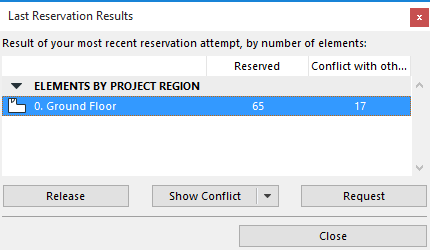
This palette lists the elements (by project region) and the project data that have run into a conflict:
- Elements by Project Region: For every Project Region listed, shows the number of elements successfully reserved and the number of elements that were not reserved due to a conflict.
For each of the rest of the groups listed in the Last Reservation Results Palette, the reservation result is indicated by a green light in the Reserved column; a red light in the Conflict column; or a gray light to indicate “No Access Right.”
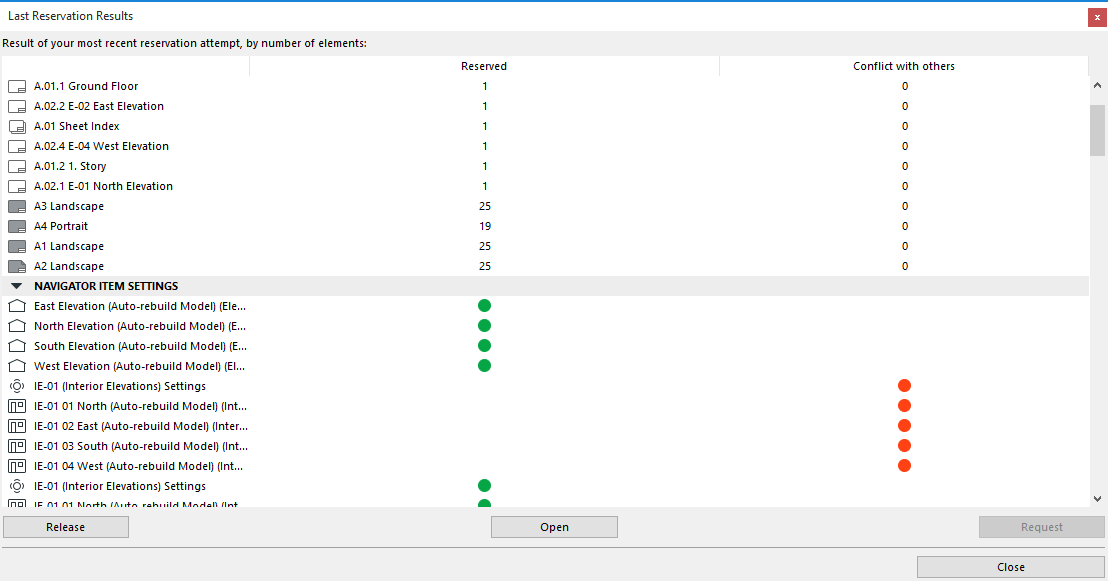
Select one or more item in the list and choose an option:
Release: Release the reservation for the selected region. Reserved elements listed here are now returned to their previous ownership status.
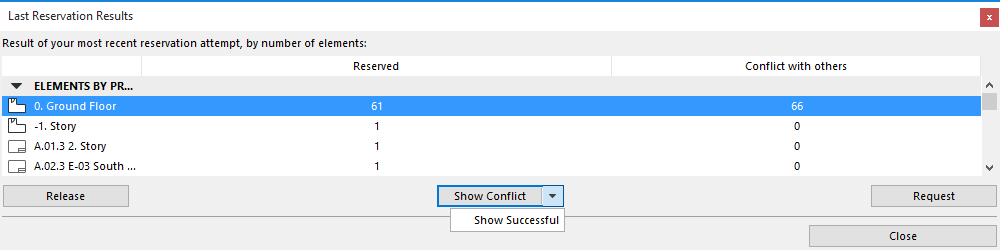
Show Conflict: (Available only if you have selected a single region in the list.) Opens the window of the selected region, and zooms and selects the unreservable element(s).
Show Successful: (Available from the Show Conflict button’s pop-up.) Opens the window of the selected region, and zooms and selects the successfully reserved element(s).
Open: (Available only if you have selected a single Navigator Item or Settings item in the list). Open the selected Settings dialog box.
Request: Click this Request for all the “conflict” elements in the selected region(s). A Request message is created: Click Send to send this message to the owners of all of these elements.