Hotlink Modules and XREFs in Teamwork
You can work with Hotlinks in Teamwork just as in solo projects, if you have access rights and reservations.
Place New Hotlinks
Relink a Hotlink Source File
Update a Hotlink
Update a Hotlink Source File
How to Reserve Hotlink Module Manager
When updating a Hotlink, the Hotlink Module Manager will be reserved automatically in the background, if it is available, and then released after the update.
Go to the Hotlink Module Manager (File > External Content > Hotlink Module Manager) and click Reserve.
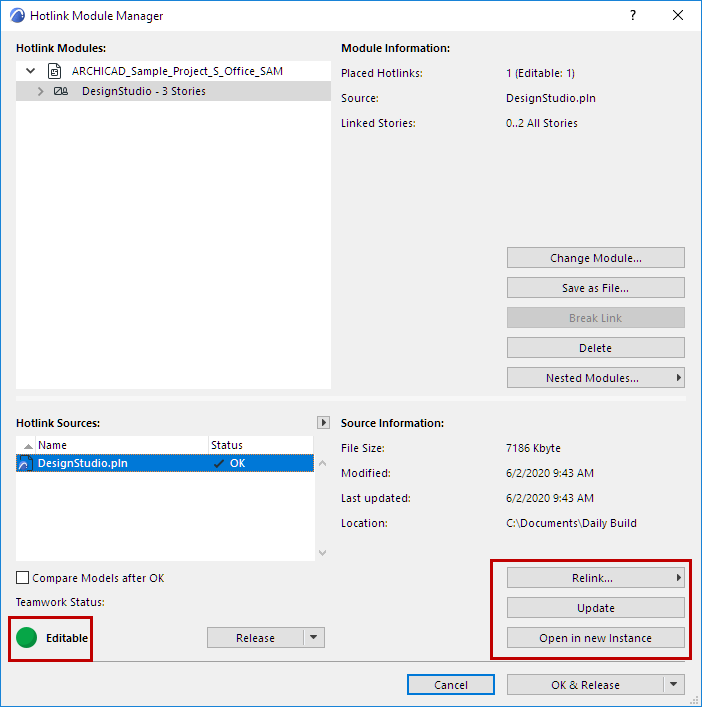
Updating a Hotlink will update all module instances, regardless of who owns the instances.
If you Change or Delete or Relink a Hotlink module in the Hotlink Module Manager, this action will affect only those instances of the Hotlink module which you have reserved. (Hotlink Module Manager will be reserved automatically in the background, if it is available, and then released after the action.)
The same is true for deleting or replacing XREF instances.
How to Reserve a Hotlink Module Instance or XREF Instance
By placing a Hotlink Module instance, you automatically reserve it.
A placed Hotlink Module or XREF instance can also be reserved or requested by others like any element, using the commands of the Teamwork Palette and the context menus.
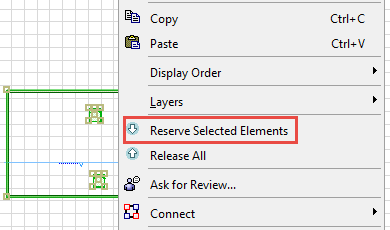
Reserving a Hotlink Module or XREF instance means that you have the right to move it or delete it. You can also modify its settings (e.g. its orientation/rotation, Master Layer, height and elevation/story values) and replace it with a different Module.
Attach New XREFs
Attach or Modify Existing XREF References
Explode Hotlink Module Instance in Teamwork
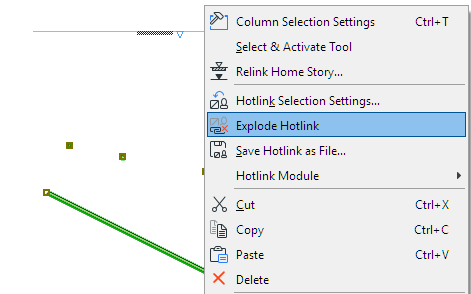
The Break command is not available for Hotlink Modules in Teamwork. However, you can explode individual Hotlink instances.
Relink from Teamwork Project
When you relink Hotlink Sources, you must first reserve all the Hotlinks you want to relink. If this is not the situation, then a dialog will prompt you to reserve individual Hotlinks:
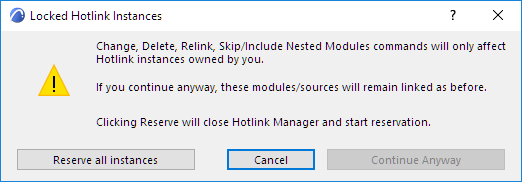
- Continue anyway: (Available only if one or more Hotlinks of the source file are not reserved by you.) If you select this option, then only the instances reserved by you will be relinked to the new source. Hotlinks not reserved by you will remain linked to the original source.
- Reserve all instances: If you select this, the Hotlink Module Manager will close, and Hotlink instances will be reserved. After this process is finished, open the Hotlink Module Manager again, and start relinking again.