Workspace Colors for Model Compare
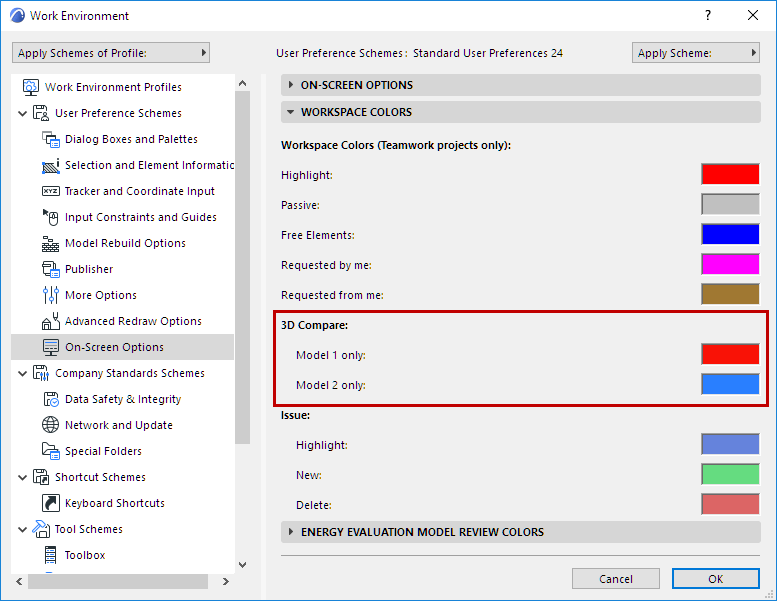
Go to Options > Work Environment > On-Screen Options.
In the Workspace Colors panel:
Set the colors used to display “Model 1 only” and “Model 2 only” elements in the 3D Model Compare window.
Color of Modified Elements
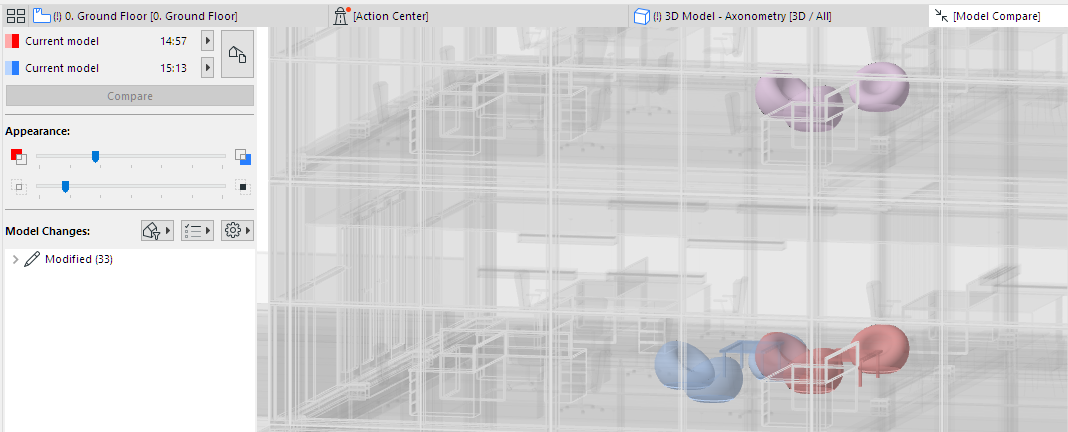
- Elements that have moved from one place to another are shown in both the original and the new positions, in a lighter version of the Model 1 color (original position) and in a lighter version of the Model 2 color (new position).
- If an element remains in place, but another of its parameter has changed (e.g. surface color): The element is shown as modified, combining the Model 1 and Model 2 colors.