Select View for Compare
Model Compare compares 3D views from two different models or versions.
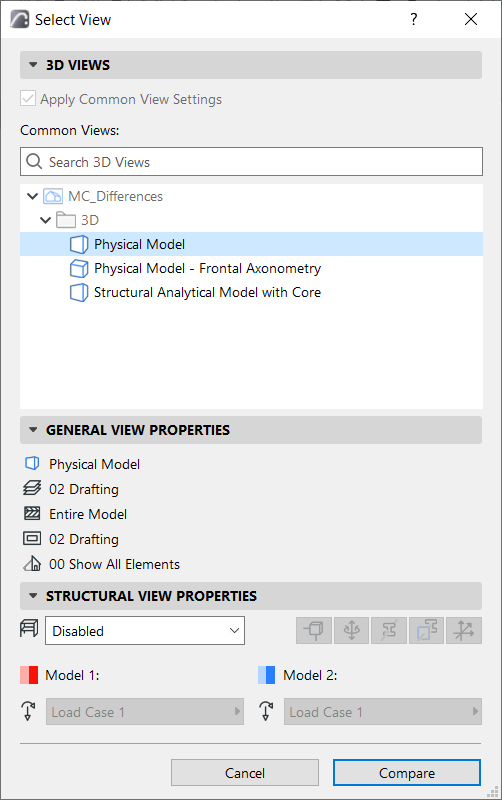
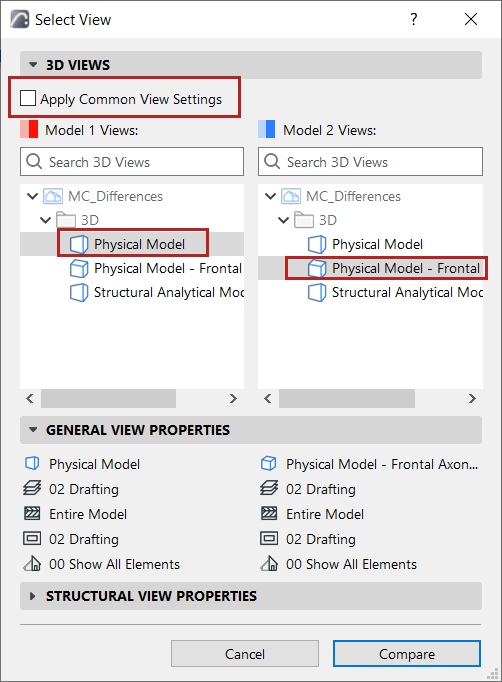
To define exactly which 3D views, use the Select View dialog. You can choose a 3D view that is common to both of the models, or a different view from each.
View selection can be significant for Model Compare:
An element can be visible in one view but not in another (e.g. due to Renovation status, Design Options, Layer Settings, Partial Structure Display, etc.)
- Intersecting elements can be considered modified in one view, yet not modified in another view, depending on the view’s Layer Combination.
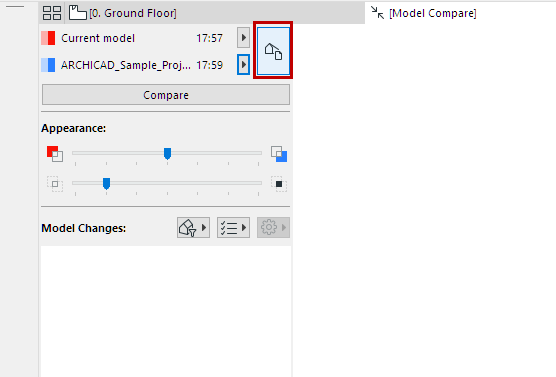
- Use Design > Model Compare to choose the two model versions.
- From the Model Compare palette, click the View Selector button.
- The Select View dialog opens, showing the combined View Maps of the two selected projects.
- Select a view (here, a view that is common to both compared models), then review its General View Properties in the panel below.