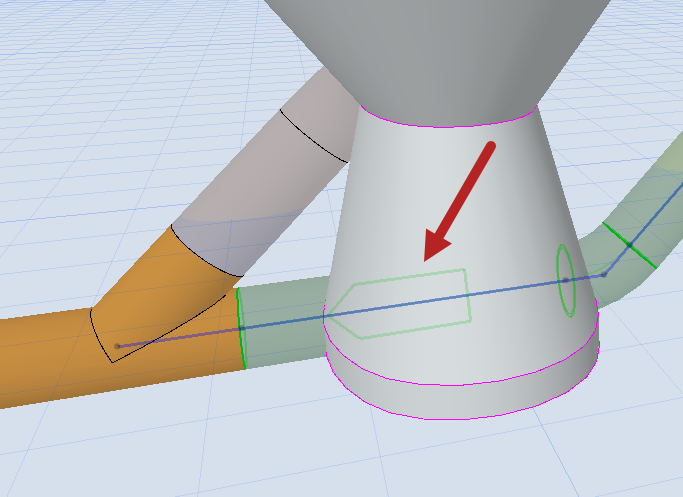
Set slope of MEP routes
Modify slope at selected point
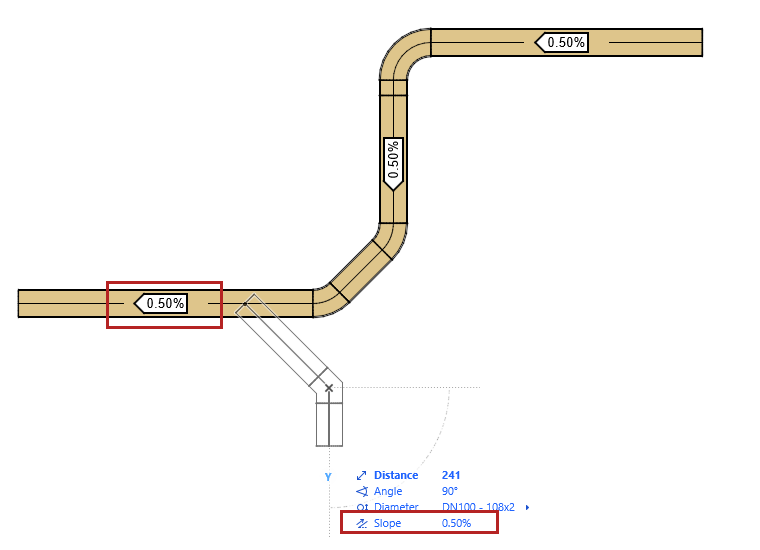
Edit slope during input
During route input, use the Tracker to change the slope of the route segment.
- Enter a value (positive for up, negative for down)
- Alternatively, choose “Slope up” or “Slope down” and enter a value
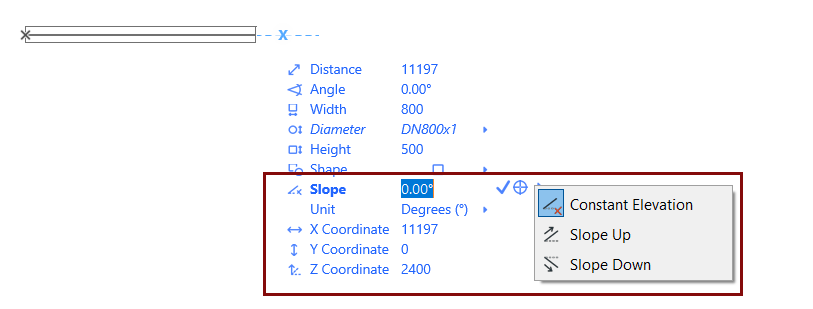
- You can define the slope in percent or degrees. If you are using Imperial units, you can define them as rise/run.
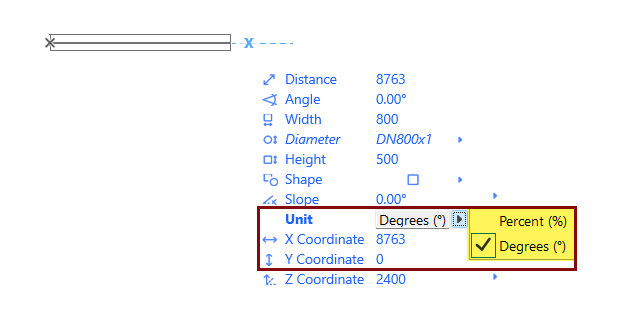 |
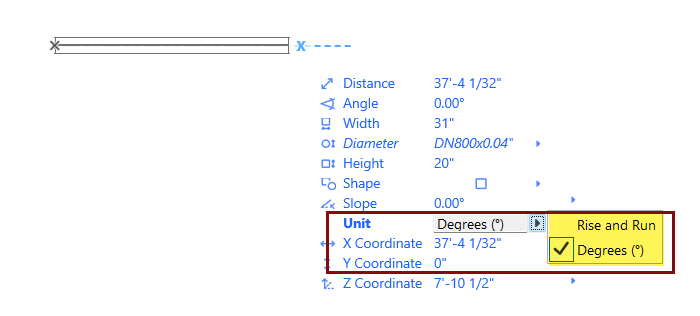 |
Watch the Video: Flexible Slope Settings
- Even after a change in elevation along the route, the slope of the route is maintained. If you adjust the Z-coordinate, the route will continue at the new elevation, while the slope remains constant.
- Newly branched-off route segments also inherit the route’s slope
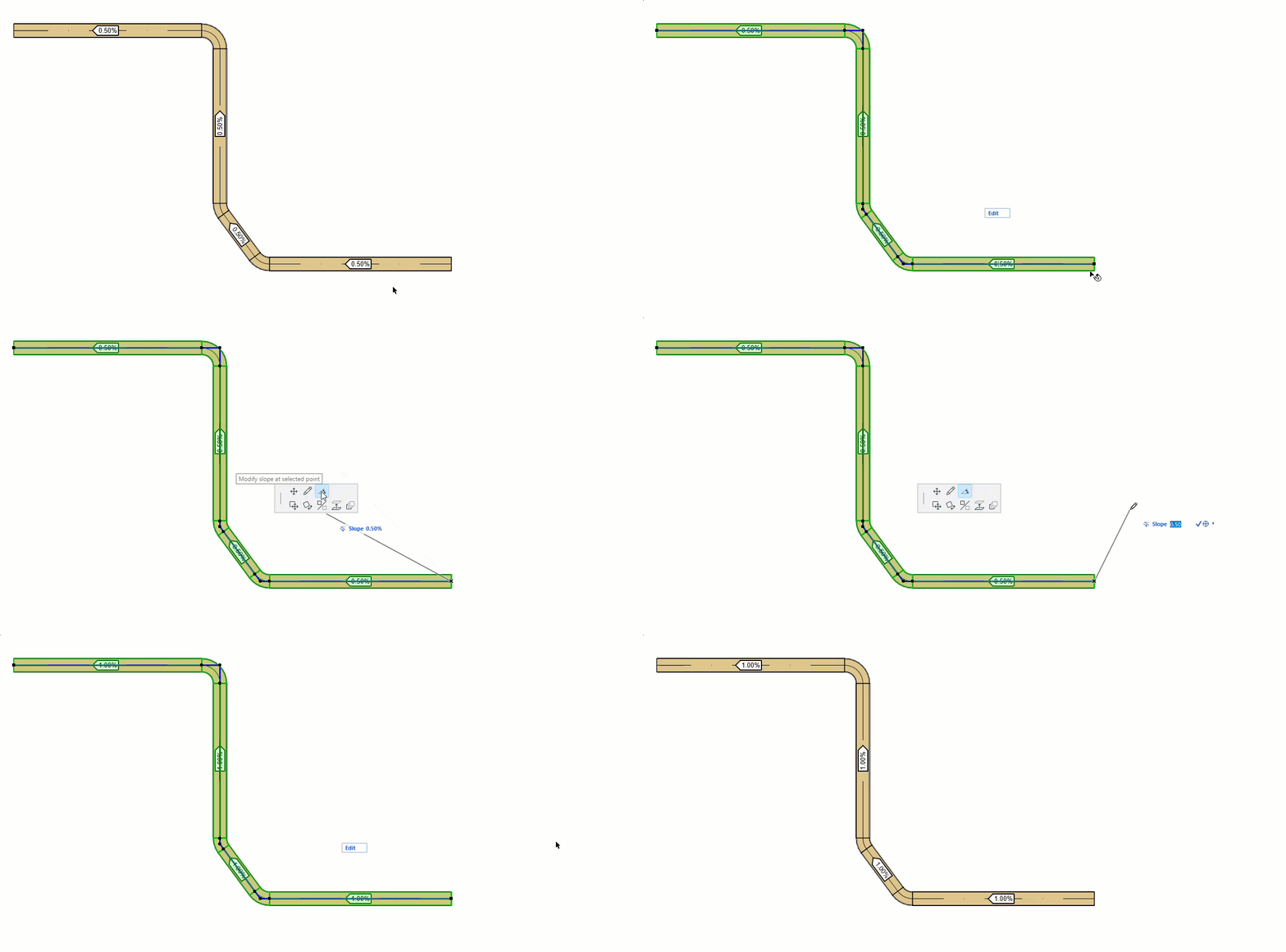
Modify slope at selected point
- Select the open end of a route element.
- From the pet palette, choose Modify slope at selected point.
- Enter the Tracker and change the slope value.
You can also change a route slope at an elbow or from a branch:
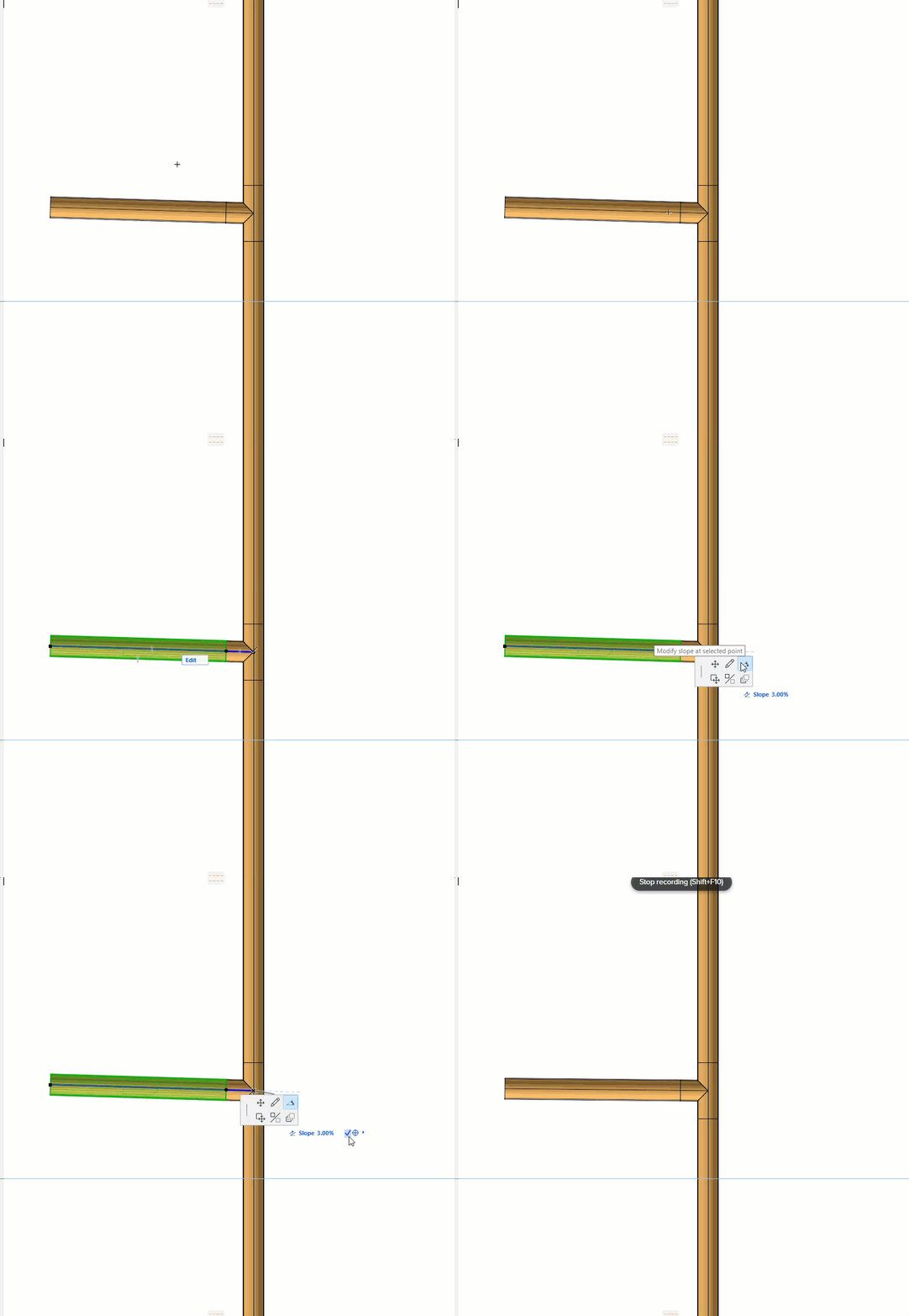
The elevation of the route at the clicked point will not change.
Slope feedback
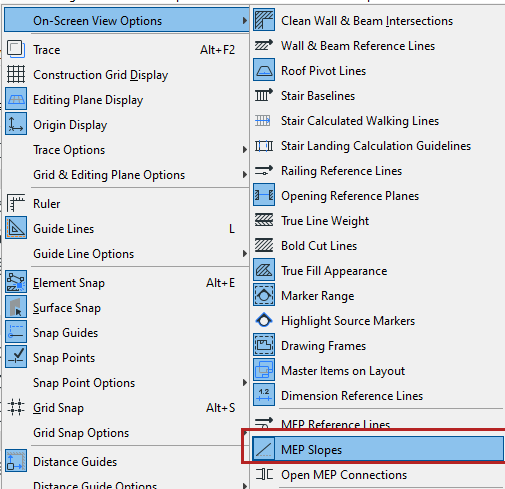
Turn on MEP Slopes at View > On-Screen View Options.
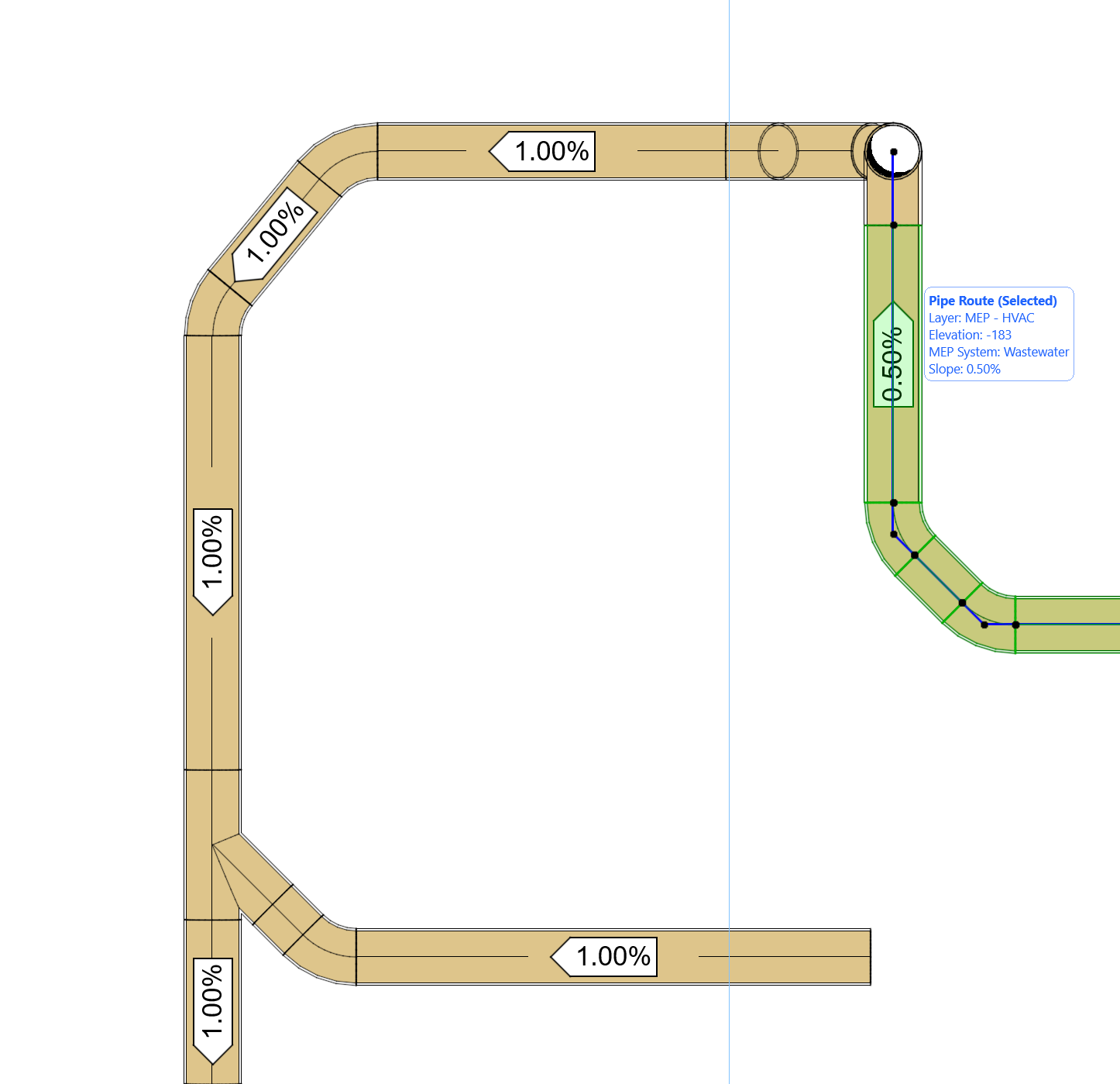
- On the Floor Plan, you see the direction and value of the route slope (this is intended as feedback on functional slopes and is only shown for slopes of 5% or less)
- For a selected route element, the Info Tag also displays the slope value
In 3D and Section views, selected route elements display a green arrow to indicate the slope direction: