Sun Study
To use this feature, use Document > Creative Imaging > Create Sun Study.
Sun Studies allow you to view an entire project or a selected part of it in a real-life situation by choosing a geographic location and defining the time period over which you wish to examine lighting and shadow casting.
What you actually see is a series of simple or photorendered 3D images defined by the current 3D Projection Settings, the current 3D Style or PhotoRendering Settings, and the Sun Position settings.
The geographic location of your project, including Project North, is defined at Options > Project Preferences > Location Settings.
See Location Settings.
For information on this algorithm, see: Solar Position Algorithm .
You can either have the resulting animation shown immediately on the screen, or save these images in the desired file format and show them in the future using a movie viewer on any platform.
Create Sun Study
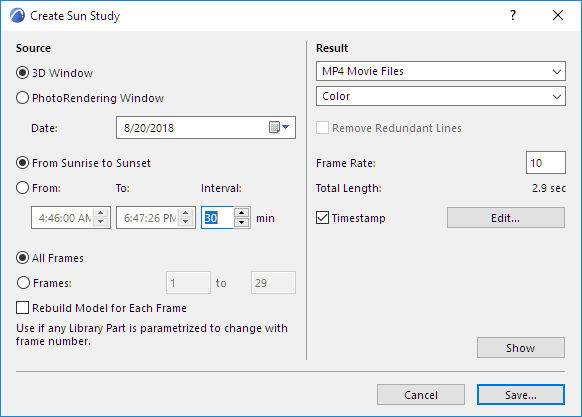
All the projections in a Sun Study will be generated in accordance with the current parallel projection or perspective view, including Sun Position, defined in the 3D Projection Settings dialog box.
Source
- Click 3D Window to use the 3D Window as the image source and preview window.
- Click PhotoRendering Window to use the PhotoRendering Window as the image source and preview window.
Date
- Choose the month and day to begin the Sun Study.
- Choose the length of your sun study: either From Sunrise to Sunset, or enter a specific time span, in hours and minutes.
- Interval: Set the interval, in minutes, for taking the Sun Study images during the time range set above.
- Click All Frames to image all animation frames in the current Path.
- Click Frames to specify a range of animation frames (first and last) for imaging from the current Path.
Rebuild Model for Each Frame: If you check this option, Archicad rebuilds the project after each frame and creates a new view from the rebuilt model.
Result
Specify the format of the Sun Study.
Remove Redundant Lines
Check this box to remove overlapping lines from the saved image(s).
This option is available if:
- the 3D Engine is the Vectorial Engine (not Hardware acceleration)
- you are exporting particular Frames (not All Frames)
- the chosen file format is either PMK or Archicad 2D Lines.
Frame rate: Enter a frame rate per second value here.
Total Length: Length of the animation is displayed in seconds, which divides the total number of frames with the frame rate, as an indication of how long the saved animation will be.
Show
Click Show to process the Sun Study and preview the images without saving them. You can save the resulting animation afterwards by reopening the dialog and clicking Save.
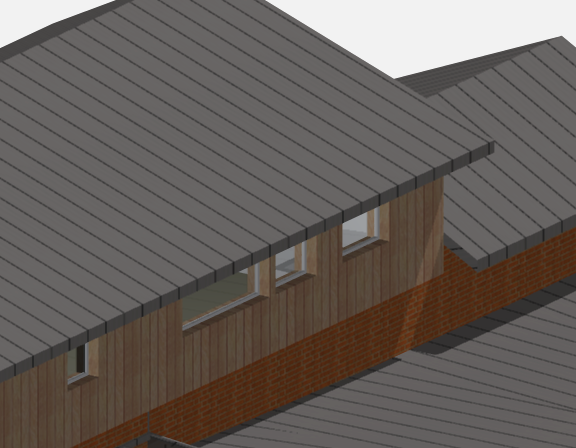
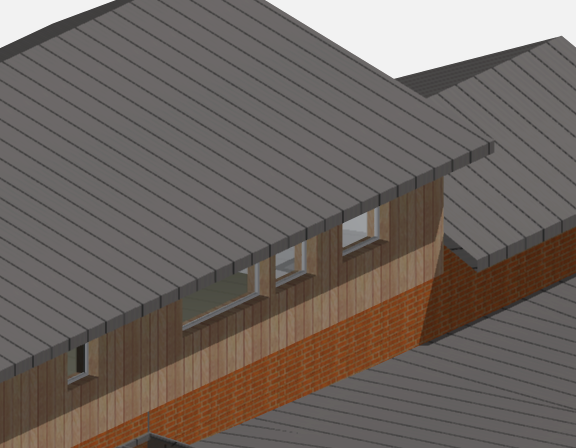
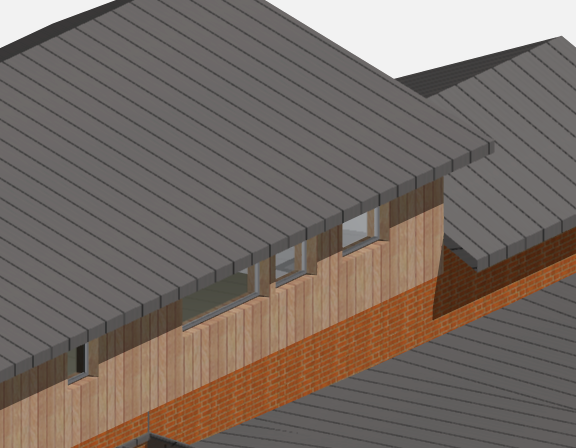
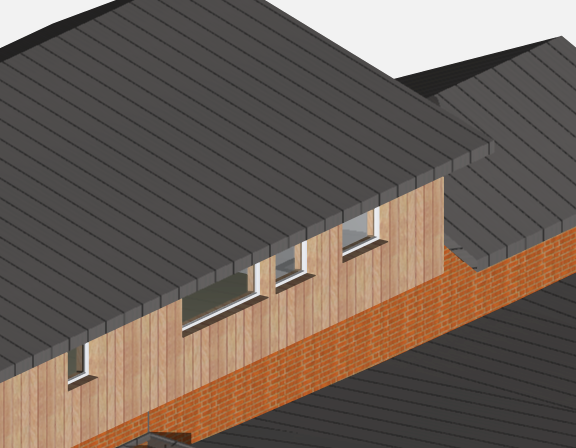
The pictures below show the same part of a building at different times of day, including sunrise, one hour later, two hours later and in the afternoon.