Miscellaneous Settings for Library Parts
To access this panel, go to Document > Model View > Model View Options.
- This panel and its contents depend on the libraries you have loaded. (You may have multiple panels, one for each loaded library in your project.)
- Library objects located in that specific library will be globally displayed according to the Model View Options set here.
- Options will be applied only to objects whose GDL script is programmed to allow for this.
In the INT version, the panel looks like this:
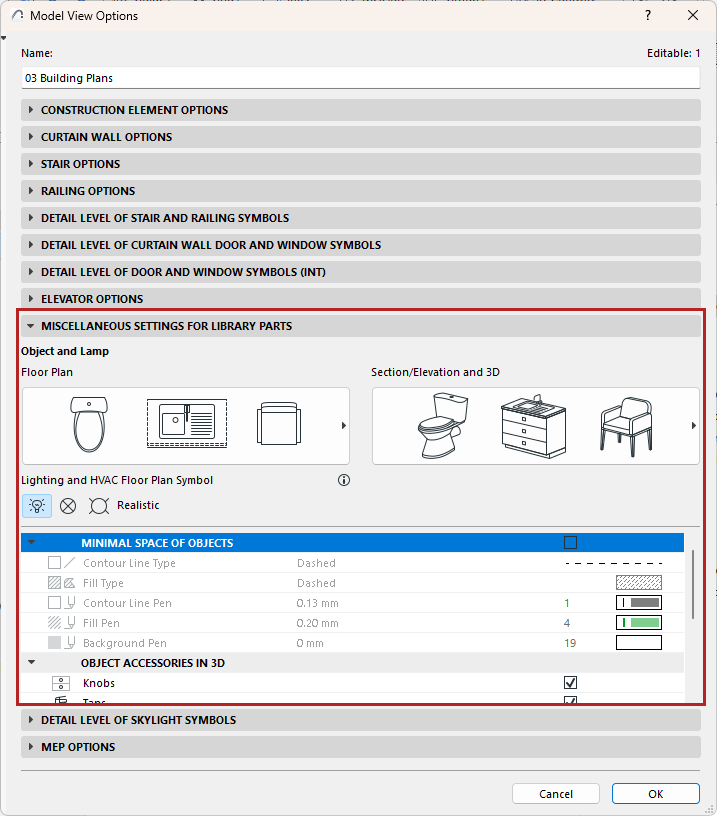
Minimal Space of Objects
Check this box to show the objects’ minimal space on the Floor Plan, using a contour and fill. Choose options for the contour’s line type and pen, and for the fill type/pen/background.
Minimal Space contour/fill display is shown for all objects which have a defined Minimal Space parameter.
Object and Lamp Detail Level
Set the Detail Level on Floor Plan:
and in Section/Elevation and 3D Projections:
Objects and Lamps use the detail level settings defined here by default (By MVO). For a specific object/lamp, if the control is available, you can override its detail level in Element Settings (use the 2D or 3D Representation controls)
Lighting and HVAC Plan Symbols
Choose one of the options for displaying the Floor Plan Symbols of Lighting and HVAC objects (e.g. ceiling lamp, smoke detector, air diffuser) in the project.
Object Accessories in 3D
Click the toggle buttons to show or hide these types of accessories in 3D:
Object Opening Line in 3D
Object MEP Connections
Use this checkbox to show or hide the connections that can be attached to any object in an MEP route.