Selection and Element Information
(Options > Work Environment > Selection and Element Information)
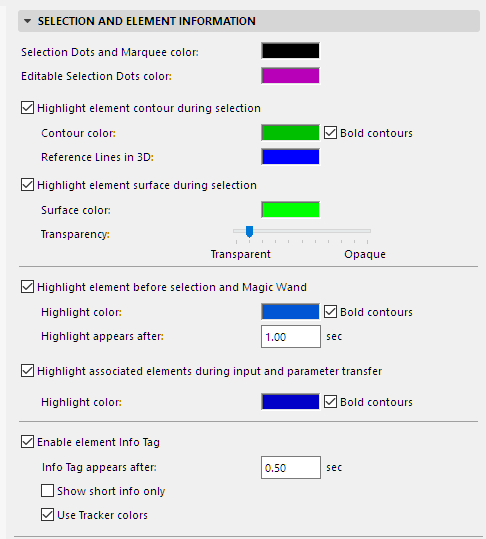
Selection Dots and Marquee Color: Click in the field to access a color pop-up and customize the color of the dots appearing on selected individual elements, as well as the marquee.
Editable Selection Dots Color: Click in the field to access a color pop-up and customize the color of editable selection dots.
For details about editable selection dots, see Graphical Editing Using Editable Hotspots.
Highlight Element Contour During Selection: Check this box if you wish to have the selected elements’ contours and reference lines highlighted.
- Contour color: Choose a color for the selected elements’ contour from this pop-up palette.
- Bold contours: Check this box to display the selected elements’ contours in bold font style.
- Reference Lines in 3D: Choose a color for the selected elements’ reference lines (in the 3D window only).
Highlight Element Surface During Selection: Check this box to apply a highlight to the selected elements’ surfaces.
- Surface color: Choose a color for the selected elements’ surface color.
- Transparency: Set the transparency for shaded Hardware acceleration view here. Use the slider to set the grade of transparency/opacity for shaded Hardware acceleration view.
For more information, see Selection Highlights.
Highlight Element before selection and with Magic Wand: Check this box to highlight element contour lines (i.e. detection highlight) before selecting them, and when using the Magic Wand to create an element based on an existing element.
- Highlight color: Choose a color for the selection highlight here.
- Bold contours: Check this box to display bold contours for the selection highlight.
- Highlight appears after: Enter a value here in seconds for the delay time before highlight appears. (Highlight appears immediately if you press Shift.)
Highlight Associated Element During Input and Parameter Transfer: Check this box if you wish to highlight related elements. During dimensioning, labeling, door/window or railing placement, or during parameter transfer operations, the contours of associated elements will be highlighted to help you identify related elements. You need not press Shift.
- Highlight color: Choose a color for the related element highlight contours here.
- Bold contours: Check this box to display bold contours for the element highlight.
Enable Element Info Tag: Check this box to enable the element information pop-up (e.g. Info Tag).
See also Selection Highlights.
- Info Tag appears after: Enter a value here in seconds for the delay time before element info pop-up appears.
- Show short info only: Check this box to display only short info in the element info pop-up.
- Use Tracker colors: Check this box to use the colors chosen for the Tracker in Options > Work Environment > Tracker and Coordinate Input.