Settings of Library Part Elements
Note for MEP Designer users: You can place and edit objects, but they are intended as a reference for your MEP model and are displayed with an override.
The following tools are used to place Library Part elements:
- Object
- Lamp
- Door
- Window
- MEP tools
For specifics on the settings of library parts, see the following sections:
For all Library Part-type elements, the browser section on the left side of the Settings dialog box contains identical functions. These functions are described below.
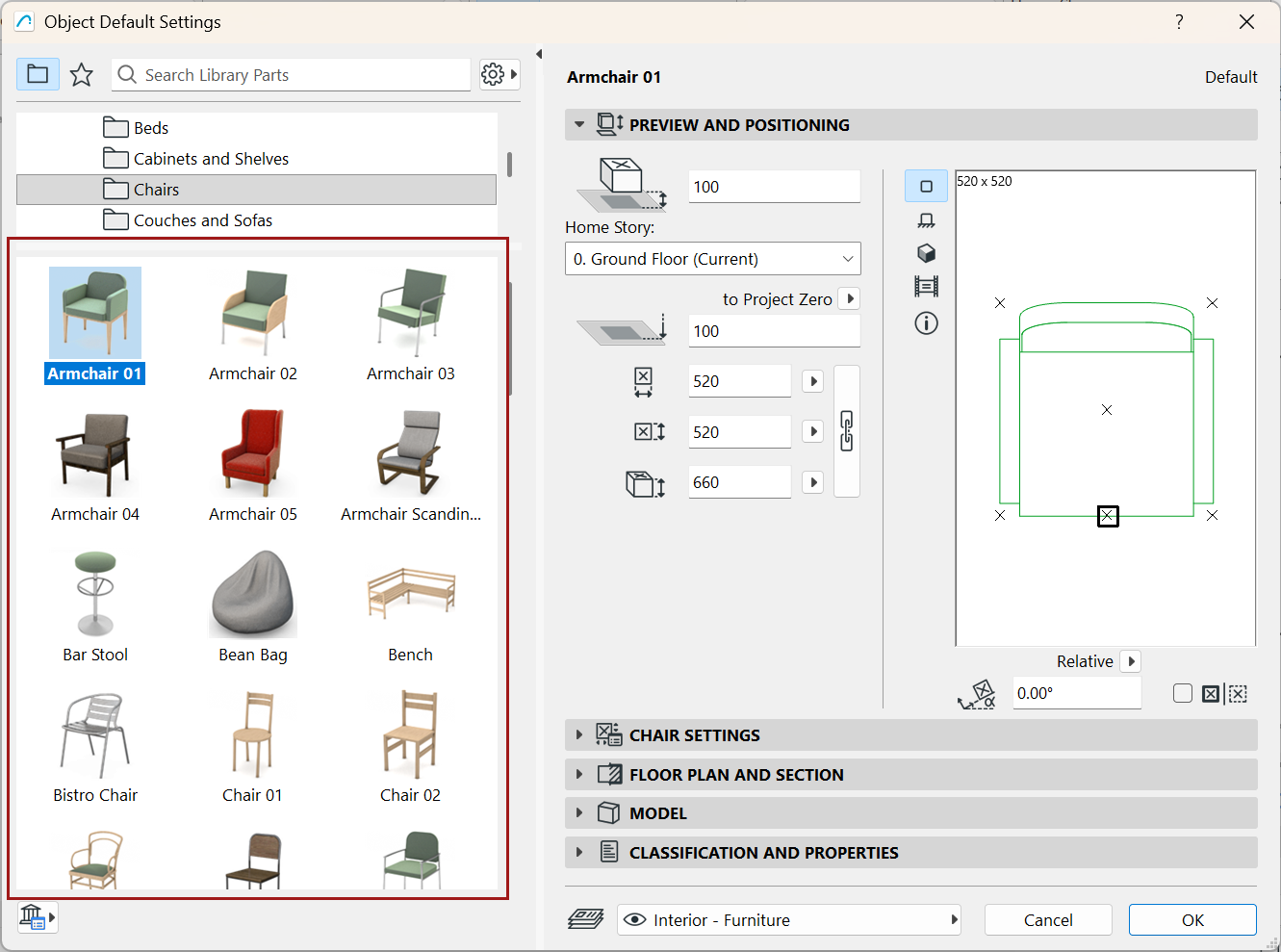
Folder View or Folder View with sources
Show/Hide Panels
- Double-click the vertical splitter bar, or click the black arrow, to open/close the browser area
- Drag or double-click the splitter to resize or close the folder tree area
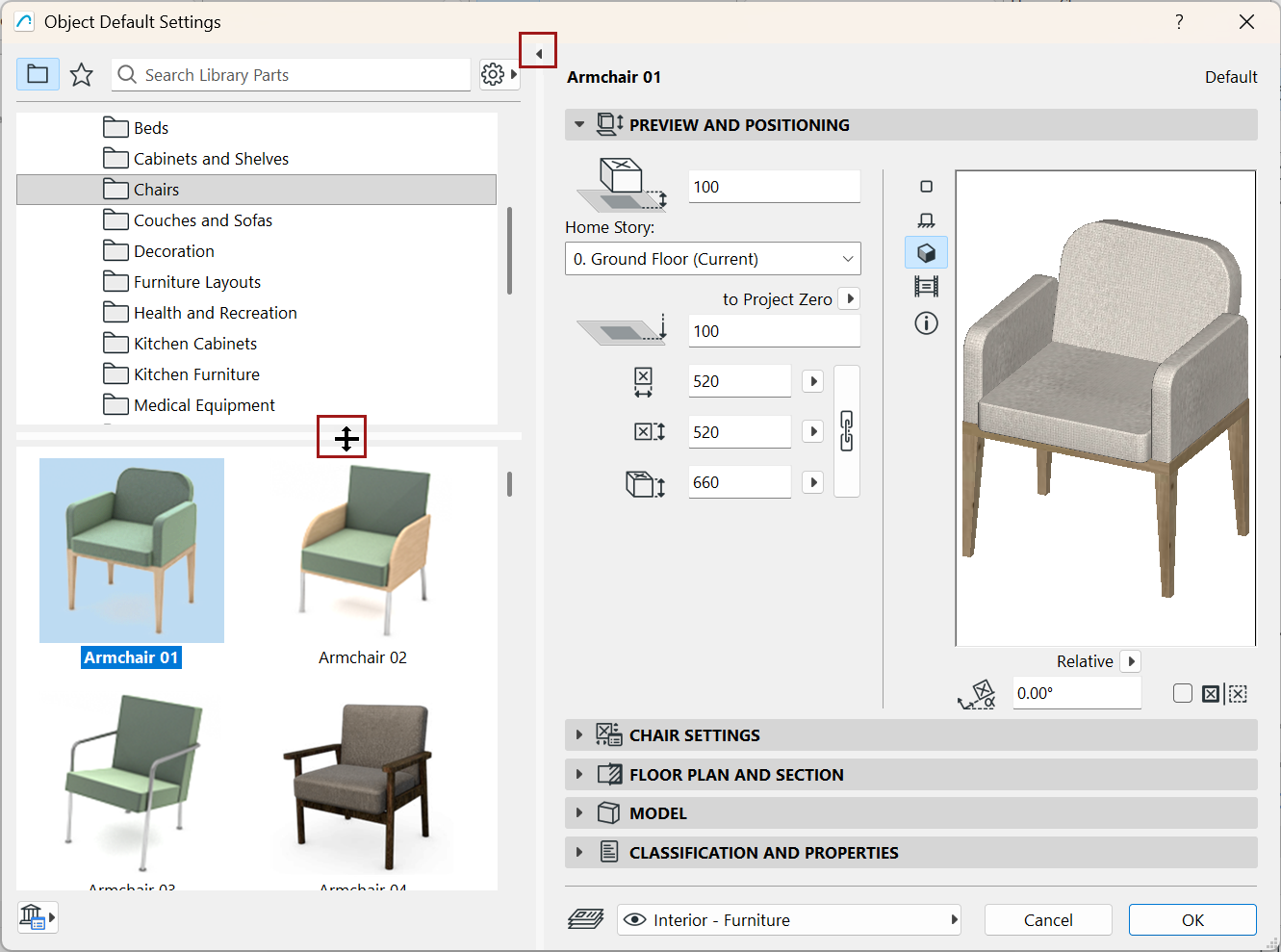
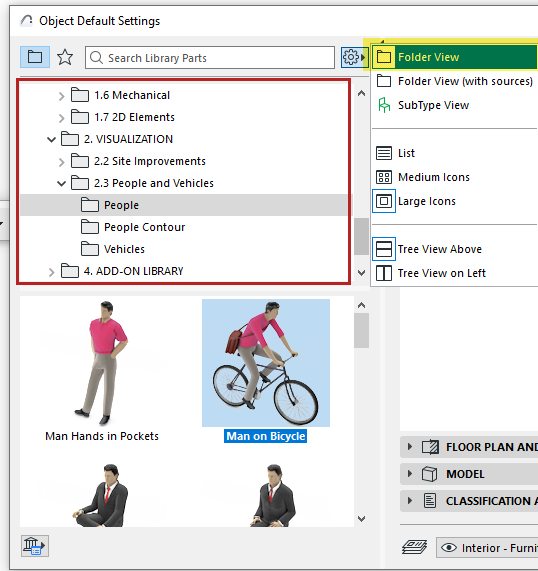
- From the browser Settings pop-up, use Tree View Above or Tree View on Left to change this preference
If the tree view is visible, the folder chooser is automatically hidden.
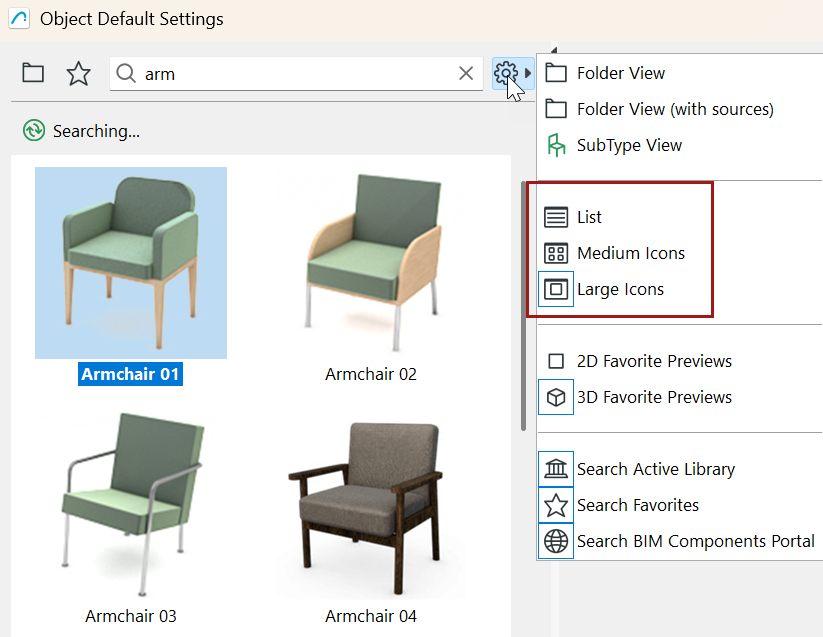
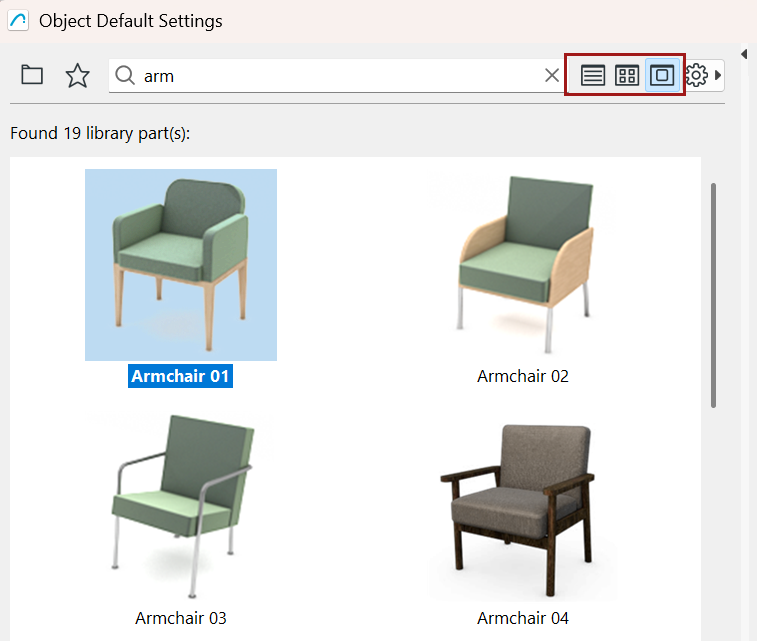
List or icon view
Choose List View, or Medium or Large Icons.
Folder View or Folder View with sources
Folder View displays Library Parts in a hierarchical structure.
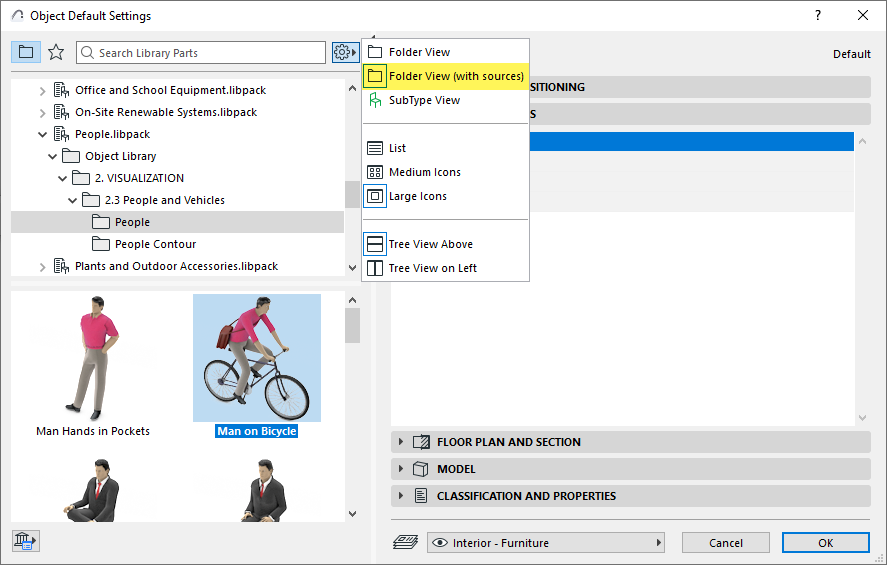
The Folder view with sources option shows you the library package of each object (available as of Archicad 28.)
Subtype View
For information on subtypes, see About GDL Object Subtypes.
Favorites View
In the Favorites view of Library Part Settings, only the Favorites for this tool are shown.
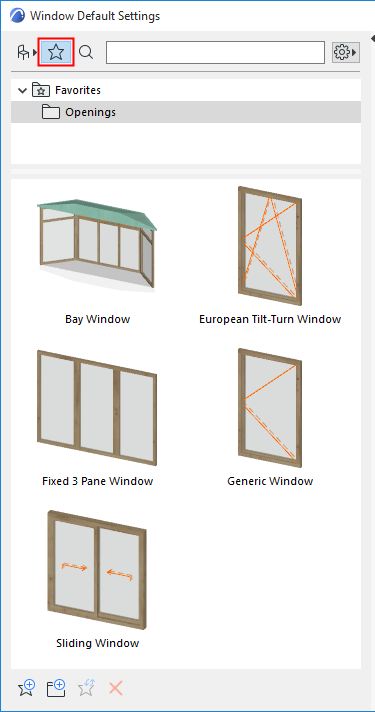
For general information, see Favorites.
- Use the Additional Settings pop-up to switch between 2D and 3D
Favorite previewsNote: To switch on the fly between the 3D and 2D preview of any Favorite, hover your cursor over the preview and click Shift.
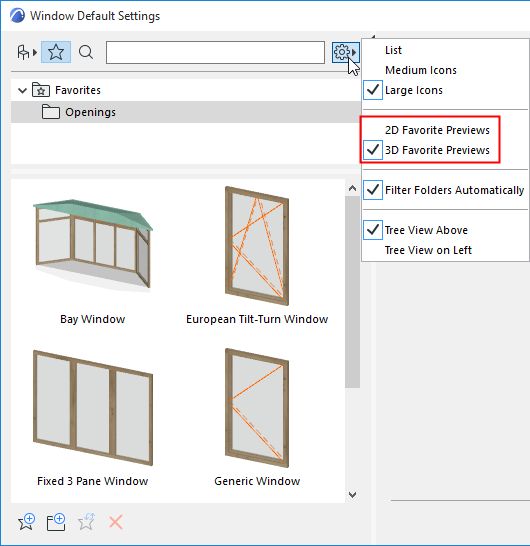
- Hover the cursor over a Favorite to see certain details about it
- Click a Favorite to view/edit its settings in the right-hand panels.
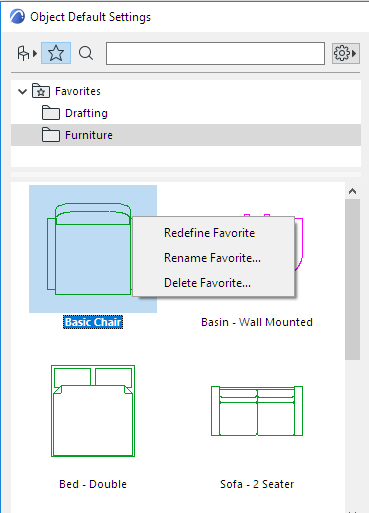
- Available context menu commands:
- Redefine Favorite: Click to redefine this Favorite based on the currently active settings (those in the right-hand side of the Object Settings dialog box)
- Rename Favorite
- Delete Favorite
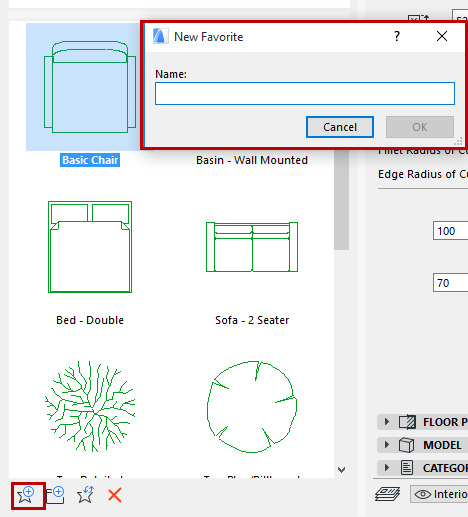
Use the New Favorite command at the bottom of Library Part Settings (Favorites view) to store a new Favorite, using the current default Library Part Settings:
For further Favorites management functions, use the Favorites Palette.
See Favorites Palette and Edit Settings of One or More Favorites.
View and Apply Settings
Click any library part in the in the browser area to see its settings on the right side of the dialog box
The name of the library whose settings you see is shown in bold.
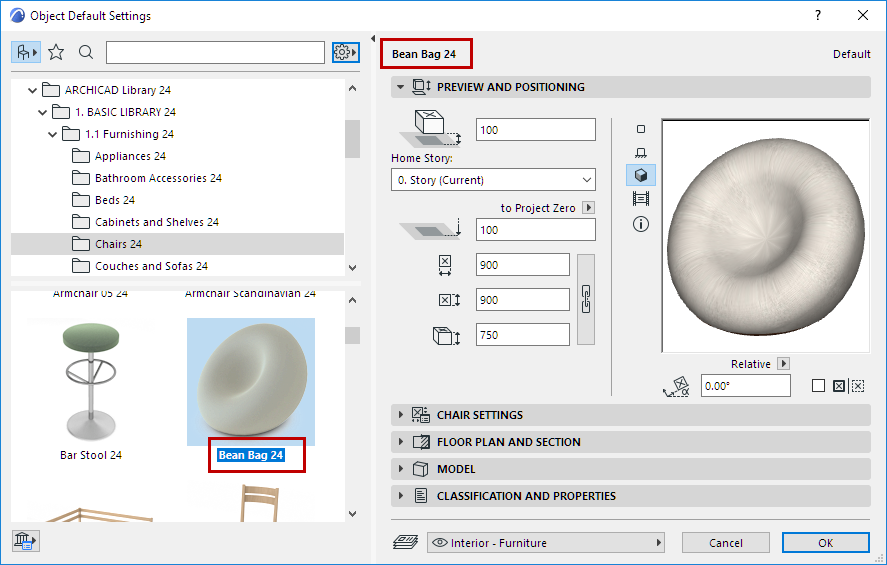
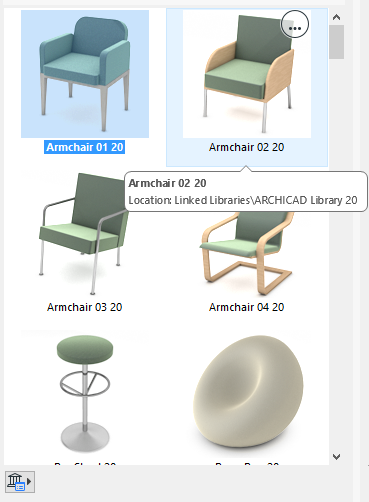
Hover your cursor over a library part to see its name and location in the library.
A library part in a loaded library has the following context menu commands:
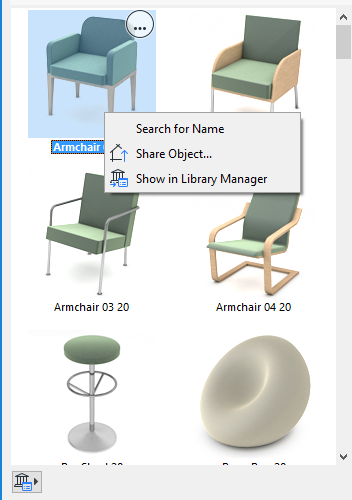
- Click Search for Name
See Search for Library Part and Search Favorites.
- Use Share Object to share the object on BIM Components
- Show in Library Manager to see this library part in the context of its library hierarchy in Library Manager
Use the icons at bottom left to access the following commands:
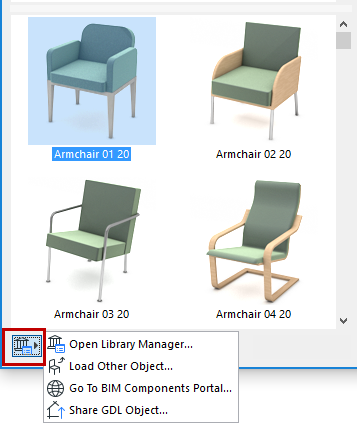
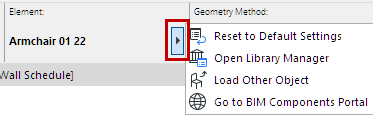
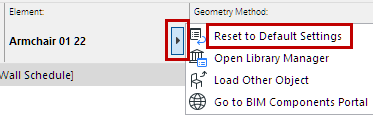
Reset to Default Settings
If you customize any Library Part’s GDL settings, you can reset to its default using the Reset command from the Info Box: