Sign in with Graphisoft ID - Cloud license for Archicad 27
Note: This workflow applies to Archicad 27 users who have the new “Cloud license”. The cloud license is available with some subscriptions purchased from Graphisoft Store. See also Archicad license types.
A cloud-based license is connected to a user’s Graphisoft account, so the license works only if you sign in.
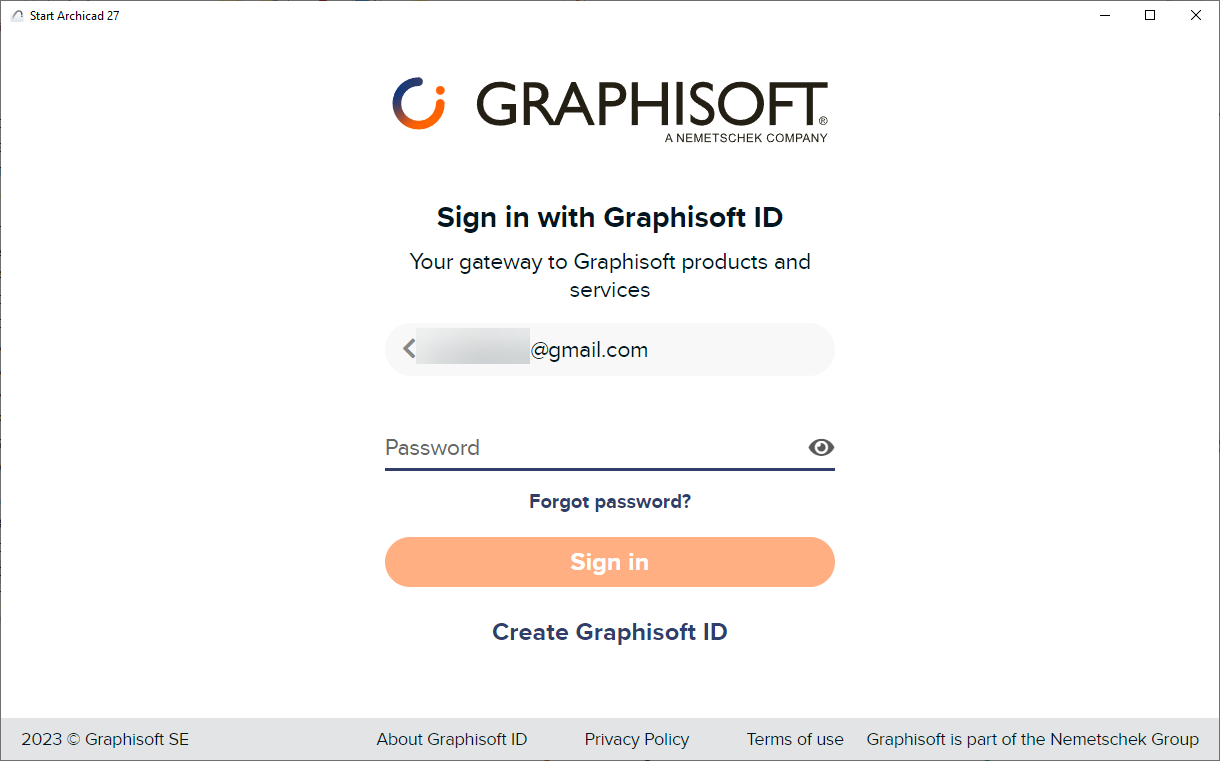
At first startup or when you first open a project, you are prompted to Sign in with Graphisoft ID:
In the next dialog, sign in using your Graphisoft ID (email and password.)
If you don’t have a Graphisoft account yet, click Create Graphisoft ID.
If your cloud license is found, the Start Archicad dialog appears, and you can start working.
See Start Archicad.
Note: To see which license your Archicad is using, check Help > License Information.
Not now
For a fixed “grace” period, you can skip the sign-in. During this grace period, you can use Archicad in Demo mode, or with other licenses that are non-cloud: hardware key, software key, network key, EDU, Emergency license, etc.
After the grace period expires, you must sign into your Graphisoft account, so that you can access your cloud license and work in Archicad.
Other Ways to Sign In
Do one of the following:
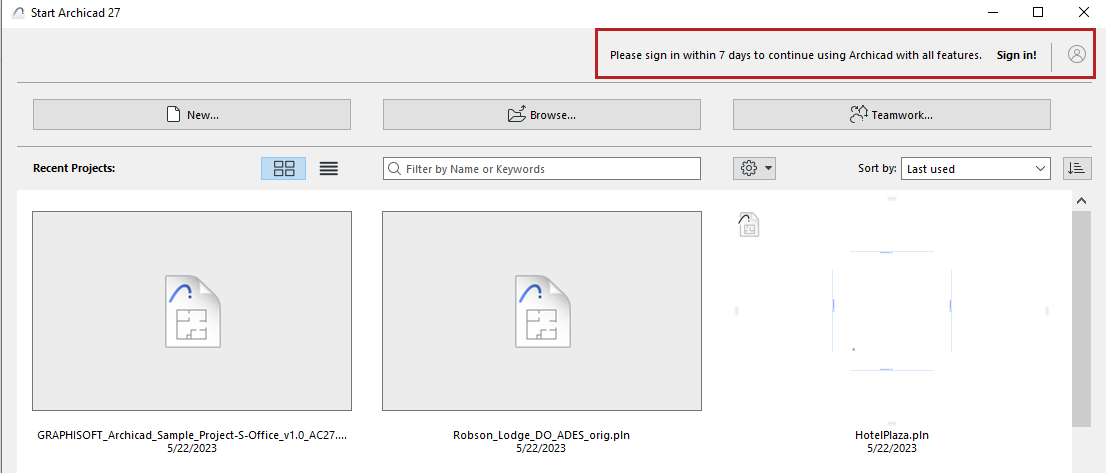
•Use sign-in from the Start Archicad dialog (top right corner)
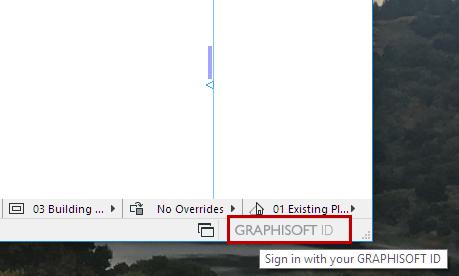
•Right-click Graphisoft ID in the Status Bar (bottom right of your screen)
•Use the Sign In command in the Archicad Help menu
Sign Out
•Use the Sign Out command in the Archicad Help menu
•If your license is not found: you can sign out from Archicad using the appearing License not found dialog.
Note: Signing out releases your cloud license, so you are free to use it on any other device.