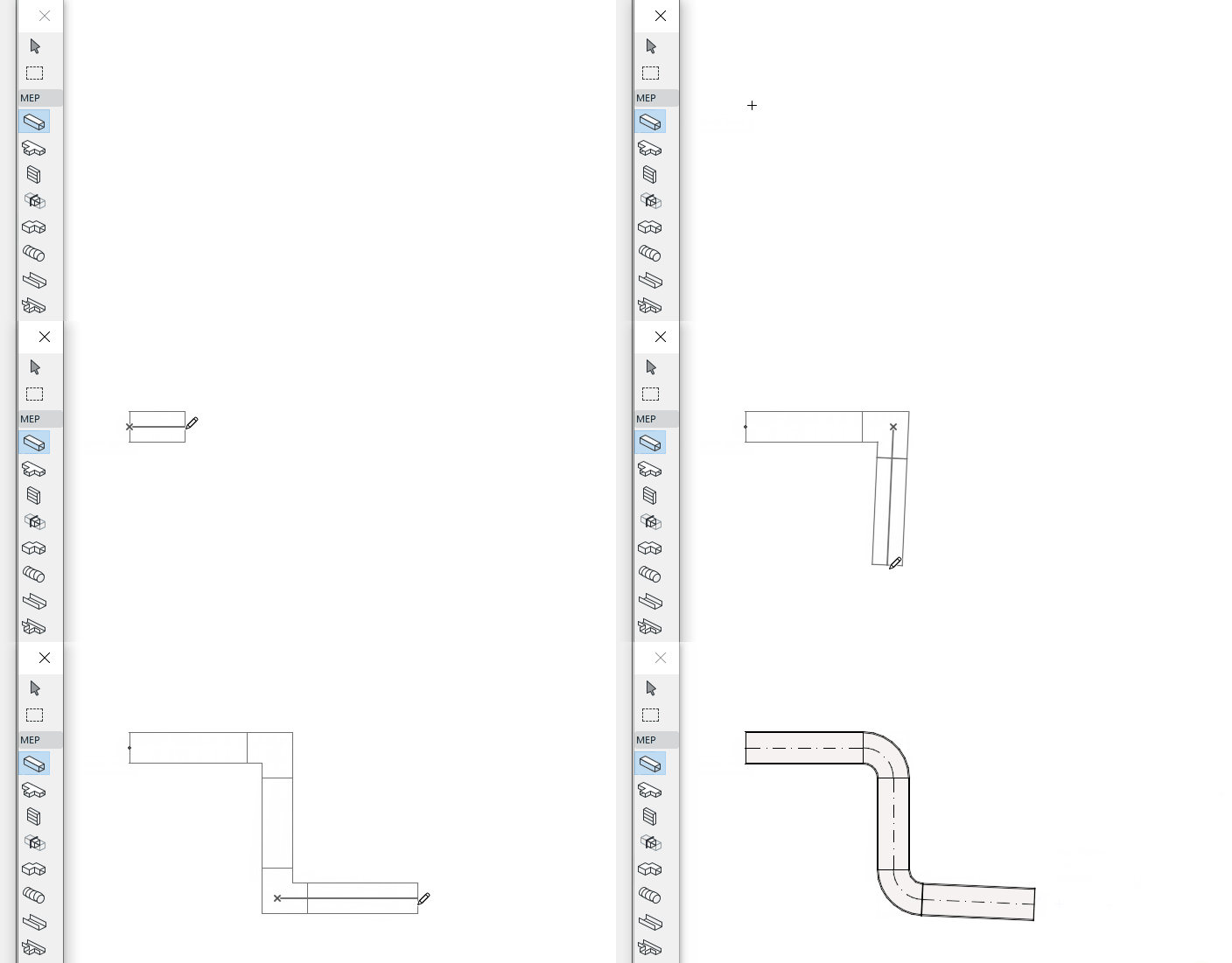
1.Activate a Route tool from toolbox: Duct Route, Cable Carrier Route, or Pipe Route.
2.In Floor Plan or 3D window: Click in series to define the segments and nodes of the Route polygon.
•Each click represents a node, which connects the adjacent segments.
•The reference line is at the center of the Route element
•Press Backspace to delete the last placed segment
3.To complete the Route, click a second time at the end of the final segment.
The result is a single Route element.
Elbows and transitions are automatically generated at each node.
The flow of material (for example water or air) conducted by a given Route element is always constant.
Change Route parameter on the fly
Once you start placing a route element, you can change its cross-section in the Tracker.

Because you have changed the segment’s default parameter value, it is shown in the settings dialog as “custom”.

Add Branch to Route Element
You can add a branch to any placed route element. The branching node is added automatically.
After a branch is created, the original route is split into multiple route elements.
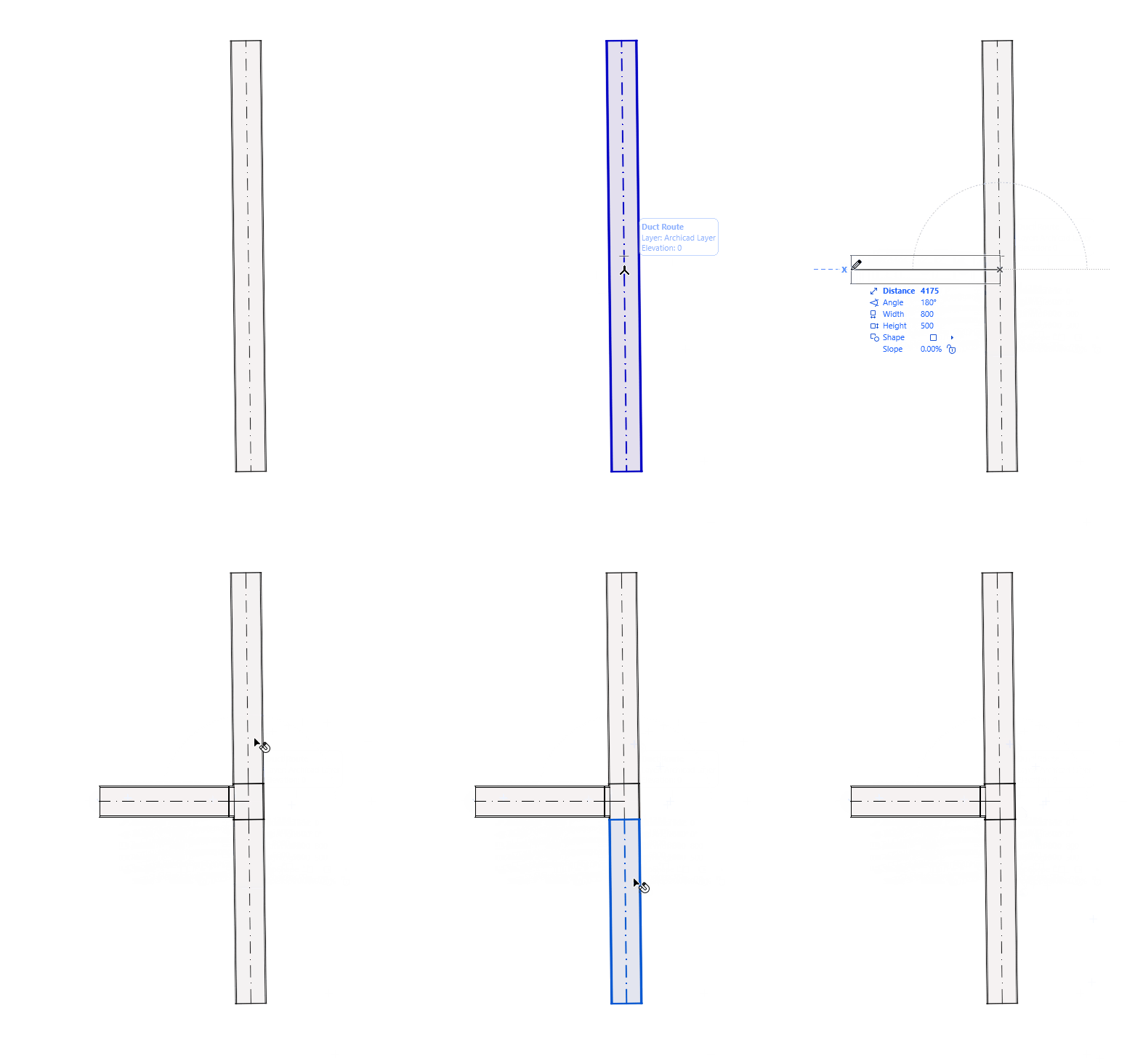
Merge Routes
Routes will merge if:
•An end node of one Route element is connected to the end node of another
•A branch is deleted (remaining Routes will be merged together)
•A branch end node is moved, disconnecting the former branch