Run the comparison: Step by step
Detailed workflow
In this example workflow, you are migrating your project
from Archicad 25 to Archicad 28.
- Make a copy of your current project and save it as a backup, just in case.
- Open both versions of Archicad on your computer
- Download the Archicad Project Compare package from Graphisoft Downloads page. This
package contains two kinds of utilities:
- Archicad Project Compare tool
- Archicad Project Compare add-ons (you need two: one for each of your Archicad versions)
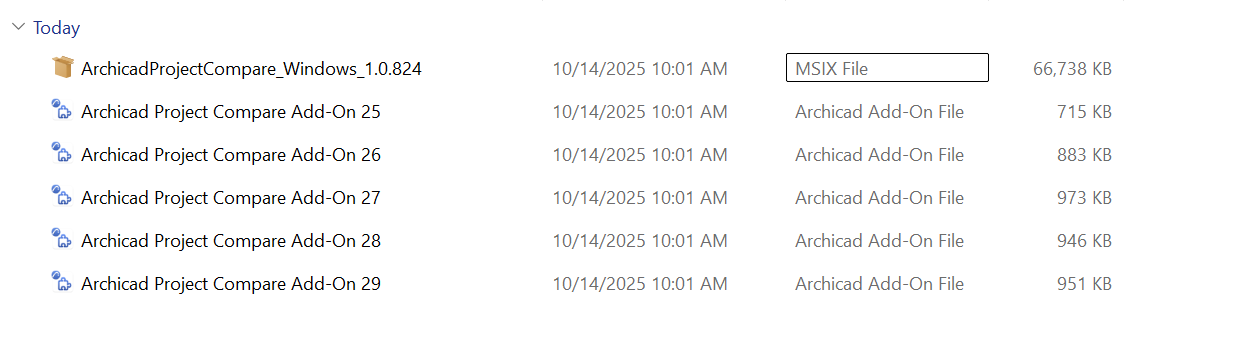
- In both versions of Archicad: use Add-On Manager to add the respective Project Compare add-on file
- Go to Options > Add-on Manager, click Add, then browse for the
Add-on file which matches that Archicad version
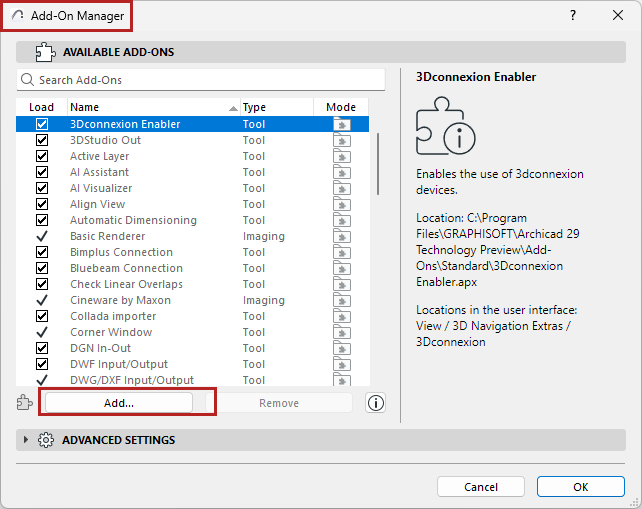
- For more info on Add-on Manager: see Archicad Help
- Go to Options > Add-on Manager, click Add, then browse for the
Add-on file which matches that Archicad version
- Install the Archicad Project Compare tool to your computer
- Open your project in Archicad 25
- Migrate the project to Archicad 28:
- For a solo project: just open it in Archicad 28
- For a Teamwork project: run the Teamwork Migration tool. See Archicad Help
- In Archicad 25, prepare a reference file: use File > Prepare for Archicad Project Compare. This command prepares a reference file needed for the audit. This might take some time. If you cancel, you will have to start over from the beginning the next time. When prompted, save the reference file (.pmax) to a chosen location.
- In Archicad 28, do it again: prepare another reference file by using File > Prepare for Archicad Project Compare. When prompted, save the reference file (.pmax) to a chosen location.
- Open Archicad Project Compare.
- Click Sign in to sign in with your GSID.
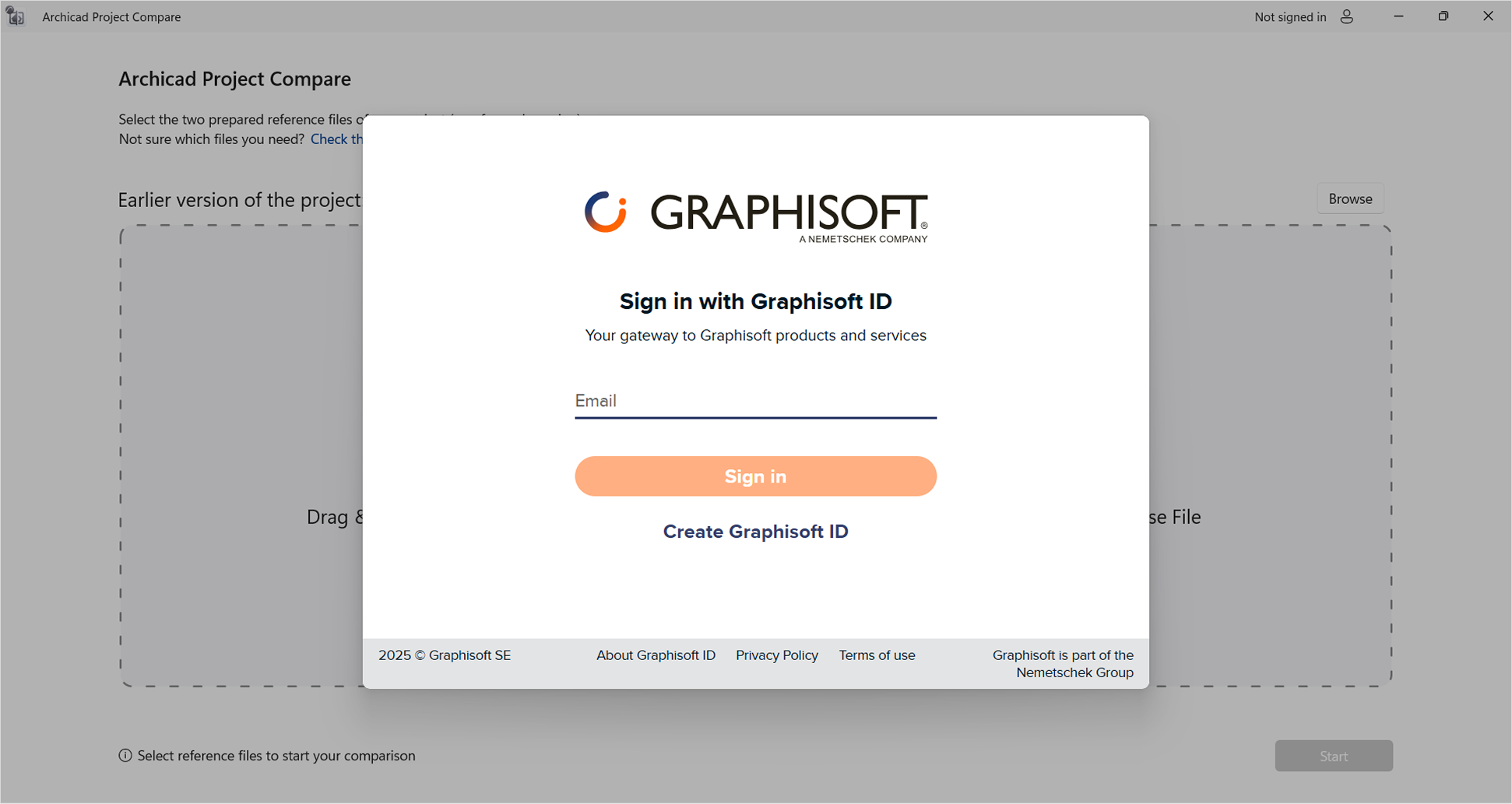
- Now browse the two .pmax reference files that you saved (one
each for Archicad 25 and Archicad 28): drag and drop them onto the
screen, or click to browse the file location
- The earlier
version goes on the left, the later version goes on the right
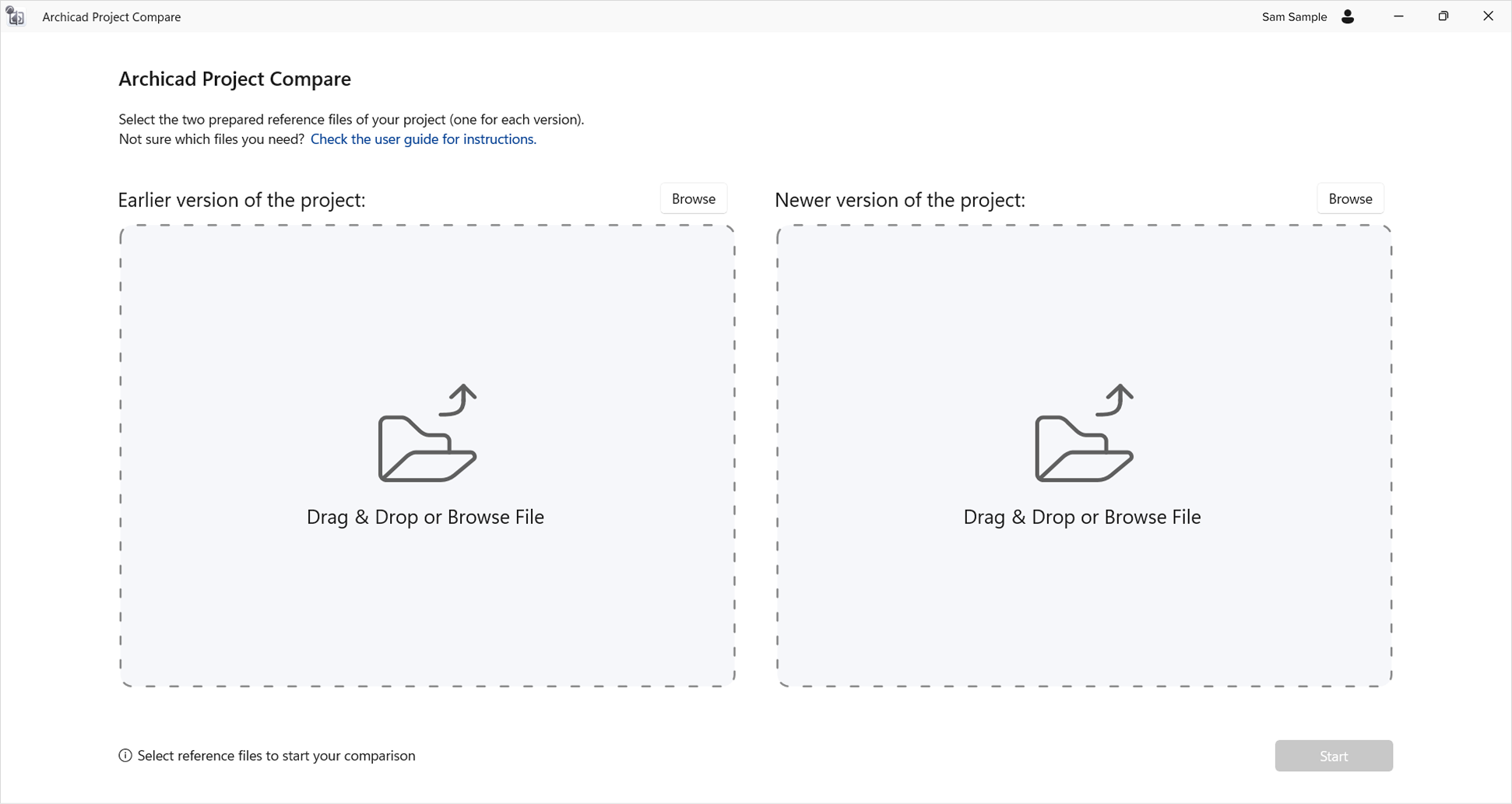
- If something is off, you’ll get a warning message - for example, if the two reference files contain different numbers of layouts
- The earlier
version goes on the left, the later version goes on the right
- Click Start. Wait while the comparison runs its course.
- Now dive into the Layout Compare window to see the result.