Play presentation
Play an animated presentation based on BIMx Gallery items or Favorites
Presentations work the same way for Gallery views and Favorites.
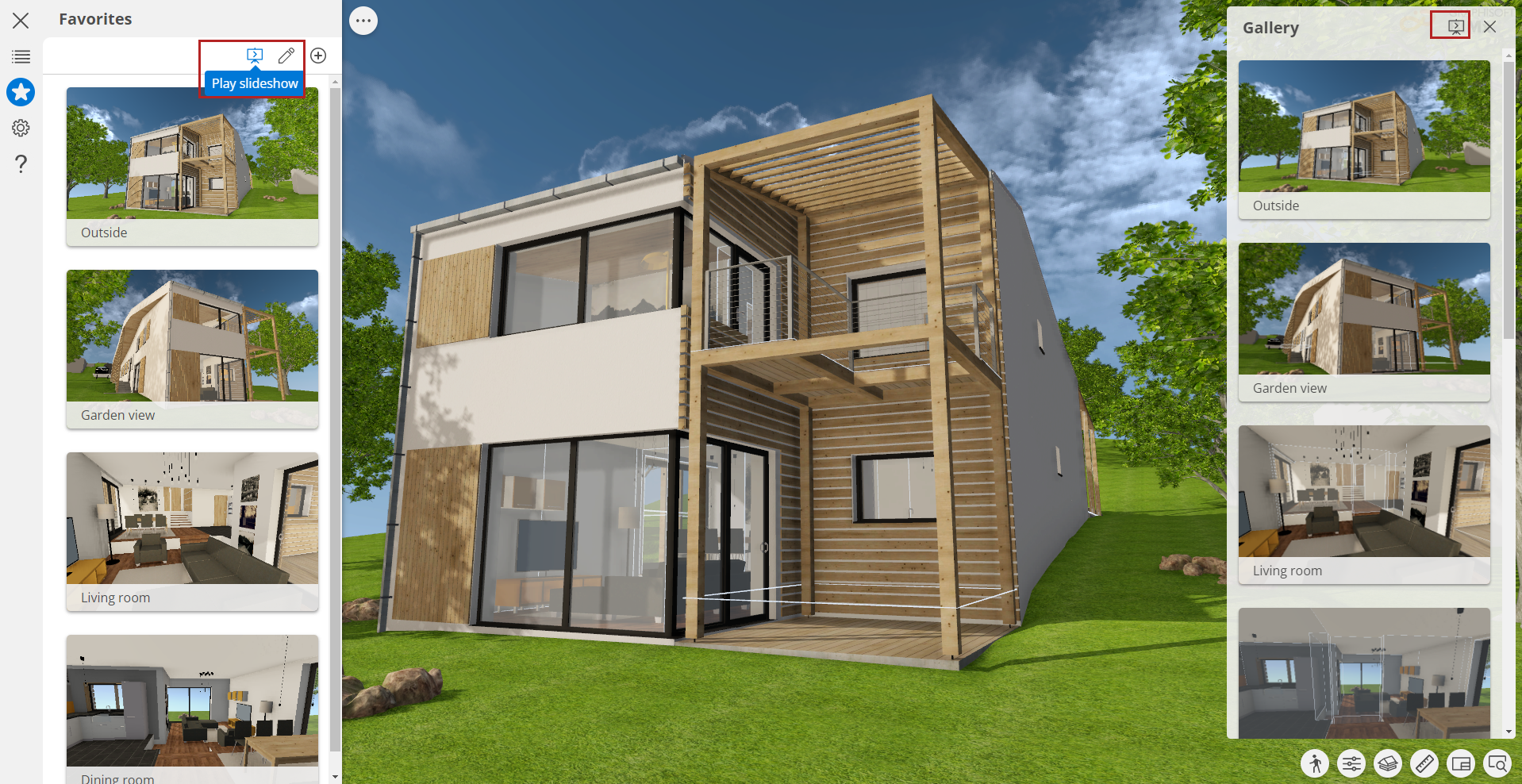
- From the Gallery or Favorites palette, click Play slideshow.
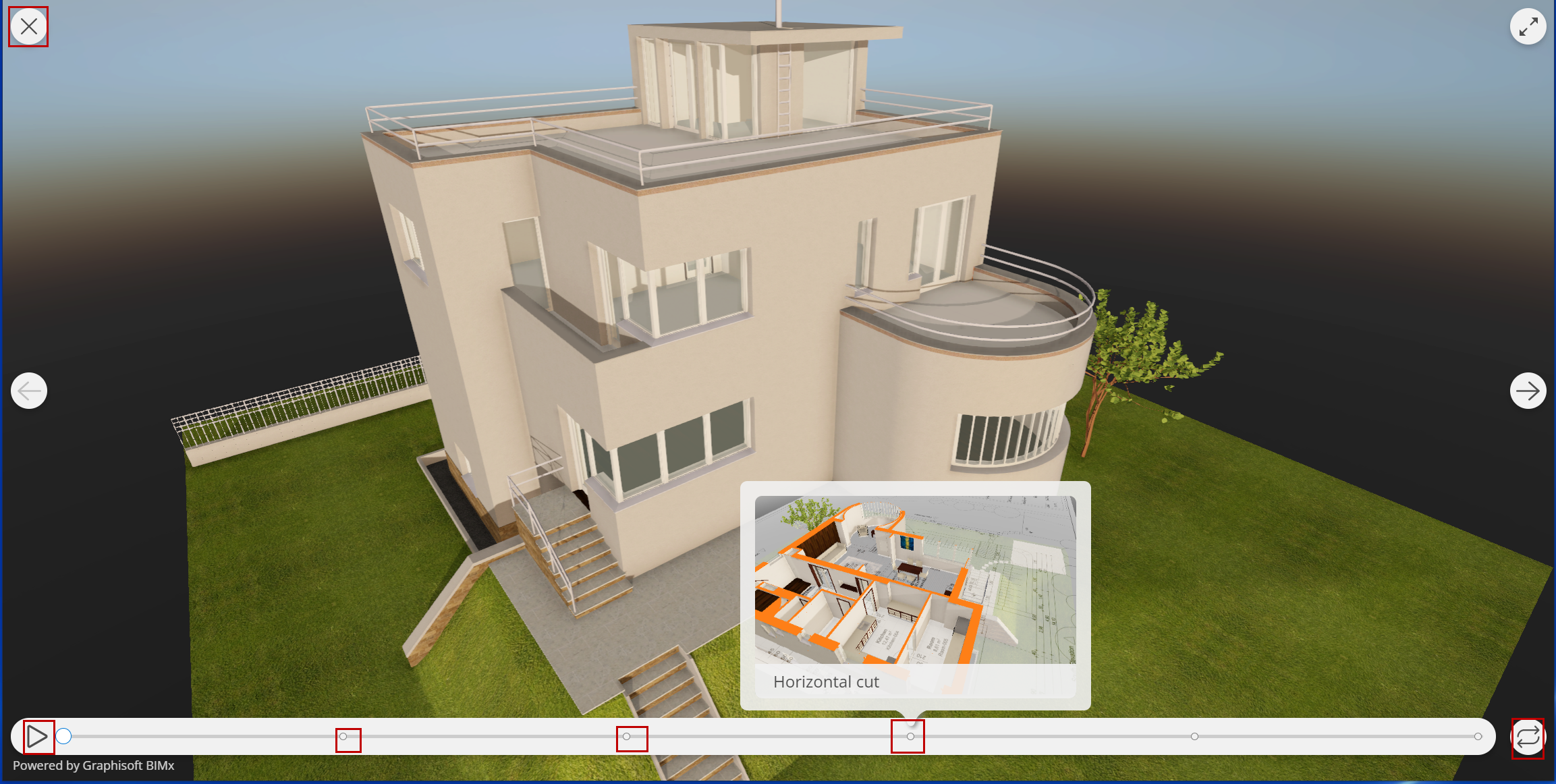
- The navigation controls vanish, and presentation controls appear.
- Click the Play button at bottom left. The presentation starts and proceeds automatically, switching to the next favorite or gallery view every 7 seconds.
- For presentations based on Favorites: you can change the order of Favorite views, or exclude particular Favorites from the presentation: see Edit Favorites
- To navigate between views:
- Use Next and Previous buttons
- Use right/left arrows on your keyboard
- Use the cue points on the progress slider. Hover over any point to see a thumbnail preview.
All buttons disappear after 3 seconds if your cursor doesn’t move, but reappear if you hover in the area.
- Even after the presentation starts, you can zoom in and explore the model. To reset the view to its saved thumbnail, click the “Back to” label that appears at top left.
- For repeating playback, click the Loop button at the right side of the progress bar.
- To exit at any time: press Esc, or click the X at the upper right corner of the screen.