Hide 3D elements and layers
Control 3D element and layer visibility in BIMx
To know more about controlling 3D element and layer visibility in BIMx, see Hide 3D elements and layers in BIMx.
Hide 3D elements
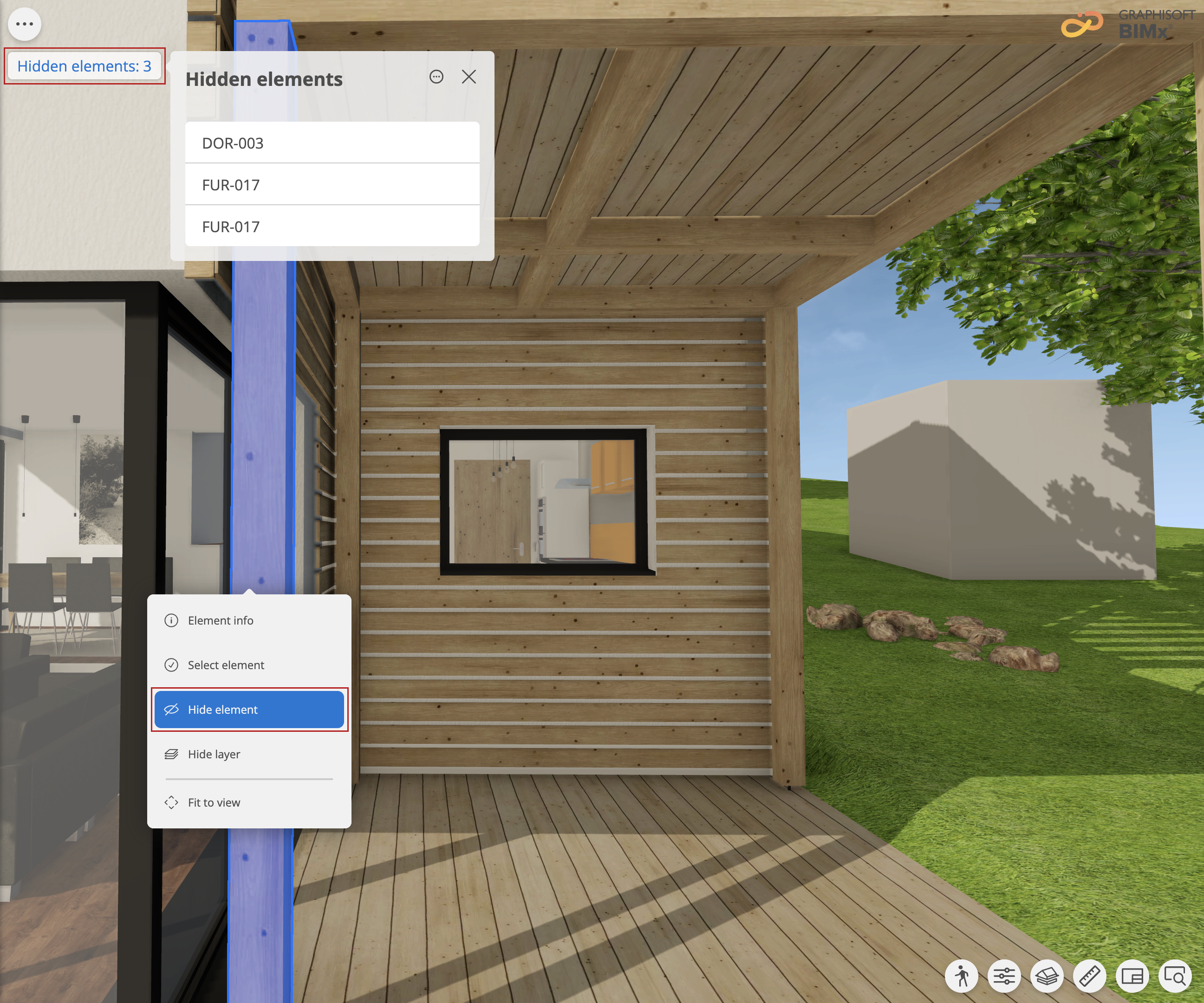
Hidden elements palette

Click the hidden elements label to open this palette.
The palette lists hidden elements in alphabetical order based on their Archicad ID.
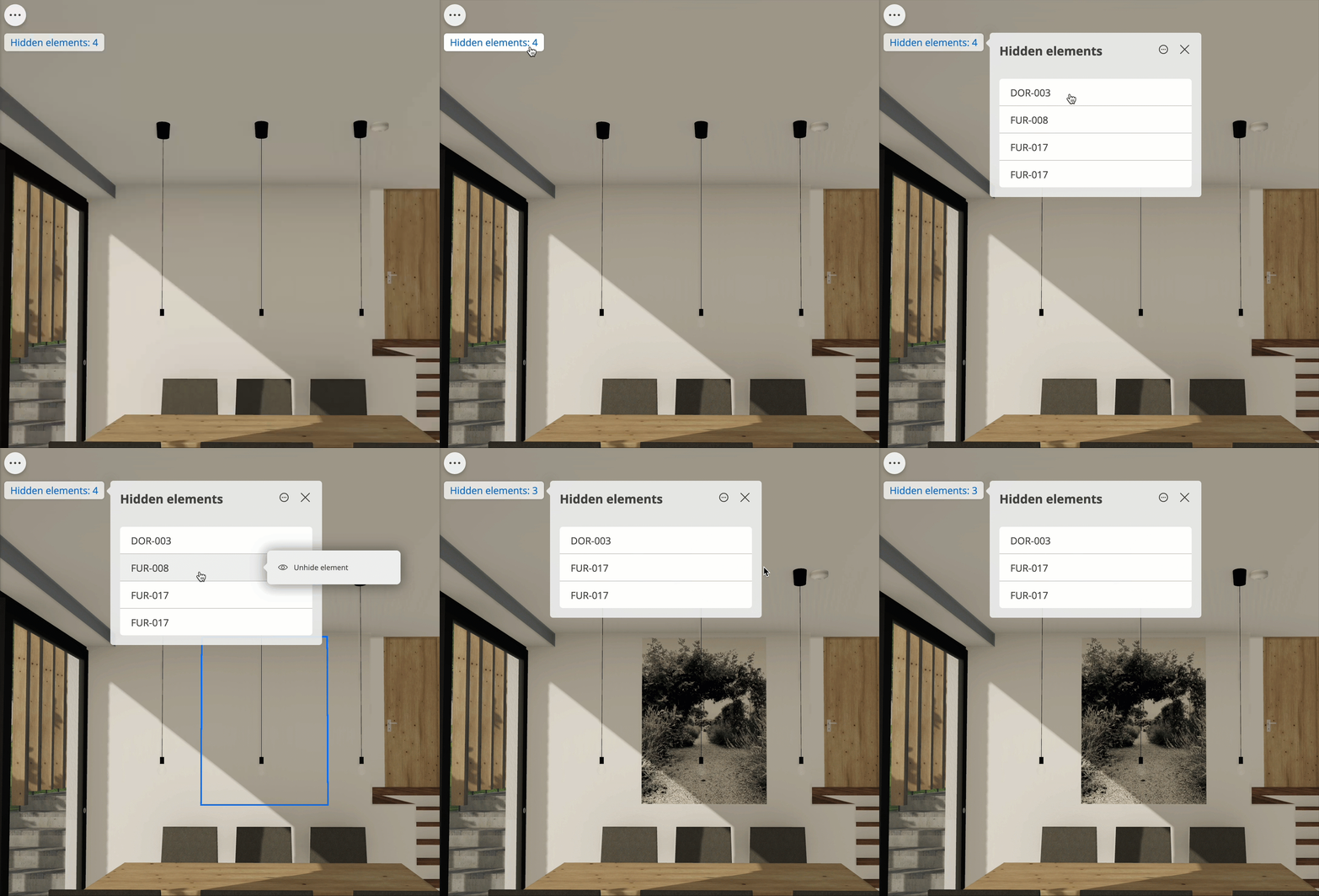
- Unhide
elements by clicking on their ID.
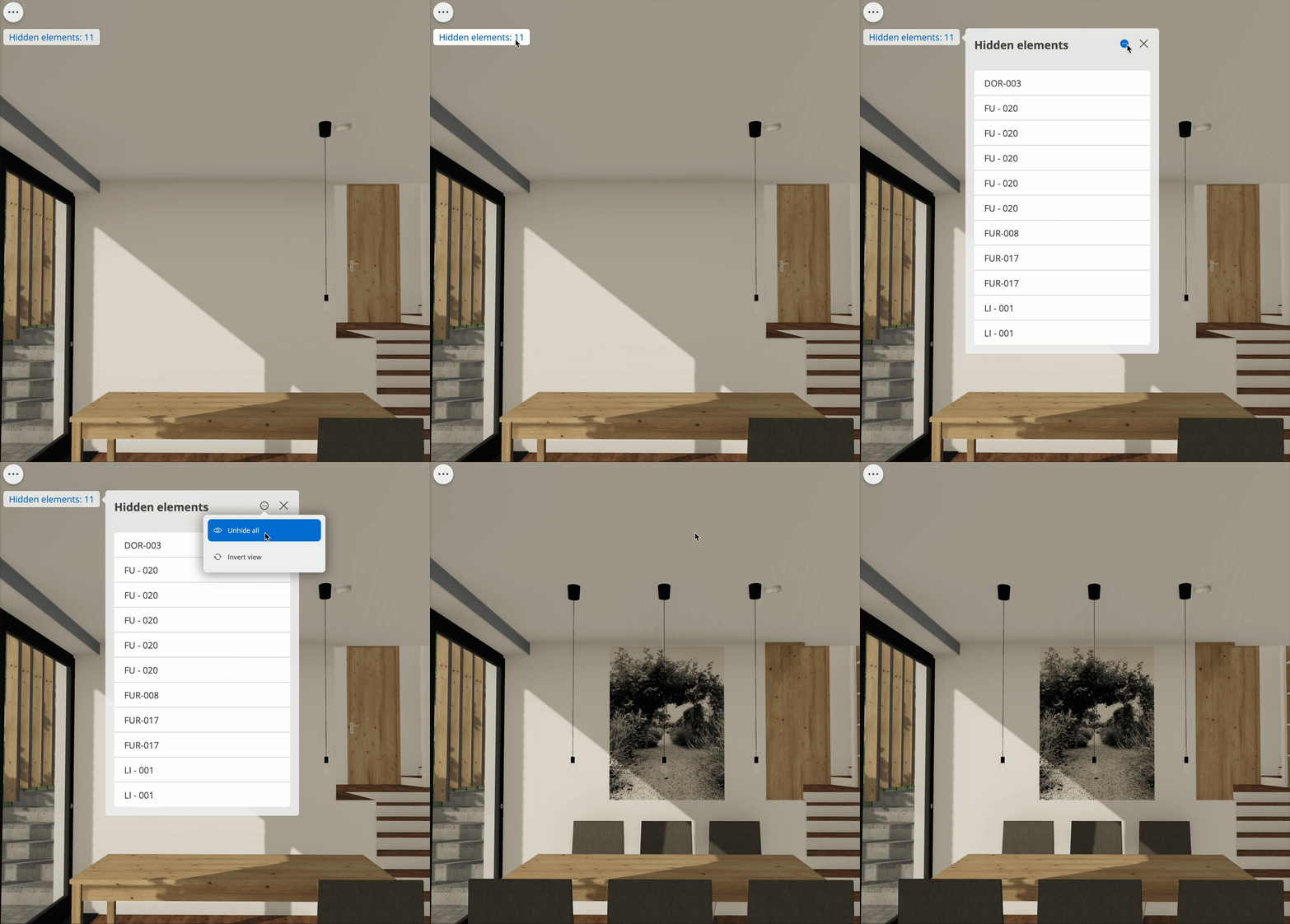
- Unhide allto make them visible again.
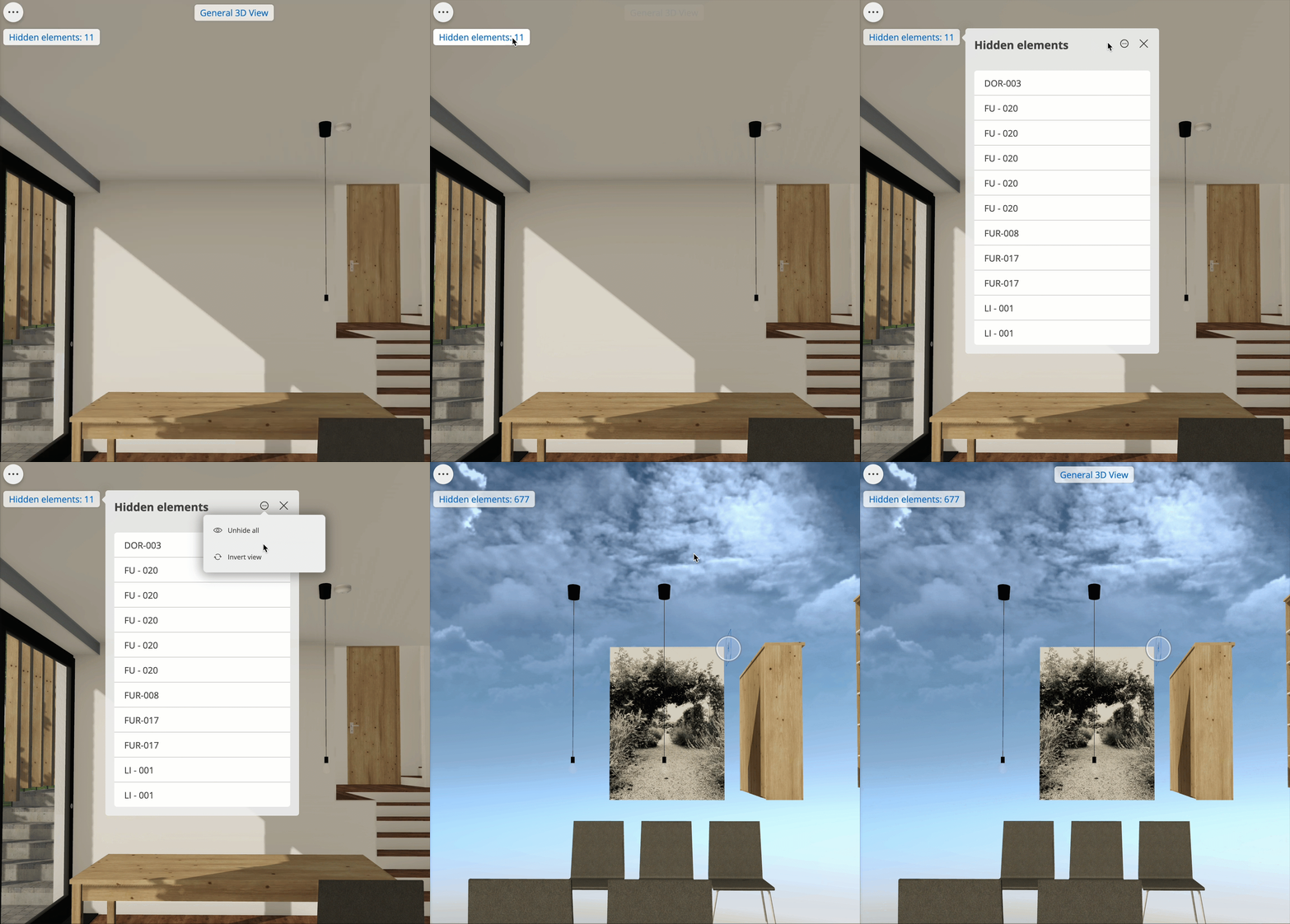
- Invert view to quickly isolate and view one or more hidden elements.
Hide layers
To hide an element’s layer, right-click the element and select Hide layer in the context menu.
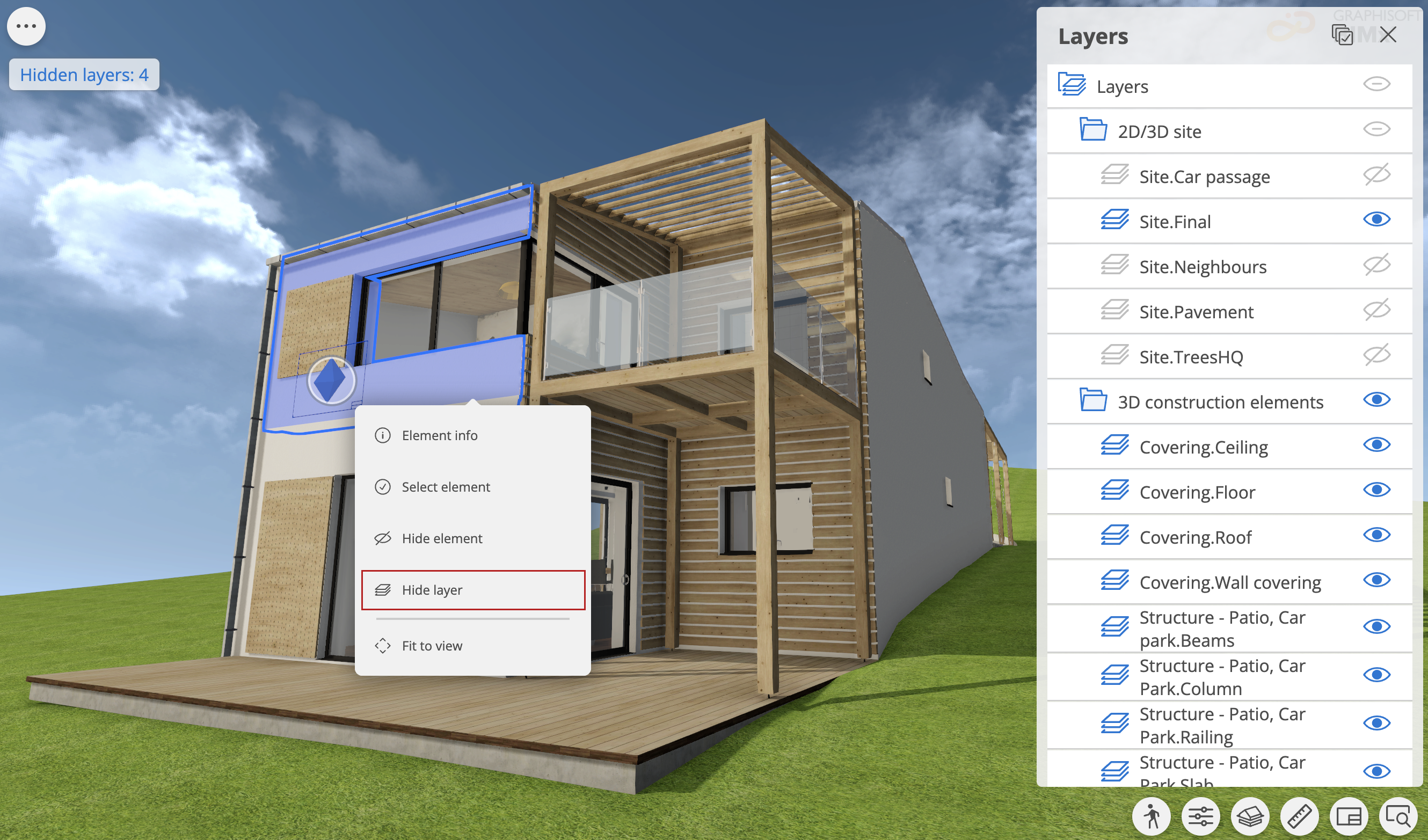
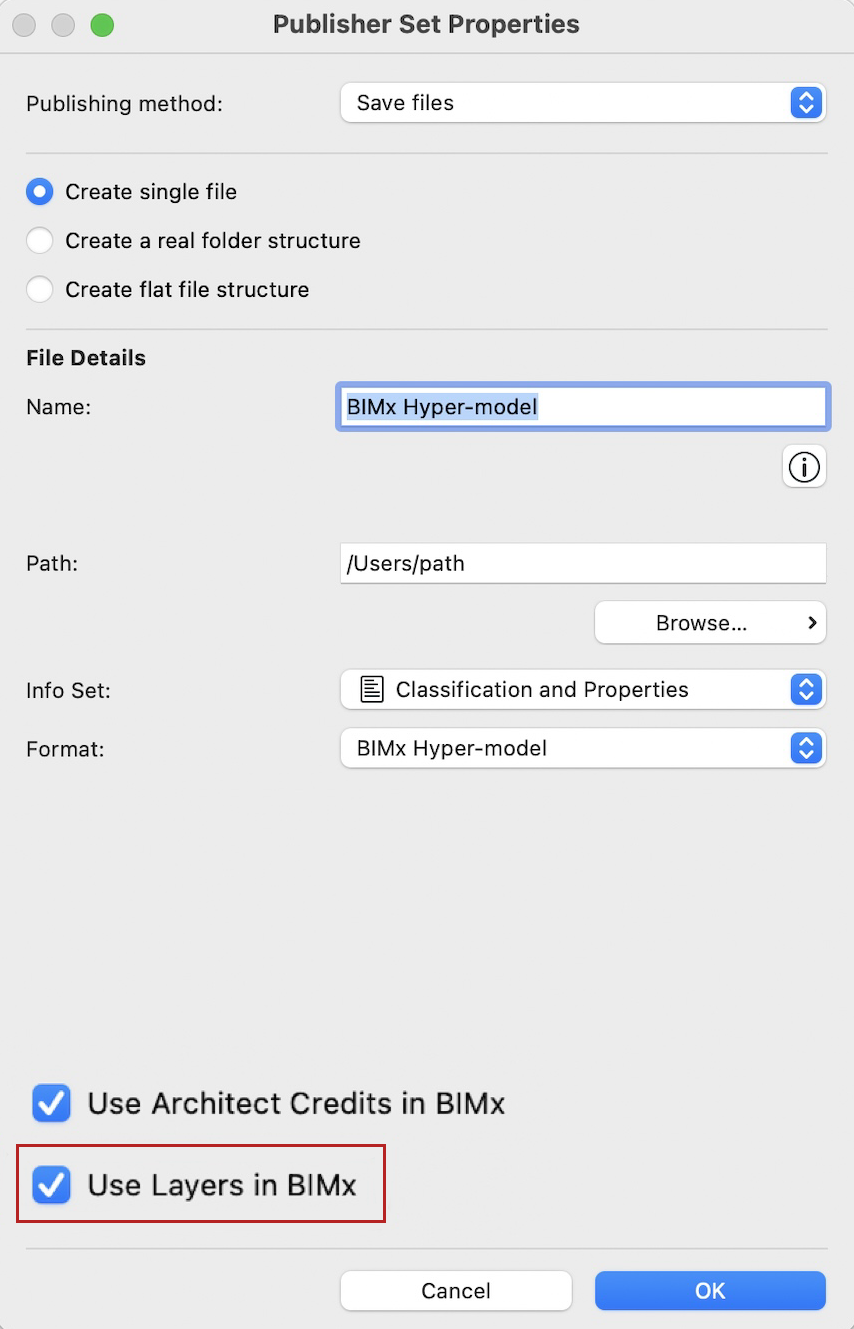
This option is available and enabled by default as of Archicad version 28.
Hidden layers palette
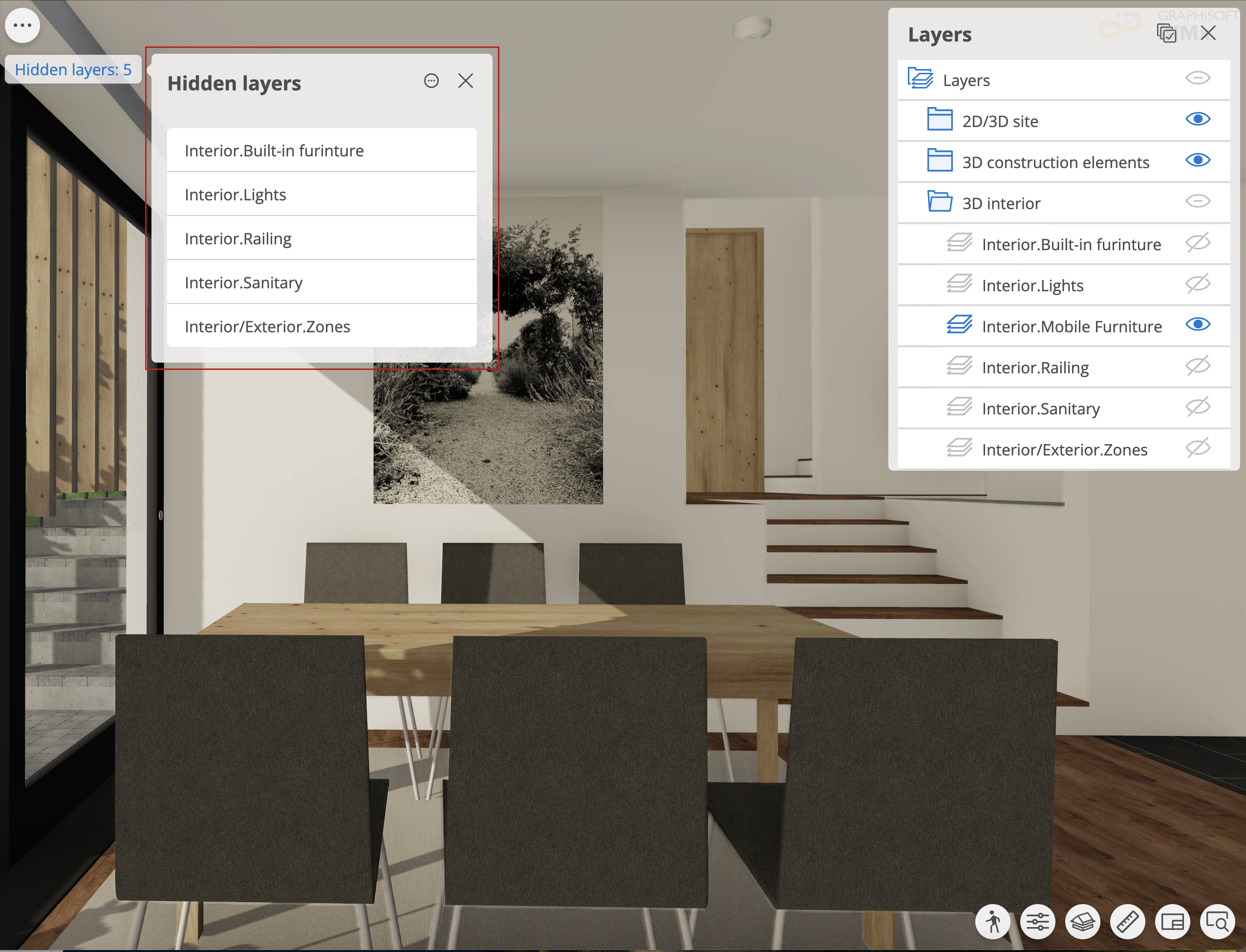
Click the Hidden layers label in the top left corner to open the Hidden layers palette. Use it to:
- Unhide specific or all hidden layers
- Identify the number of hidden layers and their IDs
- Open layers palette
- Invert view to isolate and show all hidden layer elements
Layers palette

The Layers palette lists the Archicad project’s hierarchical layer structure.
You can open the Layer palette in the Views quick-menu or Hidden layers palette. Use it to:
- Hide or unhide layers and layer folders by tapping the eye icon
- Identify and highlight all elements in a layer by tapping on the layer’s name
- Expand and collapse folders, subfolders, or even the complete layer structure by tapping their name

Unlike in Archicad, selecting another layer combination in BIMx will not reveal elements that are not included in the original 3D model. The content of the BIMx Hyper-model must be defined before publishing.