Display Settings
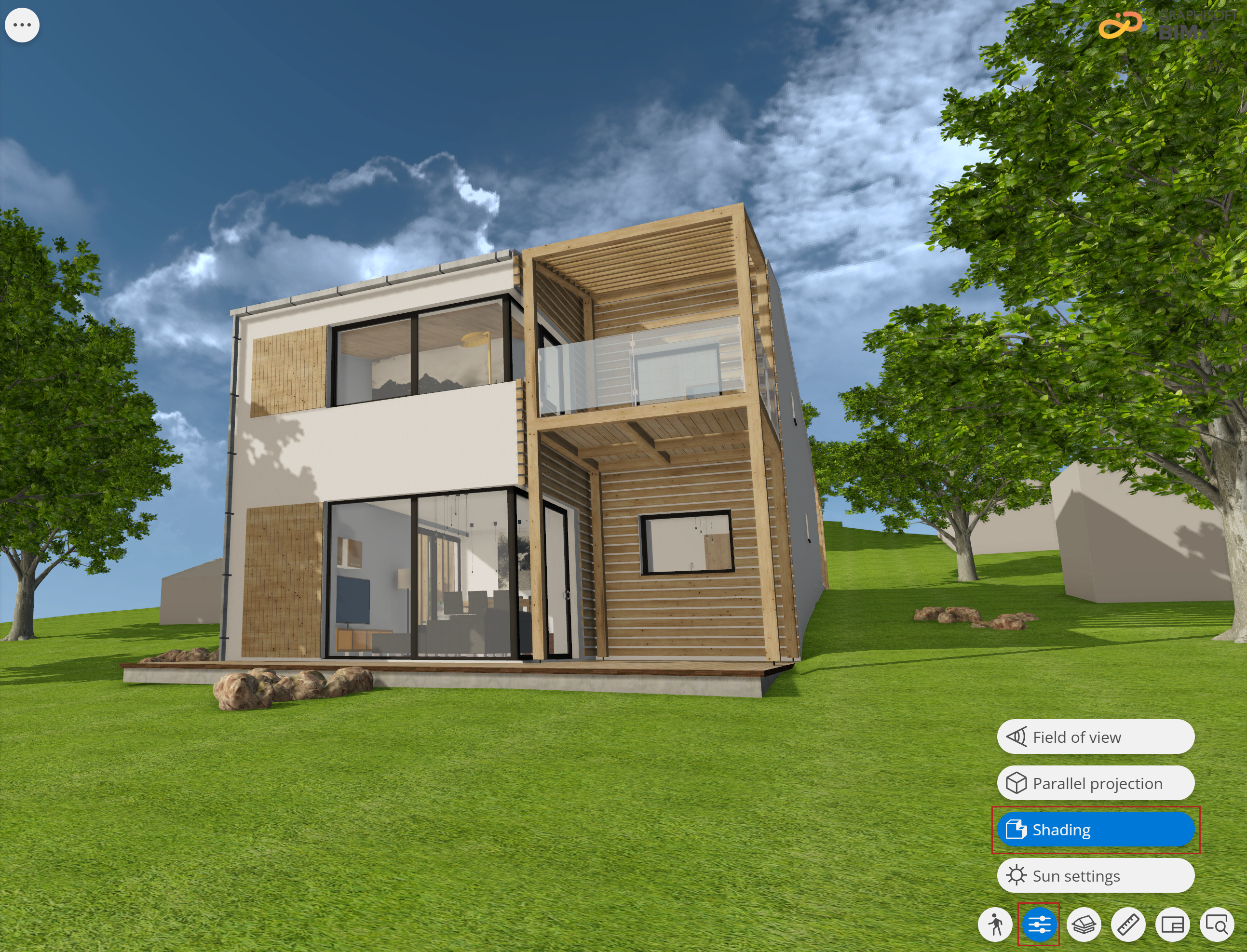
Set the Field of view, Parallel Projection, Shading, and Sun settings for the 3D model.
Click Display Settings at the bottom of the screen:
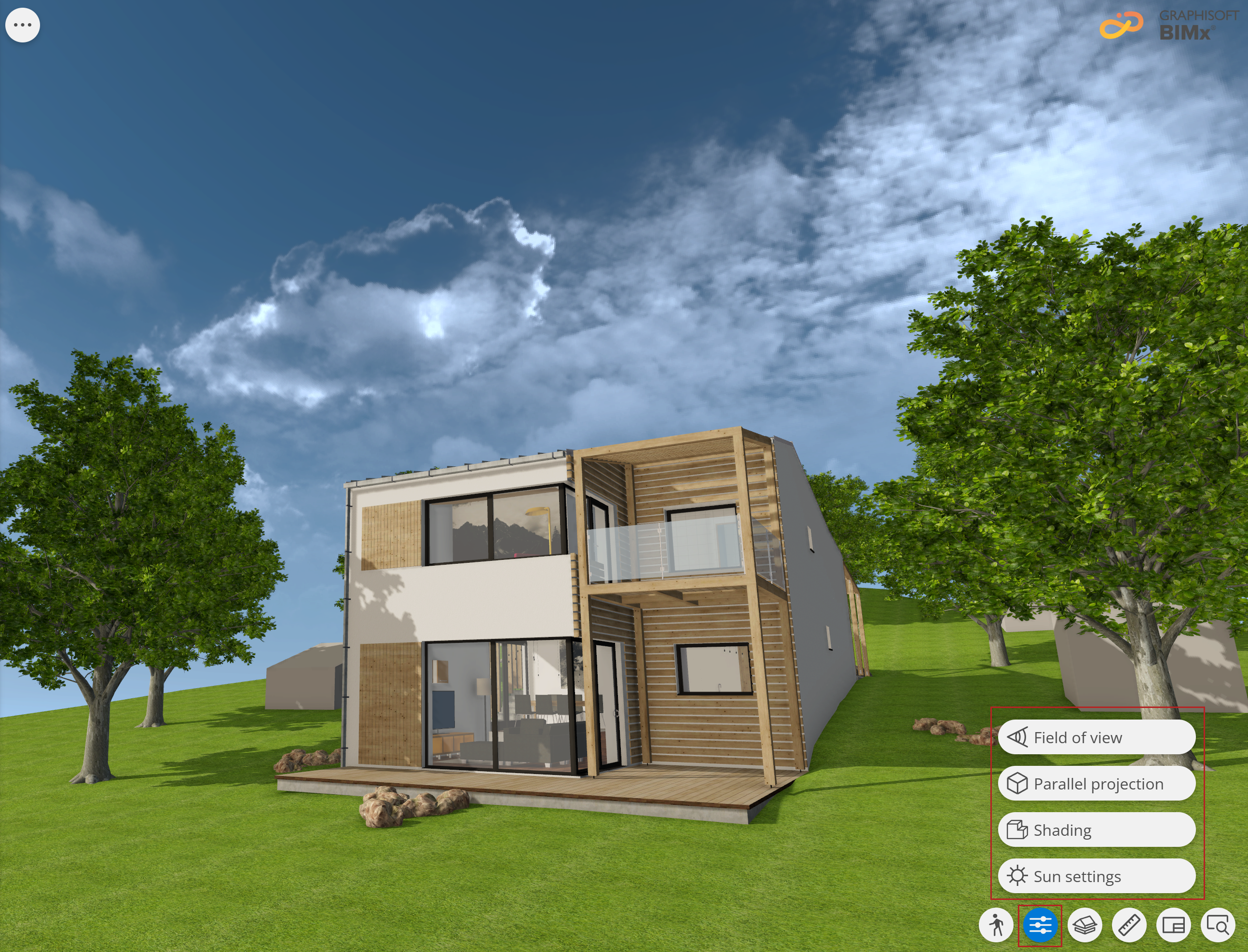
Field of view
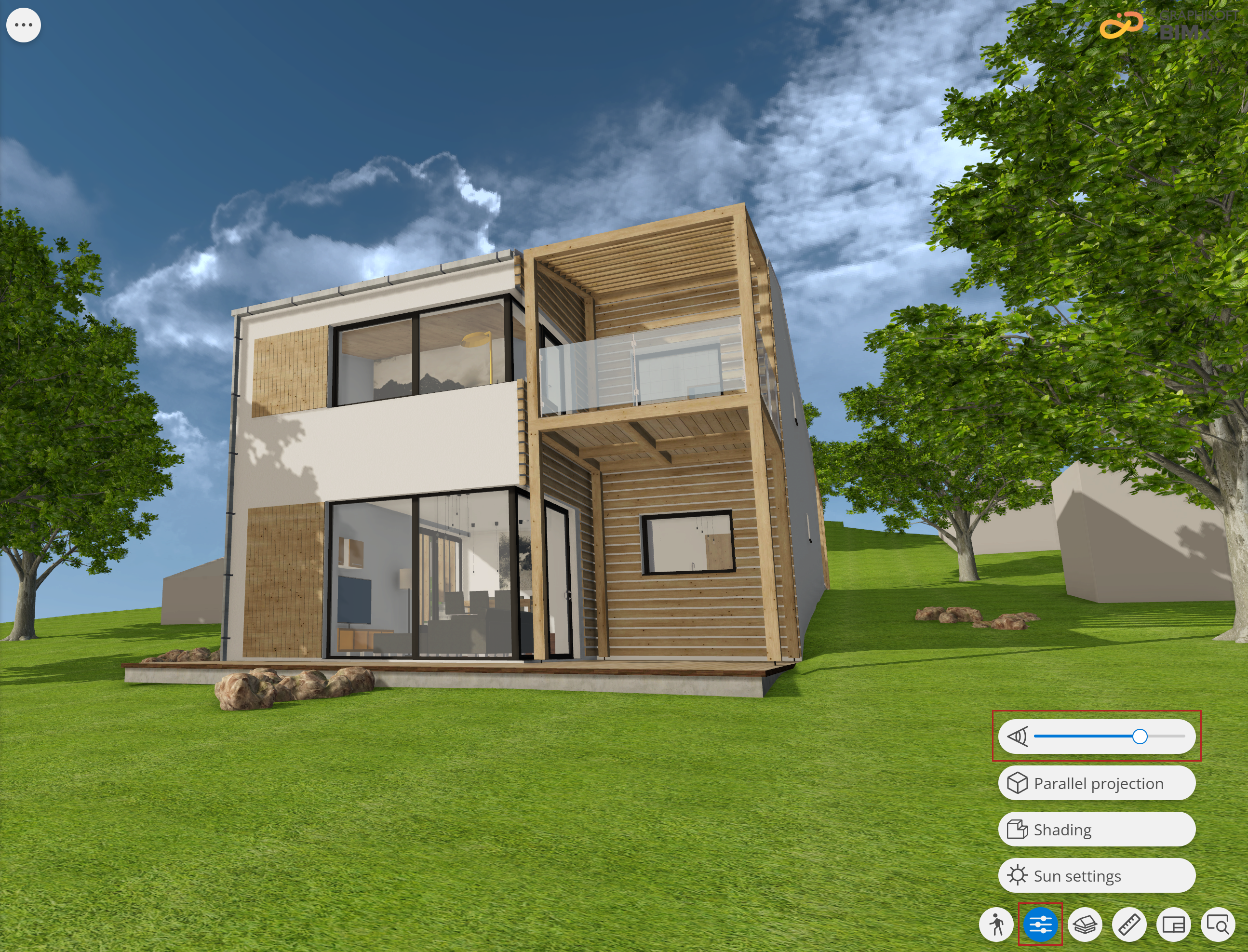
Set the camera view cone angle in 3D.
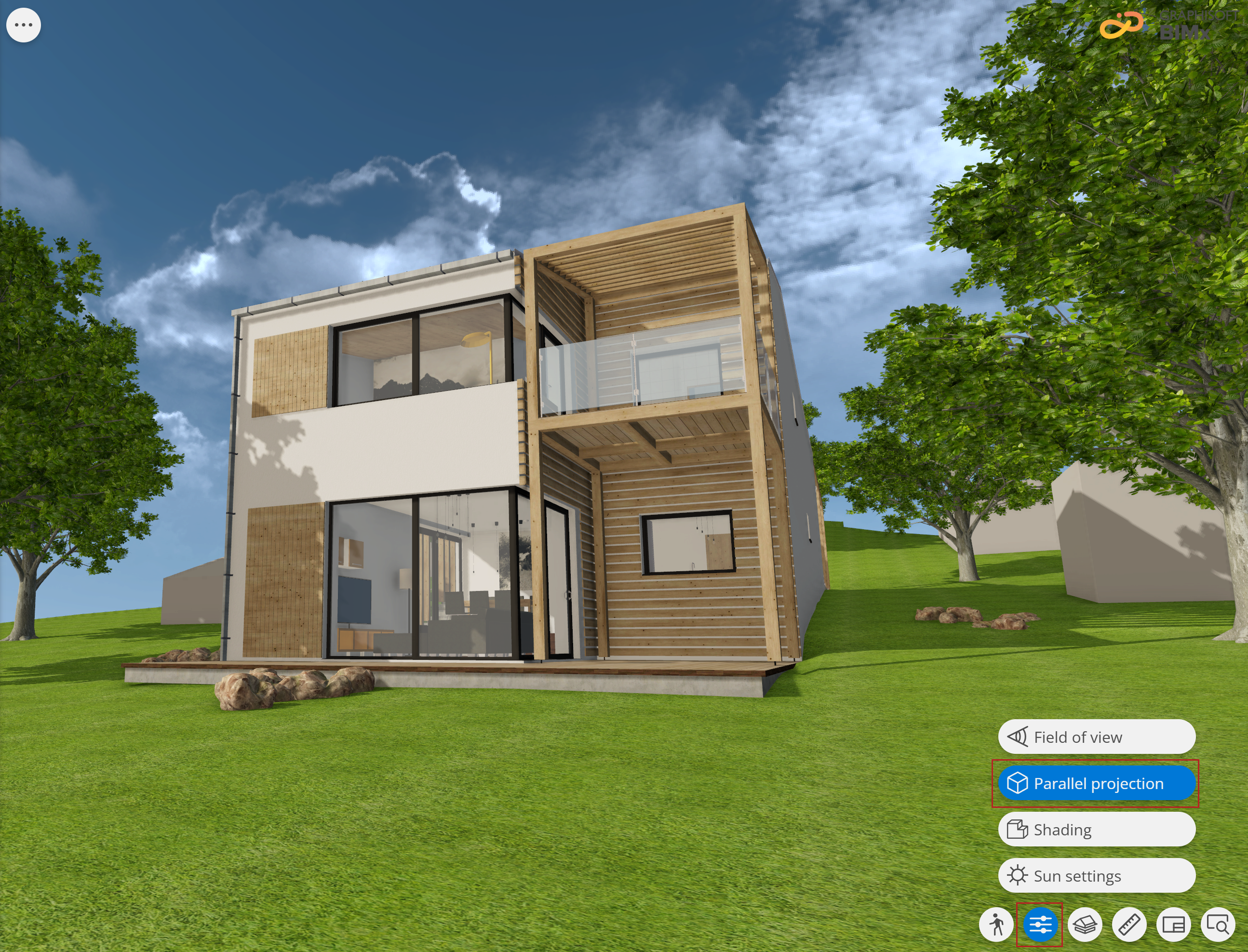
Parallel Projection
Switch between Perspective and Parallel projection in the 3D view. Parallel projection works with Orbit navigation, allowing you to view the building only from the outside.
Tip: Double-clicking or double-tapping an element will put the building in frontal view. This will help create easy elevation/section views in axonometry. You can combine this with a cut plane, various sun settings by time, and save your favorite views.
See alsoBIMx Application Settings
The default projection in BIMx depends on the 3D View Settings defined in Archicad. Previously exported axonometric 3D models will automatically open in Parallel projection. Gravity, Hide cursor, Joystick and Camera View Cone settings are disabled in Parallel projection.
Shading
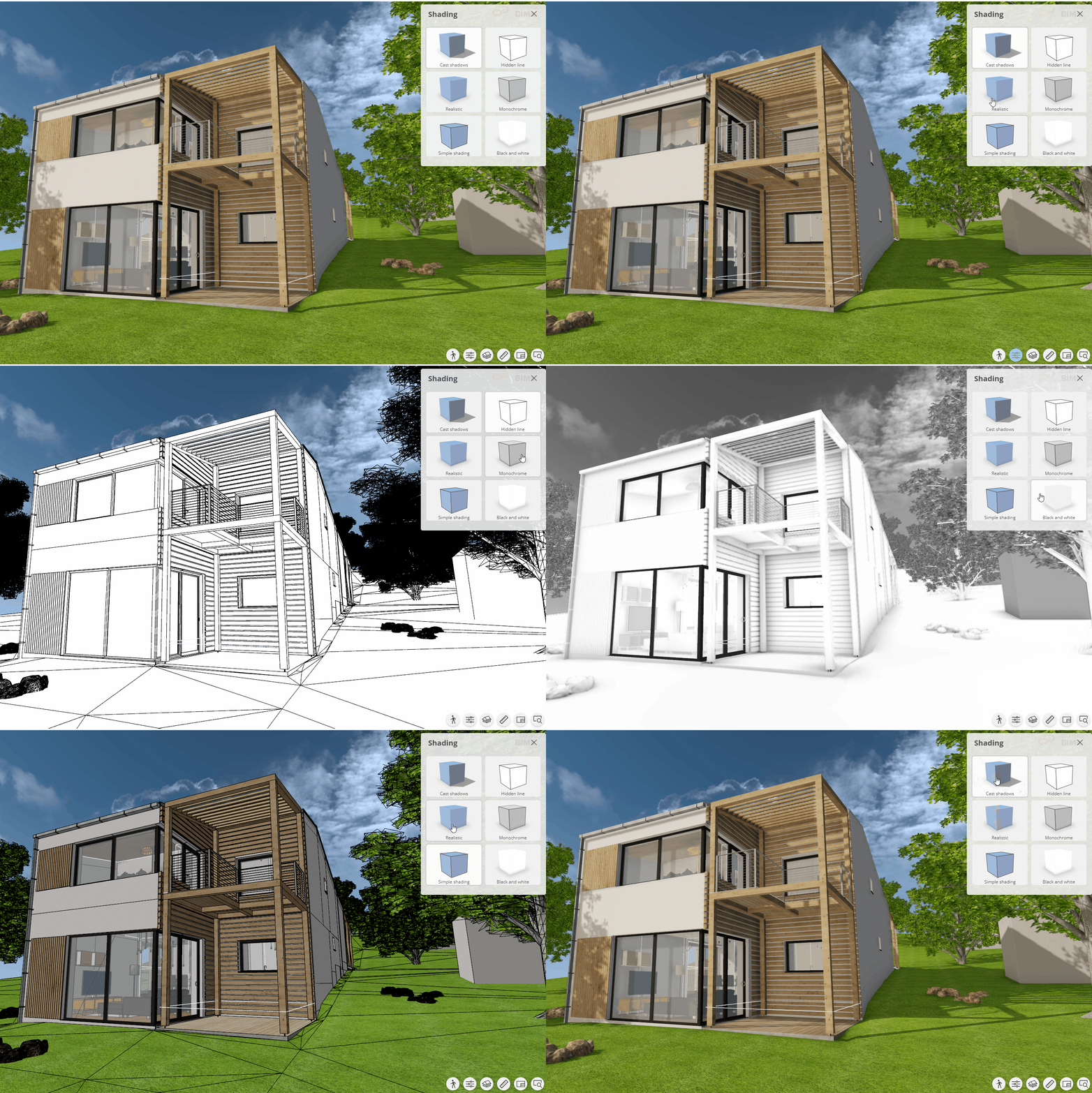
Open the 3D model, and choose Shading.
View your model with a variety of shading options.
Sun settings and Project location
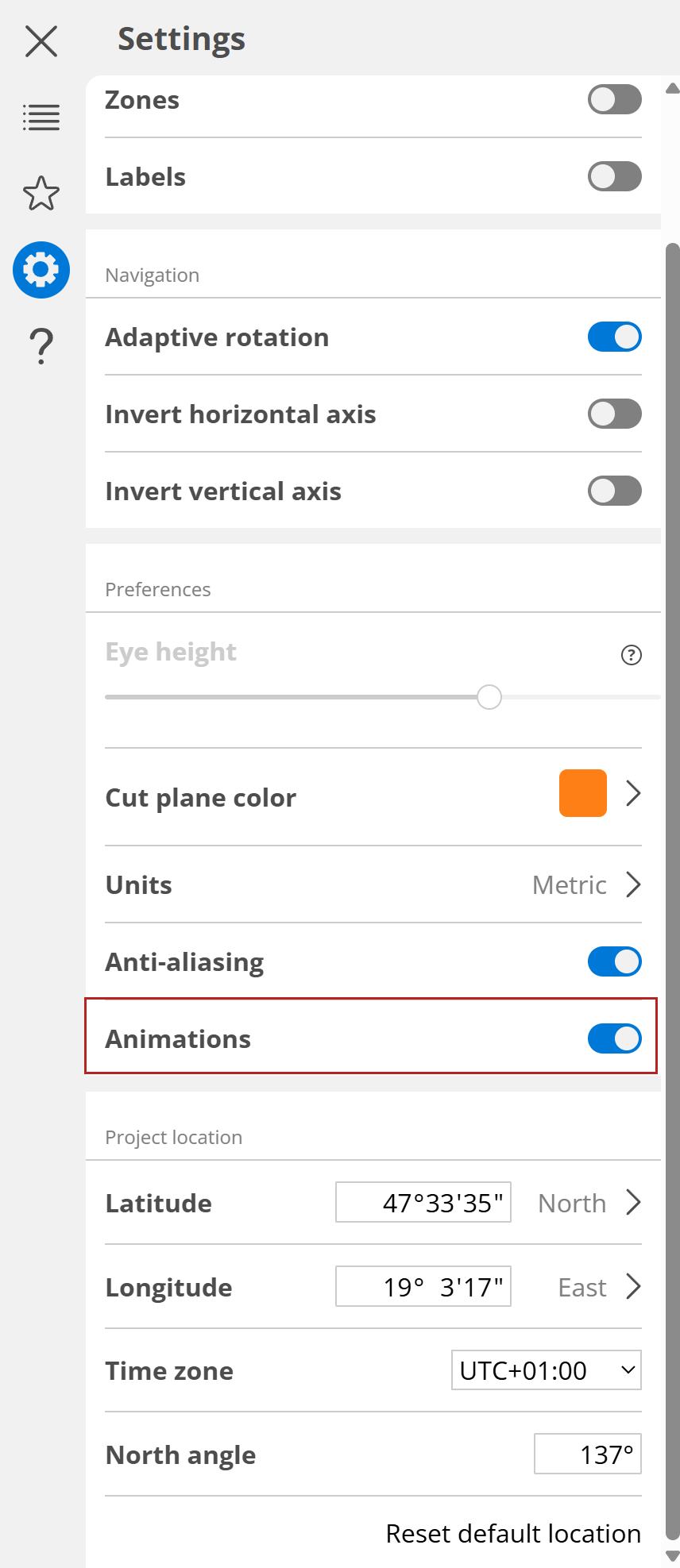
BIMx automatically uses the real project location, based on your location data as set in Archicad. This location info is displayed in BIMx Settings, but you can also edit it if needed.
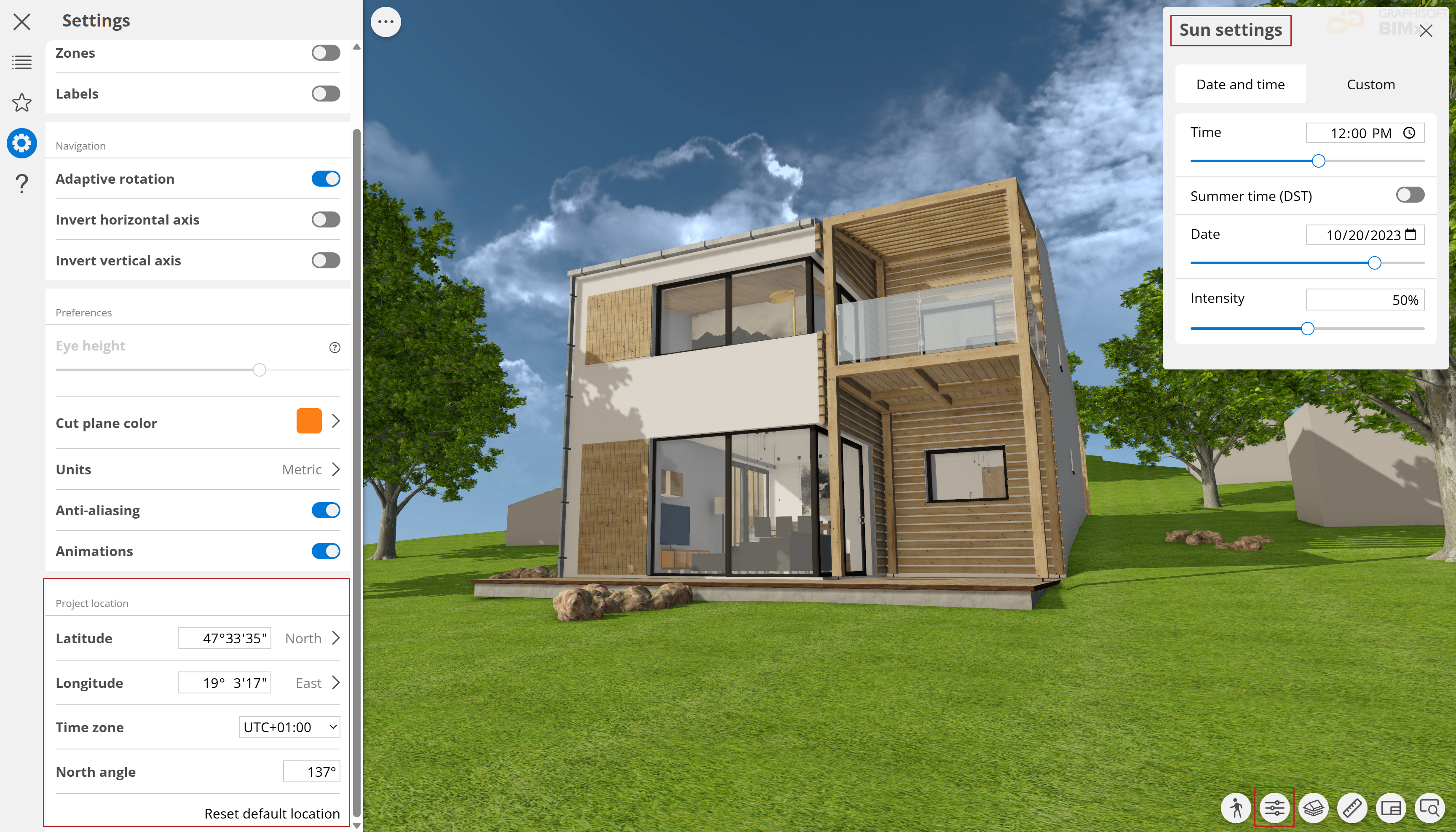
Define sun settings - either by date and time, or by defining a custom sun position. This way, you can visualize the exact shadows that will be cast on your building and neighboring areas, based on project location.
If you save 3D view or camera paths for BIMx with date and time sun settings (instead of custom), the Sun settings palette is opened to the “date and time” tab by default.
Use the slider to demo the effects from sunrise to sunset.
See also the Community article on Accurate Sun Positioning in BIMx Mobile.
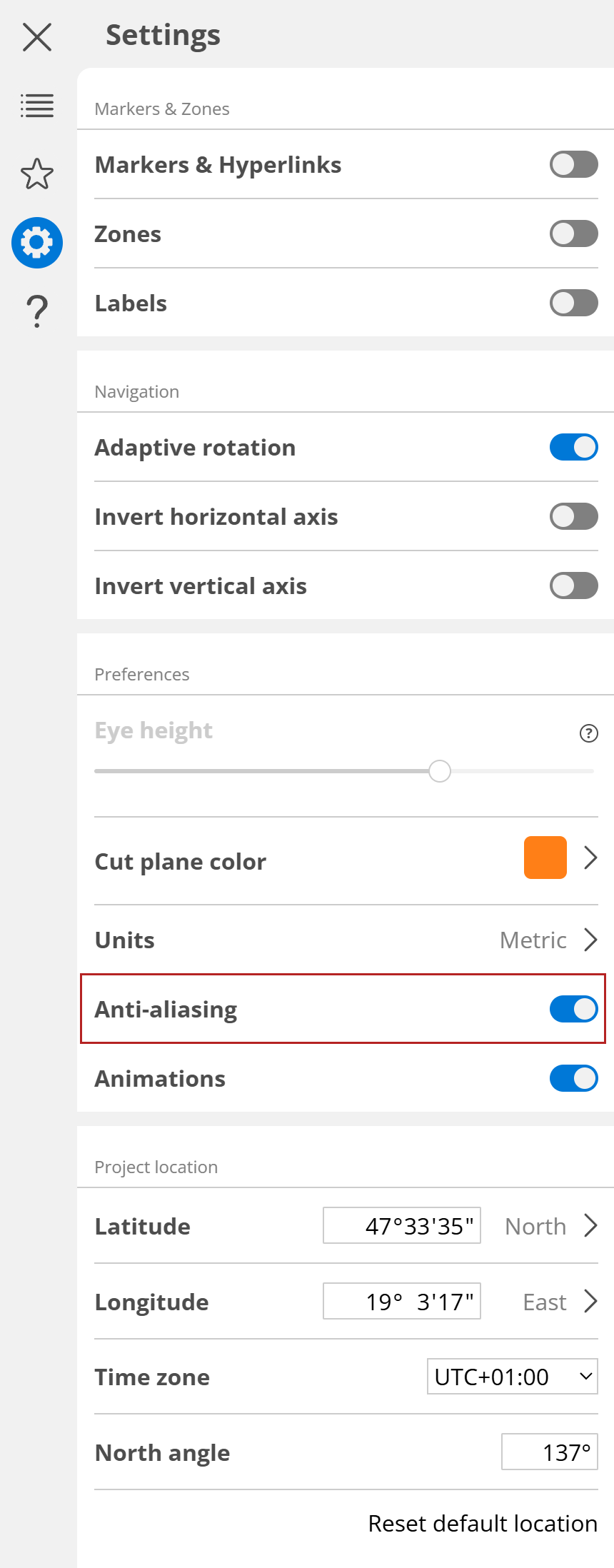
Anti-aliasing
Anti-aliasing is turned on by default, to ensure smoother edges in BIMx 3D views.
Anti-aliasing might affect performance. If you experience slowdowns in navigation, try turning off anti-aliasing in the Settings menu.
Animations
Transitions are automatically animated when switching between 2D and 3D, navigating across predefined 3D viewpoints (such as Favorites, Gallery items, or Fit to View), and toggling between parallel and perspective projection.
To speed up your workflow and switching between views instantly, turn off the Animations toggle.