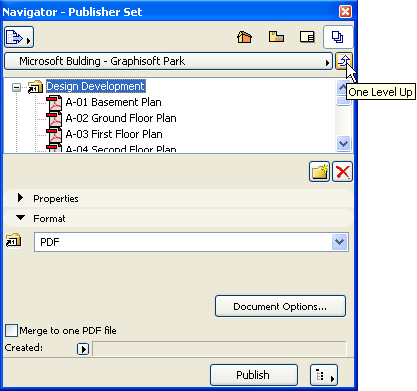
Open the Publisher map of the Organizer. To see a list of all Publisher Sets defined in this project, click the “One level up” button:
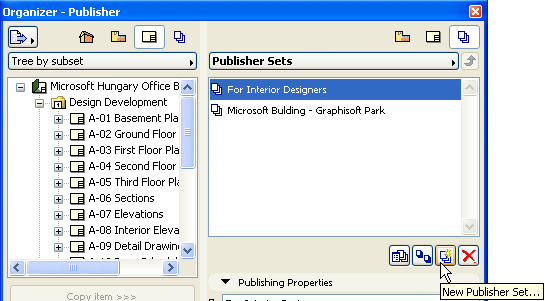
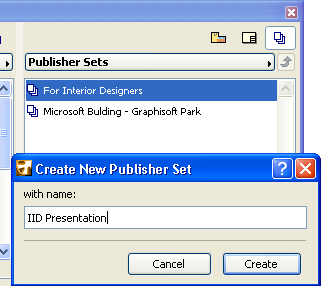
To define a new Publisher set, click the New Publisher Set button, then give the Publisher Set a name.
In the Publisher map, double-click the name of the new Publisher Set to see its contents (as yet, this is empty).
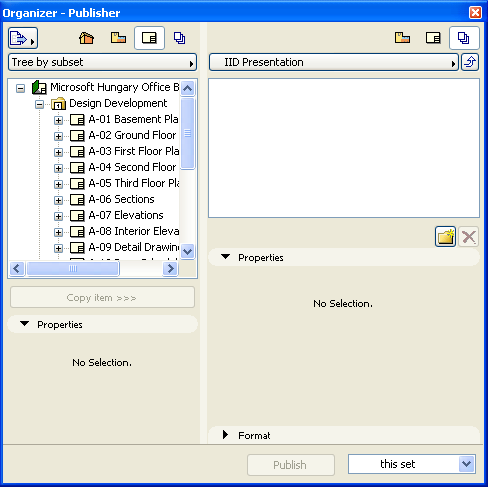
Next, add any combination of Layouts and Views to the new Publisher set; these will be “Publisher items.” Select the desired items from the View Map or Layout Map on the left side of the Organizer, then do one of the following:
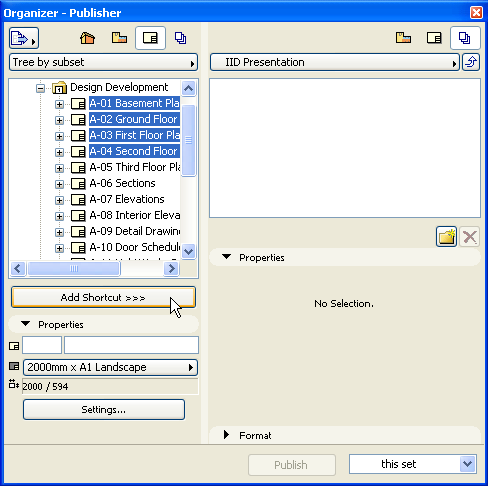
•Click the Add Shortcut command at the bottom of the View Map/Layout Map.
•Drag and drop the selected items into the Publisher set
Note: If you select a Subset from the Layout Book or a View Map folder, the Add Shortcut button will create a shortcut linking the selected Subset/folder to a corresponding folder in the Publisher Set at the right. Any changes to the contents of the Subset will also take place in the linked Publisher Set folder (similar to a cloned view map folder). In contrast, if you drag and drop a Subset or folder into the Publishing Set, a corresponding folder is created, but it is not linked and does not follow any subsequent modifications to the Subset/folder contents.
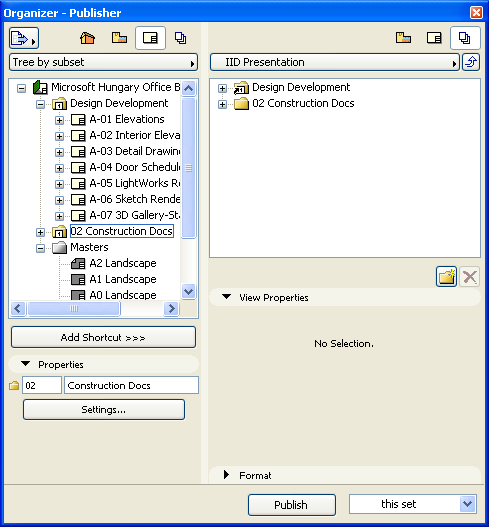
In this image, the first Publisher Set item was created by selecting a Subset in the Layout Book and clicking the Add Shortcut button. Similar to a cloned folder in the View Map, it is a shortcut to the Layout Book Subset: all modifications to the Subset contents will be reflected in the Publisher Set item. Use Add Shortcut to ensure that Subsets and View Map folders are recreated in updated form in the Publisher Set.
The second Publisher Set item was created using drag and drop. It is not a shortcut, just a one-time copy of the Subset folder.
Once the Publisher set is assembled, you can click on any of the Publisher items (i.e. views or layouts in the Publisher set) to view its Properties in the panel below. These properties are view-only and not editable.
For more information, see Publisher Controls.