This page describes the controls found in the Publisher map of the Navigator or Organizer.
For more information, see Navigator Publisher.
Open the Publisher map of the Navigator or Organizer by selecting its icon among the maps of the Navigator/Organizer. You can also access the Publisher from the Document > Publisher > Publish menu command.
To see a list of all Publisher Sets defined in this project, click the “Up one level” button to display the Publisher Set Chooser and Manager.
Use the buttons at the bottom of the Publisher Set list for the following functions:
•Open the Publishing Properties dialog box
•Duplicate the selected Publisher Set
•Create a new Publisher Set
•Delete the selected Publisher Set
Click the Publishing Properties button to access the Publisher Set Properties dialog box, where you can choose the method of publication: Print, Save files, or Plot.
For more information, see Publisher Set Properties Dialog Box.
Publishing Properties: These fields provide feedback and options for Publishing Properties: Publisher Set name, the chosen publishing method, and the destination of the output (if applicable).
Double-click a Publisher Set name to list and to set options for the contents of the Publisher Set. Select any publisher set item from the tree structure to view and adjust its properties and output format.
Each Publisher item refers directly to a View or to a Layout (in effect, the Publisher item is a shortcut to the View/Layout).
View Properties/Properties: These fields display the properties of the view, drawing or layout linked to the selected publisher item. These properties vary depending on which item is selected (view, drawing or layout): they include e.g. ID, Name, Layer Combination, Scale, Model Display Options Combination, Master Layout. They are displayed for informational purposes and cannot be edited here.
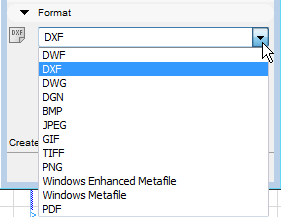
Format: Choose a format from the scroll-down list in which to publish the selected item(s). The content of the list depends on the type of the selected item.
For details, see Defining Output Format.
Publish: Click this button to start the Publishing process.
To define which sets to output, click the pop-up button next to the Publish command and choose an option:
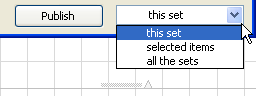
•If you choose this set, the entire active publication set will be published.
•If you choose selected items, only the items currently selected in the active publication set will be published.
•If you choose all the sets, all currently defined sets will be published.
See also Revisions of Publisher Items.
Created/Modified: The Created/Modified pop-up at the bottom of the Publishing tab page displays the selected file’s last creation or modification date and time.
Note: This data appears only after the file has been published at least once.
Process Dialog Box
The icons next to the view names inform you whether the job is completed, under way or failed. You can also click Stop, which will end the whole publishing procedure, or Pause, which will cause publication to pause, and change the Stop button to read Continue, allowing you to continue publication later.
A log file containing information on each publishing process is saved to the location you specify in Options > Work Environment > Publisher (“Publisher log location”).
The file name of each output Publisher item is identical to the name of the Publisher item itself. This means that if you output a Publisher item, and later rename it to reflect a new revision, you can re-publish it under the new name, without overwriting the previously output file, as was the case in older ArchiCADs.
If you publish multiple items of the same name simultaneously, a yellow warning triangle appears in the Publishing process window; double-click to read the message. ArchiCAD will automatically rename such files.