Note: This description is intended for Server Administrators.
The command line tools for backing up data from the BIM Server were introduced in ArchiCAD 14. They can be found in the following directories:
•On MacOS: /Applications/GRAPHISOFT/BIM Server/Server Modules/[version number]/TeamworkServer
•On PC: \Program Files\GRAPHISOFT\BIM Server\Server Modules\[version number]\TeamworkServer
Where the version number is 1400 for version 14, or 1500 for version 15. Later versions will be numbered in a similar fashion. (Here, only the version number/TeamworkServer relative path will precede a command that is being discussed.)
These commands must be run with elevated “administrative” permissions. On MacOS, “sudo” is often used within the terminal prompt. On the PC, the command prompt is launched with “run as administrator” elevated permissions.
These tools can only write or read from folders that the BIM Server itself has permission to write to. This means that by default the command line BIM Server tools will not be able to write to most network locations. The account used for the BIM Server services (in case of PC) or daemons (in case of MacOS) must be modified to access other network locations.
Backups are version specific. You must use the same version’s tools to restore the backups. This makes it imperative that you dump version data separately, to their own version specific folders, so that it is easier to restore using the correct tool.
The Master Module is the highest version number module on the BIM Server.
Complete Master Module backup and restore
Complete Master Module backup and restore will include the projects in the highest numbered version, along with all of the libraries, users, roles and custom properties found on the BIM Server. This backup will not include projects from lower numbered versions.
Backup the master module:
[highest version number]/TeamworkServer/TeamworkServerBackupTool Target_folder_where_master_module_data_goes
Restore the master module:
[highest version number]/TeamworkServer TeamworkServerRestoreTool Source_folder_created_by_backup
Non Master Module Project backup and restore
With these tools, only project data for the given module is backed up or restored. Other BIM Server data is not addressed. If you would like to restore only a specific project or specific projects from the group, then see the section below titled Backup Catalogue Files to determine which files should be moved into a special folder, which the restore shall use as a source folder.
Backup non master module projects:
[version number]/TeamworkServer/TeamworkServerProjectStoreBackupTool Target_folder_where_the_projects_go
Restore non master module projects:
[version number]/TeamworkServer/TeamworkServerProjectStoreRestoreTool Source_folder_created_by_backup
Library Restore
Determine which libraries need to be restored and place them in a folder. Then run the below command.
See Backup Catalogue Files to determine the user-friendly name of the library or libraries.
Restore a library or libraries:
[highest version number]/TeamworkServer/TeamworkServerAttachmentStoreRestoreTool Source_folder_of_libraries_to_be_restored
The Backup Catalogue Files
There are two catalogue files that provide a user-friendly name lookup:
•Projects.txt (project name lookup)
•Libraries.txt (library name lookup)
The name of a backup file consists of its data’s identifying GUID instead of its user-friendly name. If your intent is to selectively restore a project or library, you will want to move the specific library or project backup to a separate folder, from where it can be restored.
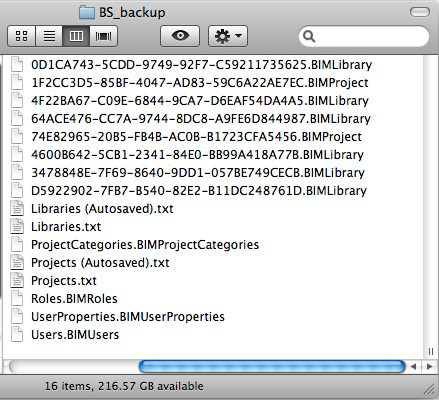
Here is an example of how a typical backup folder looks:
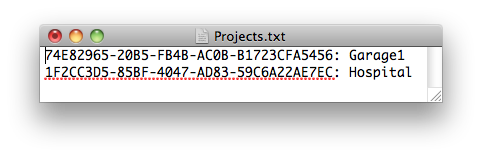
The projects are identified in project.txt. Here you can look up their user-friendly name:
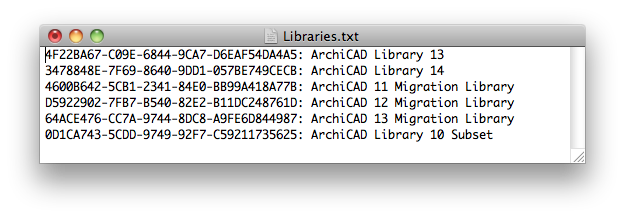
The library names can be found in libraries.txt.
Restore Users, Roles or Custom Properties
The BIM Server Manager can be used to restore backups of users (Users.BIMusers), roles (Roles.BIMroles) and custom properties (UserProperties.BIMUserProperties).
For more information, see Restoring Project Data Using Backups.