Restoring Project Data Using Backups
Where are the Backup Files Located?
Backup files of both kinds (BIM Project backups and PLN backups) are saved to the BIM Server > Projects > Backups folder, at the location where you installed the BIM Server.
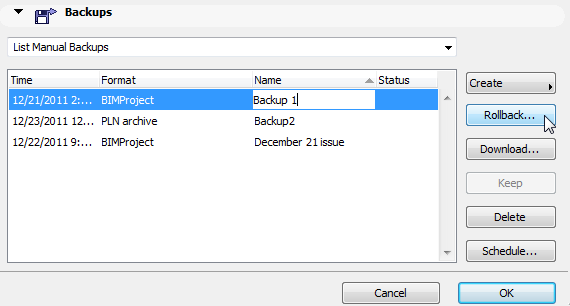
As long as the BIM Server is running, you can download these backup files to any other location of your choice, using the Download button in Project Settings (Backups panel).
How do I Restore the Backup Files to the BIM Server?
BIM Project backups can be restored to a running BIM Server. See these sections:
Rollback BIM Project Backup on Same BIM Server
Download BIM Project Backup File, Then Import to Any BIM Server
PLN backups can only be opened as solo ArchiCAD projects, then re-shared. See this section:
Download PLN Project Backup, then Open as Solo Project and Re-Share
Rollback BIM Project Backup on Same BIM Server
If the original BIM Server is running: you can use Rollback to either replace the current Teamwork project version with the backup file or to create a new project on the Server.
1.Select a BIM Project backup in Project Settings.
2.Click Rollback.
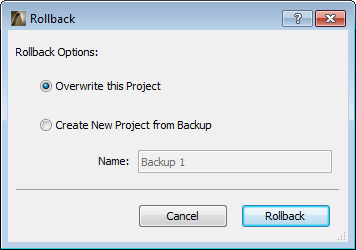
3.Choose a Rollback Option:
•Overwrite this Project: The selected BIM Project backup copy will overwrite and replace the current project.
As a result, all users are notified of a “Terminated Session:” they must re-join the new version of the project on the BIM Server. (Users must discard any unsent changes, or save the version they currently have as a solo project, but they can no longer send any unsent modifications to a project that has been overwritten.)
•Create New Project from Backup: The selected BIM Project backup file will be created as a new, separate project on the server.
4.Click Rollback, then OK to close Project Settings.
The BIM Project is now available from the BIM Server Manager’s Project list.
Download BIM Project Backup File, Then Import to Any BIM Server
If you want to work on the project using a different, functioning BIM Server: download the backup file, then import this file to a different BIM Server through Server Manager.
1.From the Backups list in Project Settings, select any BIM Project backup.
2.Click Download.
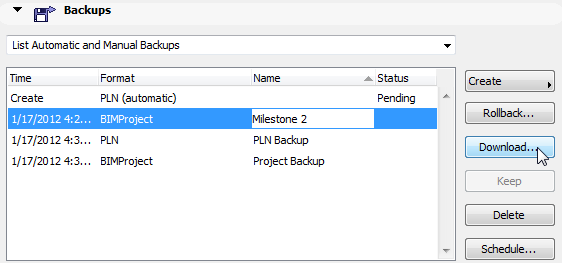
3.Choose a folder to which to save the backup file.
4.Import this backup file to any functioning BIM Server, using Server Manager.
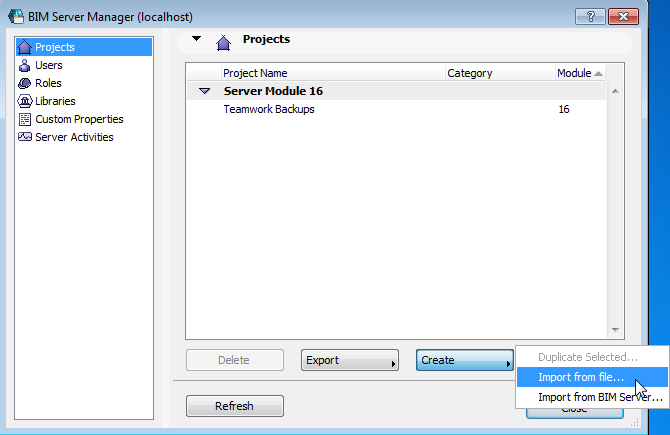
See Create Teamwork Project on BIM Server.
Since the BIM Project backup contains all BIM Server-related information, such as user data and roles, you can resume working right away - no need to re-add users or re-define roles.
Download PLN Project Backup, then Open as Solo Project and Re-Share
PLN backups can only be opened as solo ArchiCAD projects. You can use any version of ArchiCAD to open them. As soon as you gain access to a functioning BIM Server, re-share this project and continue in Teamwork.
1.From the Backups list in Project Settings, select any PLN backup.
2.Click Download.
3.Choose a folder to which to save the backup file.
4.Open this PLN file as a solo project, using any current or future version of ArchiCAD.
5.As soon a BIM Server is running again, re-share the project and continue working in Teamwork.