Create Teamwork Project on BIM Server
Note: You must be a Server Administrator to use this function.
From the Projects page of BIM Server Manager, you can create Teamwork projects on the server without the need for ArchiCAD. One possibility here is to duplicate an existing Teamwork project - for instance, to use it as a template. Another way is to import an existing Teamwork project file.
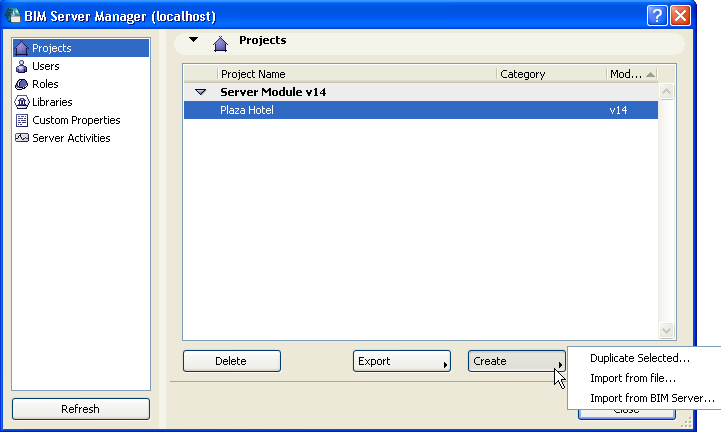
Click Create to choose how to create a shared Teamwork project on this server.
Choose one of the three options for creating an existing Teamwork project on this server:
•Duplicate Selected: This option will duplicate the currently selected project in the BIM Server Manager’s project list. (If nothing is selected or the list is empty, this control is grey.) A new project (a duplicate copy of the selected project) is created on the BIM Server, and the New Project Settings dialog box appears.
See Teamwork Project Settings.
Note: One way to use the Duplicate option is to first create a template project in ArchiCAD and share it to the server. Then you can duplicate this template any time you wish to create a new Teamwork project on the server.
•Import from File: Browse for a Teamwork project which has been
-exported from this or any other compatible BIM Server, or
-downloaded as a backup file from Project Settings.
See Download BIM Project Backup File, Then Import to Any BIM Server.
Note on imported file extensions: If a project was exported from a BIM Server 13, the file extension is .twportable.
If a project was exported from later-version BIM servers, the file extension is .BIMproject.
If a BIM Project backup file was downloaded, the file extension is .backup
The imported project will be created on the current server and made accessible to users on this server.
•Import from BIM Server: Click this to access another BIM Server and choose a project for import.