To open or join a Teamwork project:
1.The project must already have been shared on the BIM Server.
See Share a Teamwork Project in ArchiCAD.
2.You must be registered as a user on that BIM Server.
See Manage Users on the BIM Server.
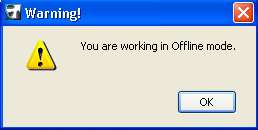
Even if you are in offline mode, you can open a project which you joined earlier. However, since you cannot synchronize with the server, you cannot be sure that the local copy you open is up to date.
Open Recent Teamwork Project
If you have recently opened the project on this computer with the current user name, you can just select it from the Recent Projects list, at the bottom of the File > Open sub-menu, or in the “Select a recent project” list of the Start ArchiCAD dialog box.
Choose Project from BIM Server
To choose a project to open from a BIM Server, do one of the following:
•Choose File > Open > Open/Join Teamwork Project
or Teamwork > Project > Open/Join Teamwork Project.
•When starting ArchiCAD, choose Open Project, then Browse for a Teamwork Project.
See Start ArchiCAD.
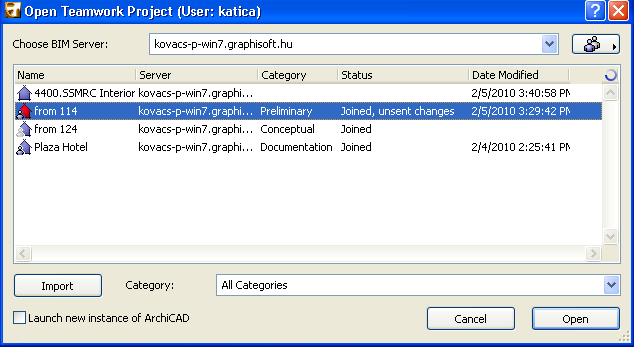
The Open Teamwork Project dialog box appears.
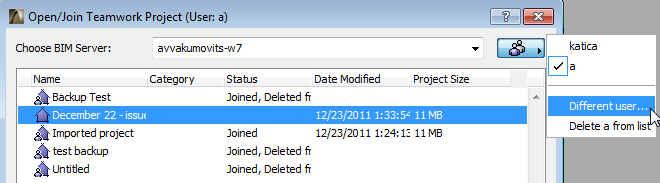
From the pop-up list at top right, select your user name from the user pop-up at top right.
If the name you need is not in the list, click Different user, then enter user name and password for identification:
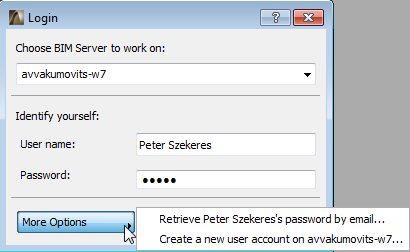
Note: Don’t forget that the user name and password must first be added to the BIM Server. Only then can the client join the Teamwork project from ArchiCAD, using this name and password.
The User pop-up will remember the user/password combinations that have been entered to access BIM Servers from each specific computer, so when you Open/Join a project at a later time from the same machine, you do not have to re-enter your password. In any case, only when a valid user name and password are entered will a connection to the BIM Server be established.
Choose BIM Server
From the Choose BIM Server pop-up, choose the BIM Server on which the desired project is located.
To narrow the list of servers to just the ones that you are authorized to access, choose All Available BIM Servers.
The server name you need may be shown as “Denied”. There may be several reasons for this:
•The connection is not yet complete. Wait a bit for the server connection to be completed, and the “Denied” message will disappear.
•Your user name/password is incorrect or not yet entered for the selected server. You will be prompted to “Identify yourself” with the correct user name/password.
Import Project
The Import button in the Open Teamwork Project dialog box enables you to import a Travel Pack file (.twtravel). (You create a Travel Pack to transport a Teamwork Project and/or project libraries to different locations).
See Travel Pack: Move Your Project and Libraries to a Different Computer.
Select Project
The Open Teamwork Project dialog box lists the projects located on the selected server(s), and displays each project’s category, status, and date modified.
If the list is very long, you can filter it by project category (see Custom Properties). Keep in mind that the dialog lists only the projects that the given user is authorized to join, or which the user has already joined and from which local data exists on the client machine. (The list might not be a complete list of all the projects on the server.)
•If you have already joined a particular project in this list, the project icon (a little house) is accompanied by a user icon.
The user icon is blue if the project is available on the server; the user icon is grey if the project is not available on the server.
•If you have unsent changes in your local copy of this project, the project icon is red.
•If you have not yet joined the project, the project icon has no user icon, and if you select this project from the list, the command in the dialog box changes from “Open” to “Join.”
See Join or Leave a Teamwork Project.
Click Open.
(If you have not yet joined the project, the command changes from “Open” to “Join.”)
You can now work on the opened Teamwork project.