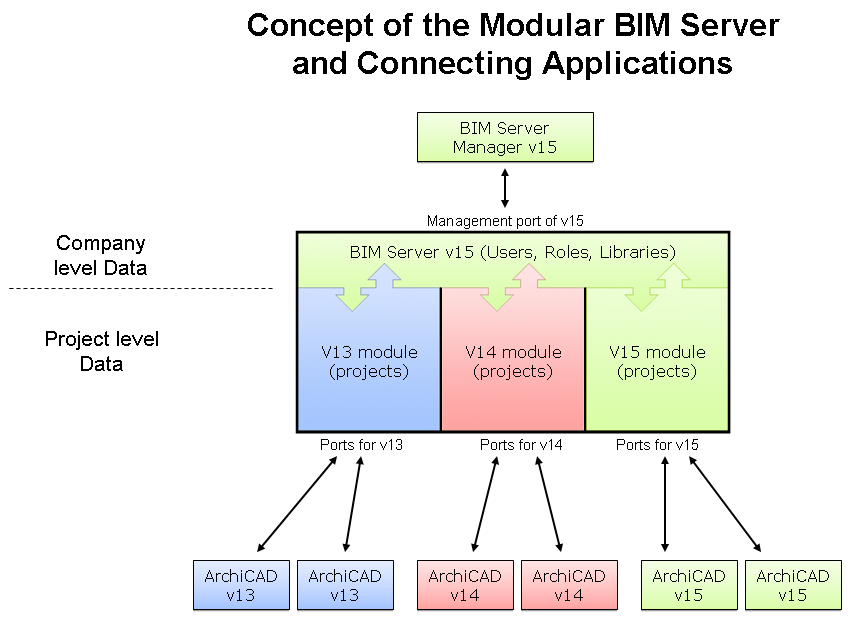
In many companies, the life of a Teamwork project will easily last beyond the time the next ArchiCAD version is released; you may be running Teamwork projects in several different ArchiCAD versions. The “Modular BIM Server” enables you to run Teamwork projects in as many ArchiCAD versions (13 and up) as you need to, from a single server machine.
The modular BIM Server is a single server with one or more modules, analogous to a filing cabinet: a single piece of furniture with one or more drawers.
The modules you need are installed as part of BIM Server Installation.
See “Install GRAPHISOFT BIM Server”, in Getting Started with ArchiCAD 17.
If you are installing the BIM Server 17 on a machine that does not have any previous BIM Server on it, then you will automatically install only one module, that is, BIM Server Module17.
When you upgrade to ArchiCAD 17, you can install BIM Server Module 17 onto your existing BIM Server.
The purpose of a modular server is to ensure that every Teamwork project version can be served by the same machine; each installed module serves the project data for a different version of ArchiCAD.
However, the Users, Roles, Custom Properties and Library databases of all the server modules are handled uniformly and are always in sync. You will manage all data from all the server modules via a single Server Manager and Control Center interface, regardless of how many modules your BIM Server contains.
BIM Server modules may be installed in any order, at any time, by installing the BIM Server from the ArchiCAD Install DVD for the version you need. Each module can be hotfixed separately. Once you no longer need a particular server module, you can uninstall it from the server machine.
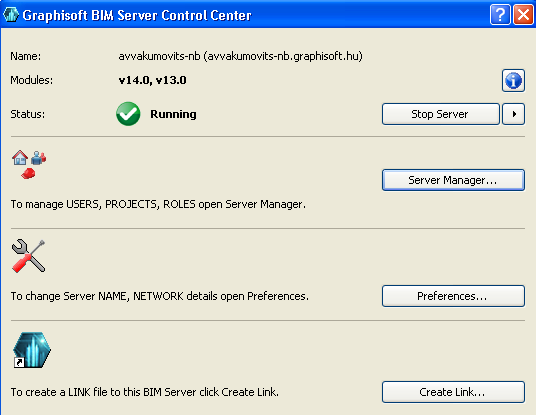
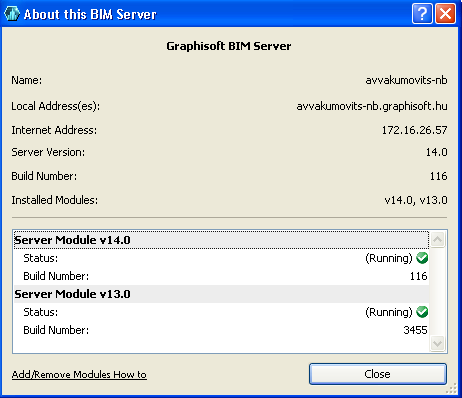
The BIM Server Control Center lists all the installed modules on the server. Click on the info button to see additional data on each module. This information is view-only.
Uniform Server Data for All Modules
As before, you will still have a single BIM Server which contains a single, central data repository of User Data, Role Settings, Custom Properties and Libraries, used by all projects on the BIM Server - regardless of their module. These data are always in sync.
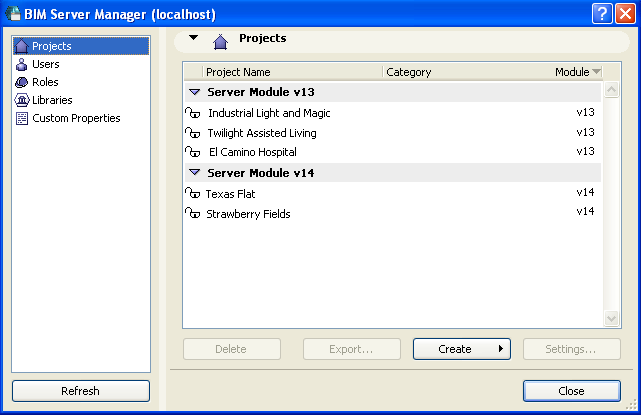
Even if your BIM Server is now composed of several modules, you will have a single BIM Server Manager interface, through which you can modify data for all projects on the server.
The Server Manager’s Projects page lists projects by module.
The server’s modules are also listed on the Server Manager’s Server Activities page.
Port Settings Separate for Each Module
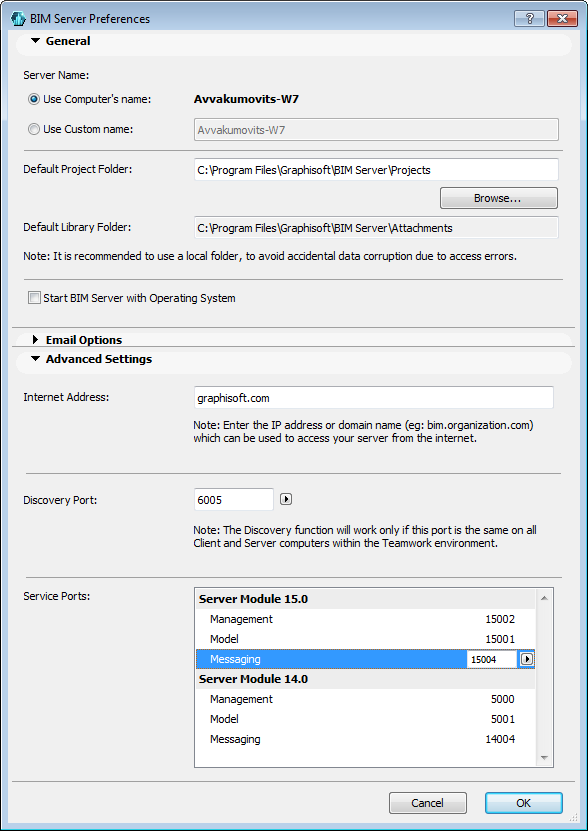
In the BIM Server Preferences dialog box, service ports for each module are listed separately. This is the only part of the user interface at which module-specific data can be entered manually. You must set separate ports for each, though the default settings should work.
When changing Server Preferences, the BIM Server Control Center will shut down all server modules while the preferences are reconfigured.
Opening and Modifying Teamwork Projects of Different ArchiCAD Versions
Your BIM Server can manage Teamwork projects for all the versions for which you have installed a module onto the server.
However, to open a Teamwork Project in a particular version of ArchiCAD, you must be running that version of ArchiCAD. (You cannot open an ArchiCAD 13 Teamwork project in ArchiCAD 14, or vice-versa.)
Once you no longer need Teamwork projects from a particular version (e.g. version 13), you can uninstall Module 13 from the Server. This means that your BIM Server cannot host version 13 projects anymore.
Go to the BIM Server folder, and find the Uninstall folder (Uninstall.BS.1300) for Module 13. In this folder, click Uninstall. (On Windows, you can also use Add/Remove Programs to remove a BIM Server module).