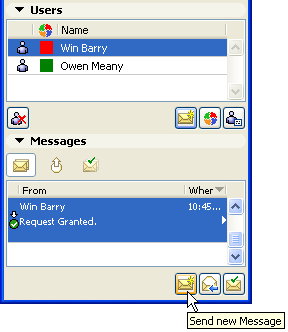
To create a new message, click the Send New Message icon at the bottom of the Messages Panel of the Teamwork Palette, or use Teamwork > New Message.
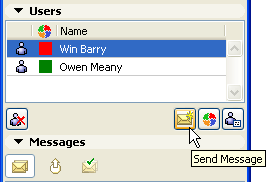
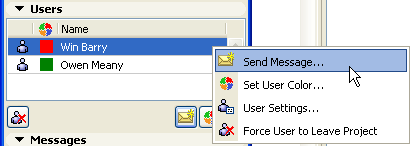
Alternatively, select one or more user names from the Teamwork Palette’s Users panel, or from the context menu, and click the same icon there. The selected names will appear in the message’s To: field.
Note: You can also send messages associated with Comments.
See Add Comment to Log.
Choose Recipients
Click the To: button to bring up a checklist of users who are logged in to the project (whether currently online or not). Choose the recipients of your message.
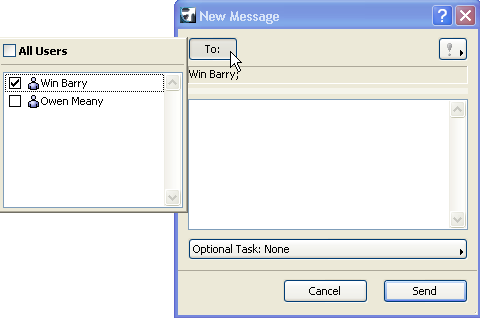
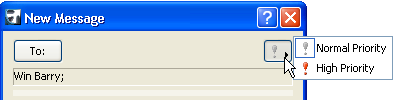
For extra emphasis, you can choose to add a High Priority icon to your message from the pop-up at the top right. High priority messages are shown in the recipient’s To Do list with a colored background, and the associated “flyover” that appears on the recipient’s screen will not disappear until the recipient takes some action to open or close it.
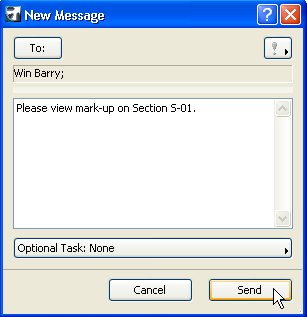
Type in the desired text message, and click Send.
Add a Task Request
You can make it easier for the message recipient if you add a pre-programmed task request as part of your message.
Before sending your message, you can optionally add a task button, so that the recipient’s copy will contain not only the message you typed, but also the specified command button, to facilitate a quick response. The recipient does not need to search for the button and the task is much less likely to be forgotten.
Click the Task pop-up in the New Message dialog box:
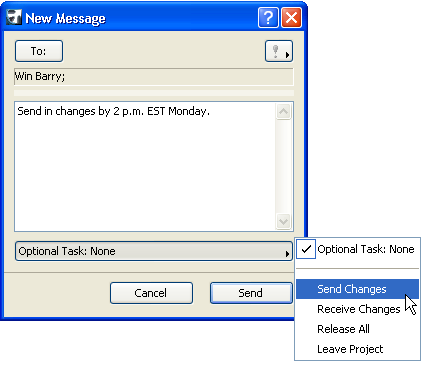
If you wish, choose a Task to add it to your message.
For example, if your message asks the recipients to send in all their work, you can attach a Send Changes button to your message. In complying with your request, the recipient needs only to click this Send Changes button from the message.