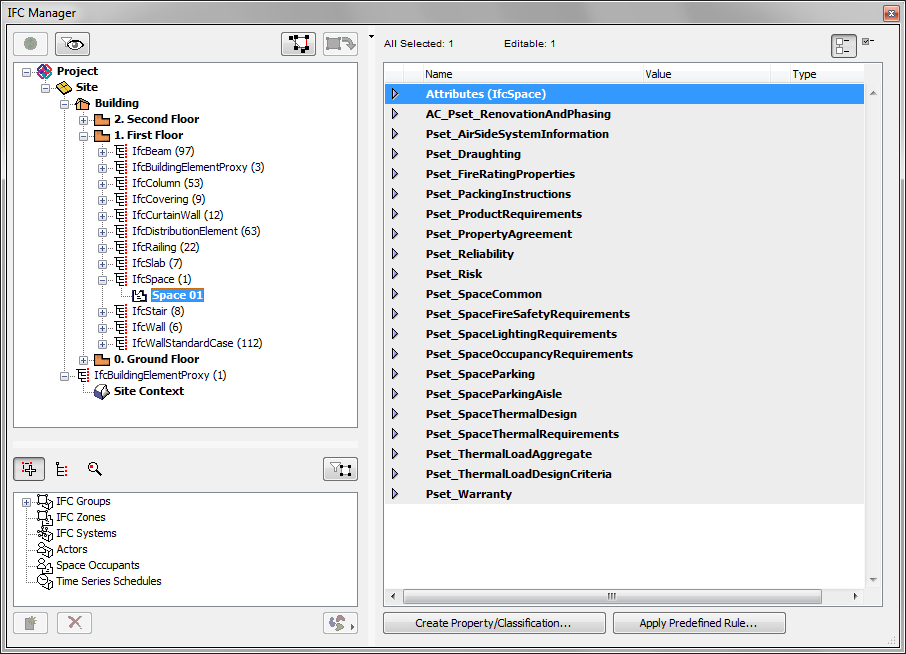
The IFC Manager (File > File Special > IFC 2x3) provides a hierarchical overview of the current project’s IFC model database with the following functions:
•Collects and lists all the IFC Entities generated from the elements of the current ArchiCAD project and/or contained in the opened/merged IFC models
•Collects and lists all IFC Attributes, Properties, Property Sets, Classification References and Assignments of the entire project by project hierarchy and by Entity types
•Enables you to create, delete and edit IFC data of all project entities
•New custom IFC Properties and Classification References can be defined manually or automatically based on predefined rules
•Enables you to create and delete IFC Assignments
•Enables you to manage and edit IFC Type Projects
See Creating and Editing IFC Data.
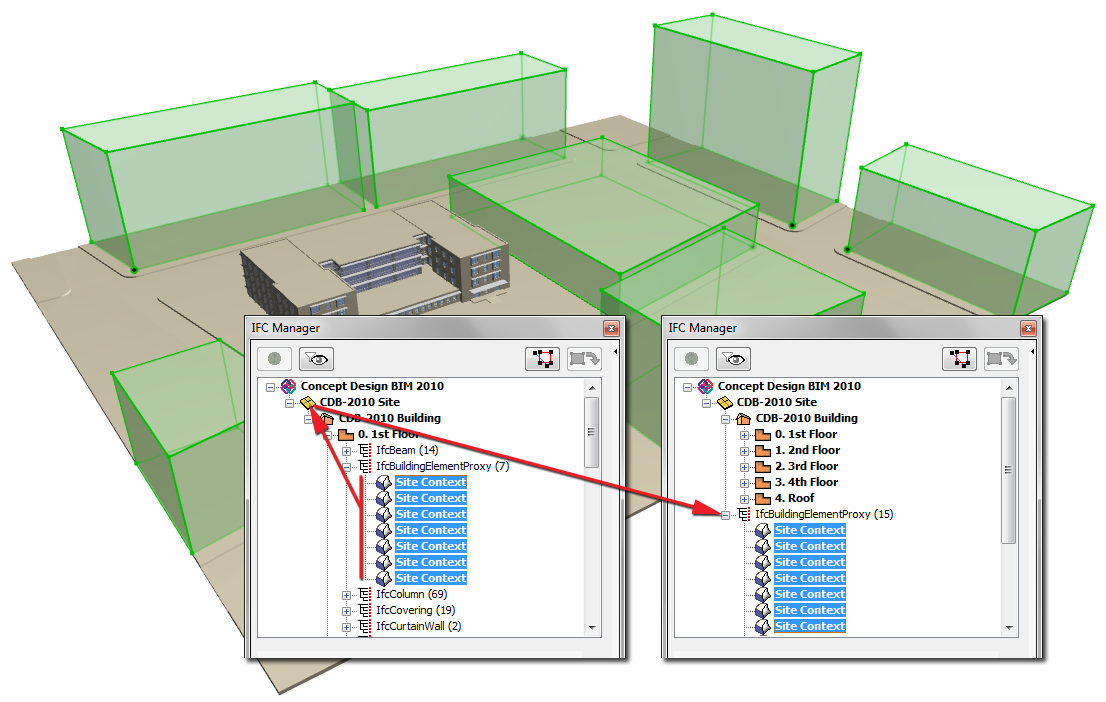
•Enables you to assign elements directly to the IfcSite or IfcBuilding. For example, the neighboring buildings and site context elements (trees, fences, roads, vehicles etc.) can be assigned to the IfcSite; thereby, their default direct relation to their home story is removed.
•Updates the IFC model with the modifications of the ArchiCAD project
•Navigates easily between the ArchiCAD model and the IFC model
•Filters the IFC model by visible layers
•Filters only the IFC data items having values in the current project
•Finds elements (IFC Entities) both in the IFC and ArchiCAD models by their IFC GlobalId (Globally Unique Identifier) Attribute
•Displays IFC Type Products
•Displays IfcSpace containments
See the IFC Manager Tree View in IFC Options.
The upper left side of the IFC Manager, the containment tree, displays the IFC model hierarchy and lists IFC Entities one by one according to their “IFC Element Type” classification.
See IFC Model Hierarchy.
The right side of the dialog box displays the IFC Attributes, Property Sets, Properties and Classification References of any element you have selected in the tree (in case of multi-selection, the IFC data of the last-selected element are shown). At the top of the list, the numbers of selected/editable elements are shown. Click on the “Show only items with values” button (upper right corner) to narrow the displayed data to those that have assigned values for the currently selected ArchiCAD elements. Such values include Property and Attribute values generated from other ArchiCAD element settings. This filtering will also show you which data will be exported along with these elements.
The IFC Manager palette is a modeless dialog box, so you can keep it open while working in the ArchiCAD project:
•If elements are created or deleted in the ArchiCAD model, the containment tree will not register these changes automatically. If a refresh is needed, a message appears below (“Tree is not up-to-date!”). To synchronize the containment tree of the IFC Manager with the project content, click on the “Synchronize list to model” button above the list. (If this button is grey, it means the tree view is up to date.)
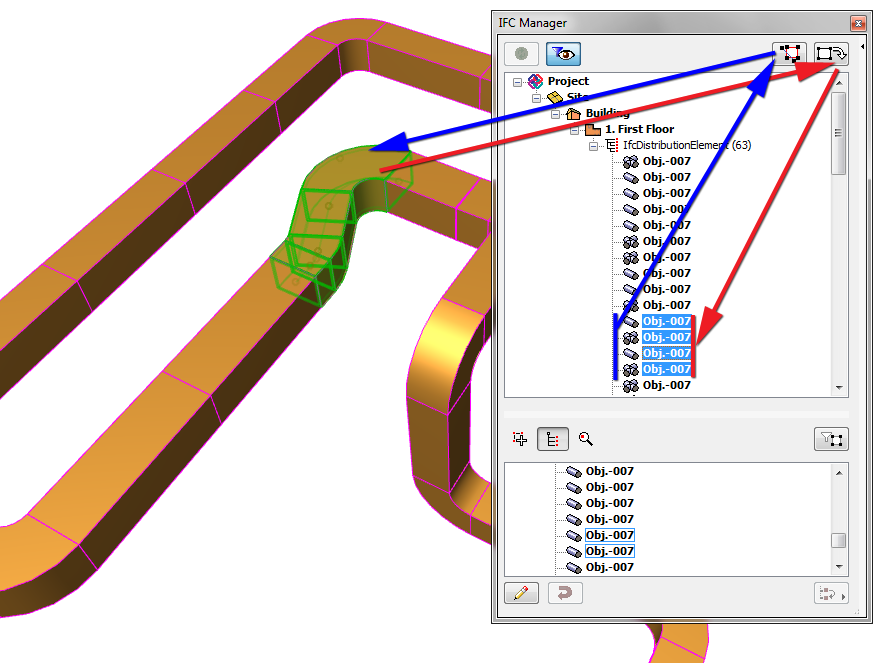
•To find and select IFC Entities of the containment tree in the ArchiCAD model, just select them (multiple selection also works) in the tree and click Show selected tree elements button. The program then attempts to display and select the elements in the active window (Floor Plan or 3D view only). In a Floor Plan view, if the element is not visible, then ArchiCAD automatically switches to the Home Story of the selected element. If it is still not visible, then a warning dialog appears. In a 3D view, if the element is not visible, a warning dialog appears.
•To find and select ArchiCAD model elements in the containment tree, just select them (multiple selection also works) in the current view (Floor Plan or 3D view) and click the “Show model selection in list” button. (It is recommended to use this button if the tree structure has already been synchronized with the model.)
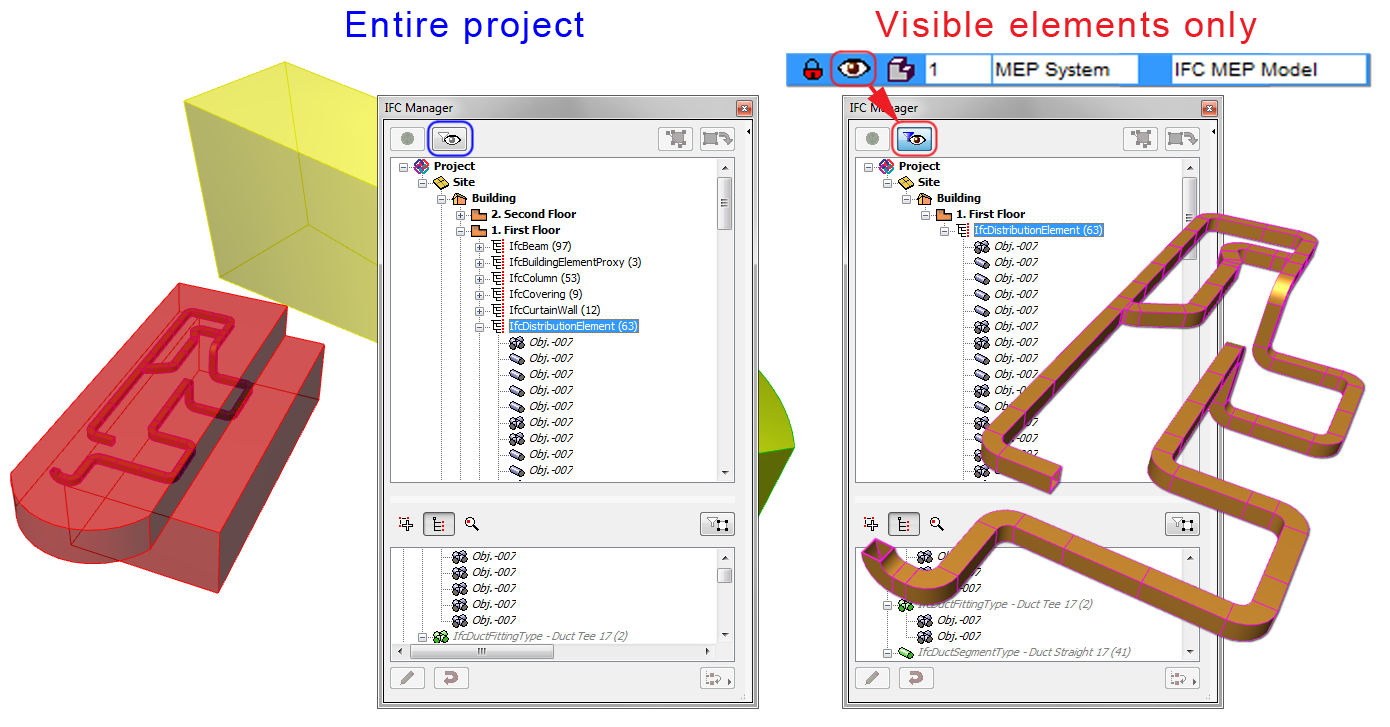
By default, the containment tree shows the entire IFC model and data of the current ArchiCAD project. By activating the “List visible model elements only” button, you can narrow the containment tree to those elements that are on visible layers only in the current view. Thus, by clicking the button, you can switch the tree and data content between the entire IFC model and just the visible IFC Entities.
Note: If you use the button to narrow the data content, and then switch views in the project, you can update the data shown in the IFC Manager by using “Synchronize list to model”, because different views may have different active layers.
You can locate elements in the containment tree based on their IFC GlobalId (Globally Unique Identifier) Attribute. Switch to the search mode using the Find by GlobalId tool (third icon underneath the containment tree). Just type the IFC GlobalId or any portion of it into the empty field below the tool, and then click “Search by GlobalId”. Choosing any item in the Search result list will select and show the assigned element in the containment tree. Clicking “Show list selection in model” finds and select the element in the ArchiCAD model too.
The IFC Manager locates and displays all the IFC Assignments and IFC Type Products that exist in the project, plus all the elements which refer to them. To see them, switch to “Assignments” or “Type Products” view/definition mode using the first or second icon underneath the containment tree. To narrow the displayed Assignment/Type Product data to that of the selected elements only, click the “Filter for selected element(s)” button. This way, you can easily check whether any given ArchiCAD Zone (IfcSpace) belongs to one or more IFC Zones, and if so, which one(s).
For more information about the management of Assignments and Type Products, see Creating and Editing IFC Data.
In ArchiCAD, all elements and objects are linked to their Home Story. Therefore, by default, elements will be listed in the IFC model hierarchy under the IfcBuildingStorey that corresponds to the Home Story. You can break this link (to the IfcBuildingStorey) by dragging the element out of its IfcBuildingStorey location into the IfcSite (see illustration below). For example, a neighboring building modeled with a Morph or a tree object that serves as a Site context element can be placed into the IfcSite folder. You can also place elements into the IfcBuilding (such as an element that is logically tied directly to a particular building rather than a story).
To return the element to its automatic IfcBuildingStorey classification (corresponding to its home story), just drag it out of the IFC Manager.