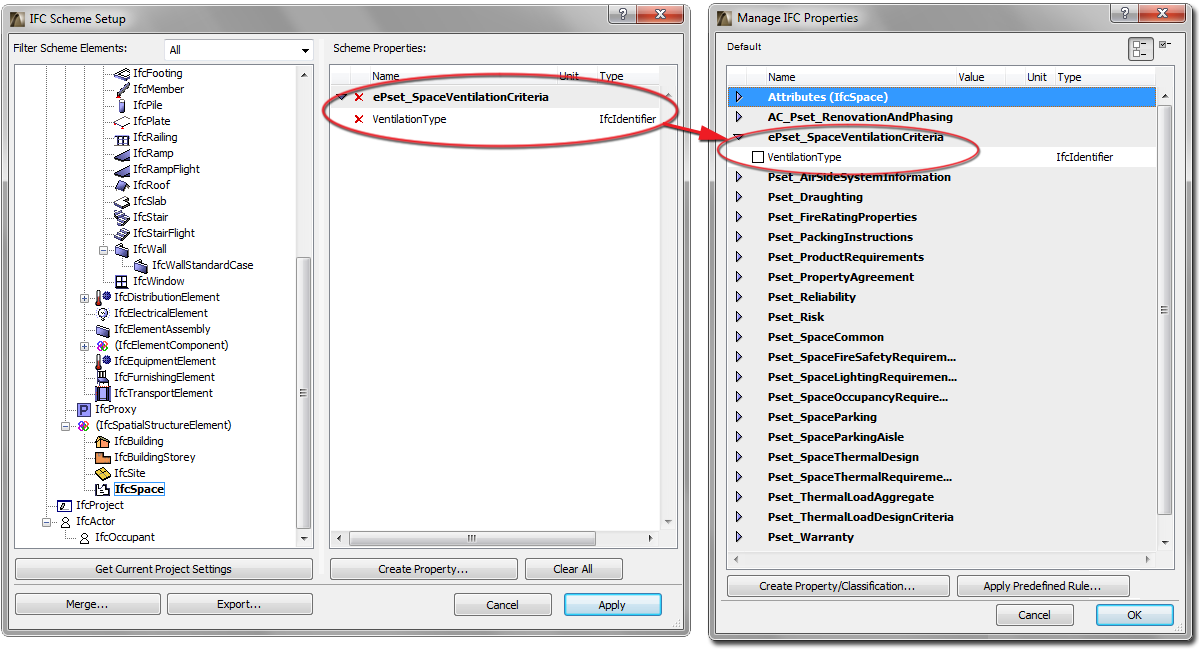
Custom IFC Property data (but not Classification Reference data) can be stored in so-called Schemes (.xml files). Use the IFC Scheme Setup command (File > File Special > IFC 2x3) to manage these schemes, using the following functions:
Use the “Get Current Project Settings” button to collect all the current custom IFC Property Sets and Properties (defined in either IFC Manager or Element Settings) which are available in the current Project.
Note:
•As part of this process of collecting data, if a custom Property already exists for at least one element (e.g. one IfcWall element) of an IFC Entity type, then the custom Property will appear as a property of that IFC Entity (e.g. IfcWall).
•Derived custom Properties (such as those derived from the current conversion rule applied to Library parts; see IFC Options) are not shown in the Scheme Properties list, because they are not editable, and are exported as part of IFC export.
•The current status of IFC Scheme Setup (for example, after collecting the custom properties of the current project with Get Current Project Settings process) can be saved in an .xml file as part of the Export function, and this file can then be merged (by using Merge) into a new or existing project. With this workflow, you can use the current custom Property data in a new project without redefining them.
Note: When you load a Scheme into a new project, that project does not require that any IFC Entity (ArchiCAD element) be already defined. As soon as you create an element in the project whose type includes a custom IFC Property according to the applied Scheme, then those data immediately appear and are accessible in the element’s Settings dialog (Manage IFC Properties), as well as in the Property list belonging to the element in the IFC Manager. The appearance of such properties is like that of standard Properties (they are shown in black, with a checkbox in front). This means they cannot be edited (renamed or deleted) in either the Settings dialog or in IFC Manager, because they are derived from Scheme Setup - that is the only place they are editable.
•At any time, use the Merge function to import a Scheme stored as an .xml file. If the current project’s Scheme Setup already contains custom Properties, then the Merge means you will retain your existing Properties, and add the new ones from the file. If the current project’s Scheme Setup contains custom Properties (with assigned values) that have the same name and location (Property Set) as those in the merged Scheme, then the original values will be retained in both IFC Manager and Element Settings (the values you assigned will not be lost).
•The currently used Scheme is editable. You can create new custom Property Sets and Properties by IFC Entity Types (use the Create Property command). You can rename and delete Properties (click the red X). You can delete the entire contents of the currently used Scheme with the Clear All command. The scheme tree (the list on the left side of the dialog box) contains all of the element types, Assignments, Type Products and their “parents” which are available in the IFC 2x3 scheme documentation and are editable in ArchiCAD (excluding IfcAnnotation and IfcGrid). The tree list can be filtered by Structural and HVAC domains. For example, the Structural domain contains the IfcBuildingElement types (IfcBeam, IfcColumn, etc.) while the HVAC domain contains the IfcDistribution types. The tree list can also be narrowed to the IFC Assignment types or IFC Spatial element types (IfcSpatialStructureElements: IfcSite, IfcBuilding, IfcBuildingStorey and IfcSpace).
Examples:
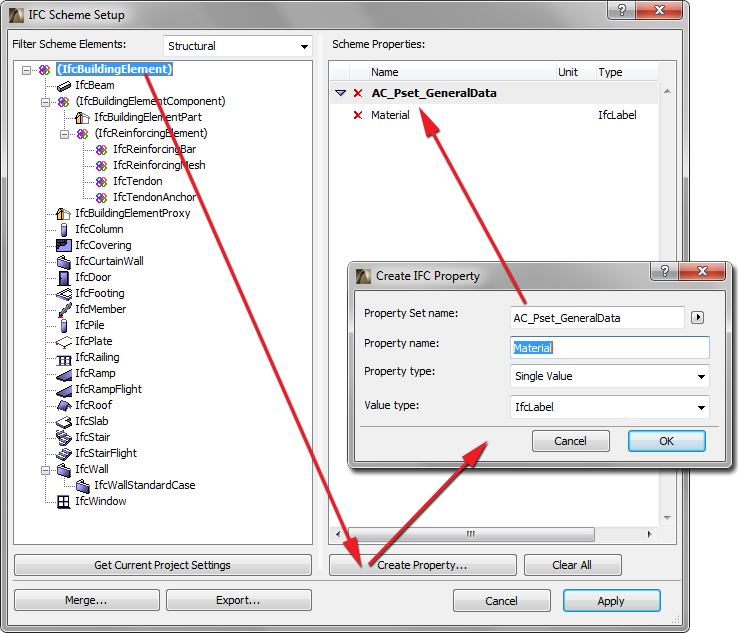
•Create a custom label-type “Material” Property stored in a new Property Set called “AC_Pset_GeneralData” for every building element.
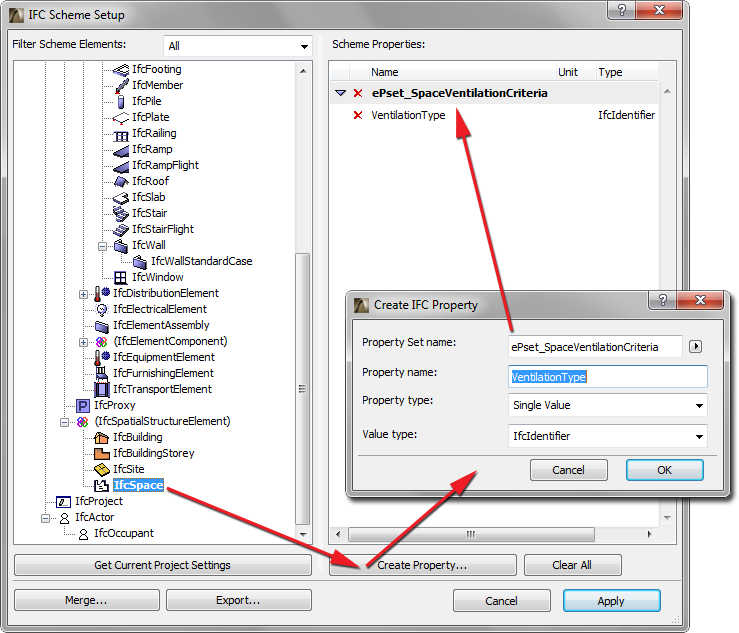
•Create an identifier-type “Ventilation Type” Property for IfcSpace entity within the Property Set called “ePset_SpaceVentilationCriteria”.
Note:
•The newly created custom Properties are shown in blue for the tree elements (e.g. IfcWall) if the Property was created at a higher, “parent” level (e.g. IfcBuilding). In this case, the Property can only be edited from within the parent (whose name is shown in parentheses following the Property name).
•Examples of display variations in the Scheme Elements list:
-IfcWall: scheme tree element (entity type) that can appear and is editable in IFC Manager.
-(IfcBuildingElement): scheme tree element which is the “abstract supertype” of the former (and which do not appear in IFC Manager).
-IfcWall and (IfcBuildingElement): as above, but whose Properties are editable (deletable using the red X) in IFC Scheme Setup.
Applying the current Scheme Setup (click Apply) will synchronize all changes and current Property elements in the IFC Manager and Settings dialogs.
Example:
Merging and applying the scheme file called “ConceptDesign BIM 2010.xml” (ArchiCAD’s default scheme template file, found in ArchiCAD’s Defaults folder) will add the properties stored in the template file based on the requirements of GSA, Statsbygg and Senate Properties to the default IFC Scheme. This means the merged properties will be available as default custom properties in the current project’s IFC Manager and Element Settings dialogs. You can activate them with the checkbox and give them values, but they are not editable (renamed or deleted permanently).
If you click Cancel, all changes will revert, and the .xml merge will not be carried out: everything remains as it was before you issued the command.