The View Map provides a tree structure of all the saved views in your project. Click on any view in the Navigator Palette to access its properties and settings.
For more information, see Navigator View Map.
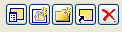
These buttons represent shortcuts to commonly used view management commands. From left, they are:
•View Settings: Opens View Settings dialog box of selected view
For more information, see View Settings Dialog Box.
•Save Current View: Opens Save View dialog box, where you can save the current view by click the Create button.
For more information, see Saving a View.
•New Folder
•Clone a Folder: Opens Clone a Folder dialog box
For more information, see Clone a Folder in the View Map.
•Delete item
The first items concern the View ID and View Name. Click directly into the fields to enter a different ID number or name for the view, if needed.
The remaining Properties fields are not editable here. They give you information on the following properties of the selected view:
•Layer Combination
•Scale
•Model View Options Combination
Settings: Click this button to access the selected view’s Settings dialog box.
For more information, see View Settings Dialog Box.