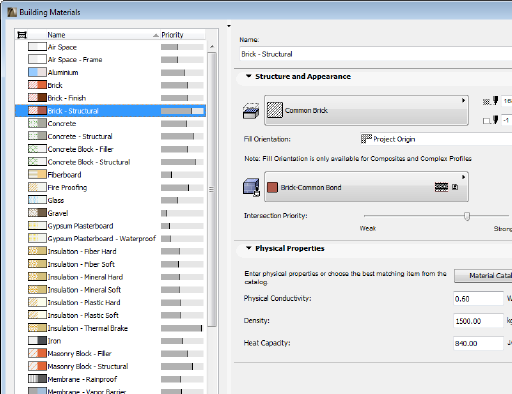
Use the Options > Element Attributes > Building Material dialog box to define and/or edit Building Material definitions. These include:
•Cut fill
•Cut fill pens (foreground/background)
•Intersection Priority
•Fill orientation (if used for a composite or complex element)
•Surface (known as Material in previous ArchiCAD versions)
•Physical properties
For details on how to use them, see Building Materials.
On the left side of the dialog box, the Building Materials predefined for your project are listed by Name and Intersection Priority.
•Sort the list by name or priority by clicking on either of these list headers.
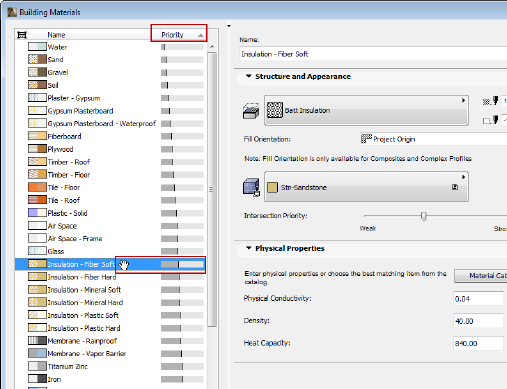
•If you have clicked the priority header to sort by priority, you can then edit the intersection priority of any selected item by dragging it up or down in the list.
•Any Building Materials used by elements that are selected in the current ArchiCAD view are listed with a “selected” icon at the left of the list and highlighted in green.
1.Select the Building Material(s) you wish to edit from the list.
2.Use the fields on the right side of the dialog box to edit the properties of the Building Material(s) selected in the list. You can select and edit multiple Building Materials simultaneously (in this case, you cannot edit their names).
Structure and Appearance Panel
Cut Fill: Define a Cut Fill for this Building Material from the pop-up. The Fills you see here are those defined as “Cut Fills” in the Fill Types dialog box. (Only cut fills are available.)
Cut Fill Foreground Pen/Fill Background Pen: From the pen chooser pop-ups, define the foreground and background pen for this Building Material.
See also Line Elimination Between Building Materials.
Fill Orientation: This option affects the appearance of the cut fill pattern of Building Materials applied to composite elements and Complex Profiles only.
•Project Origin: The fill pattern is displayed so that the pattern originates at the Project Origin.
•Element Origin: The fill pattern is displayed so that the pattern aligns with the element’s direction.
•Fit to Skin: (Available only for symbol fills.) The pattern will be drawn so that it fits within the limits of the Skin Thickness.
For more information, see Set Orientation of Vectorial or Symbol Fill Patterns.
Define Building Material Surface
Define a Surface for displaying this Building Material in 3D.
Note: It is possible to override a particular element Surface in its Settings dialog box (Model Panel), or by using the Surface override pop-up in the element’s Info Box.
There are two ways to change a Building Material’s intersection priority:
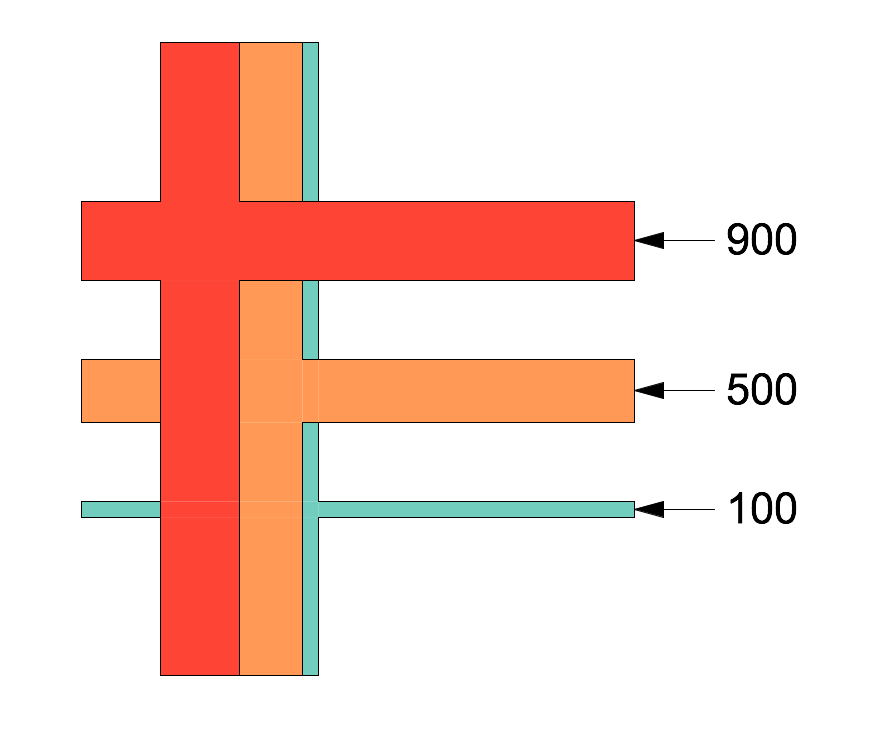
•Use the slider at right to adjust this Building Material’s relative priority in its intersections with other construction elements. (Expressed in numbers, an intersection priority can run from weak - a minimum of 0 - to strong - maximum of 999. This will affect the element’s intersections and display in model views.
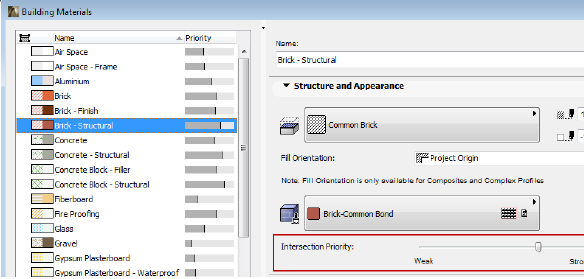
See Basic Intersection Principles and Intersecting Elements with Identical Priorities.
•Another way to adjust priority is on the left side of the Building Material dialog box: If you have clicked the priority header to sort the list by priority, you can then edit the intersection priority of any selected item(s) by dragging it up or down in the list.
Be aware that Building Material definitions are global; any changes you make here will affect all project elements which use that Building Material – not just the selected elements!
If you want to adjust the priority in just one element of the project, you can create a duplicate Building Material with a different priority. (See Create New or Duplicate Building Material, below.)
For general information on modeling intersections, see the topics at Element Intersections.
For the selected Building Material, enter data for its
These data are predefined for ArchiCAD Building Materials, but you can edit them directly.
You can also access the built-in Material Catalog (click the Material Catalog button), and click the name of a material having the characteristics you need; its physical properties will then be applied to the Building Material you are editing.
For more information, see Material Catalog.
Create New or Duplicate Building Material
Click New at the bottom of the Building Materials dialog box.
In the appearing dialog box, choose whether to create an entirely new Building Material, or to duplicate the current one.
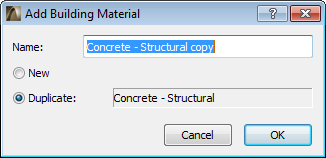
Give the new Building Material a Name, then click OK.
Adjust the settings for the new Building Material, then click OK to close the Building Material dialog box.
•Delete: Select one or more Building Materials from the list, then click Delete. Elements using that Building Material will be shown as having a “Missing” Building Material.
•Delete and Replace: When deleting a Building Material, you have the option to replace it with a different one.

Note: In Teamwork, only elements, composites, profiles or favorites reserved by you will get the replacement Building Material. All others will have a “Missing” Building Material.