Migrating Libraries to ArchiCAD 17
The new version of ArchiCAD will work perfectly well with any older-version ArchiCAD libraries. However, if you stay with your older libraries, you will not get the full benefit of library improvements and fixes in ArchiCAD 17. We recommend that when you migrate a project to ArchiCAD 17, you also switch to the ArchiCAD 17 Library.
The best way to do this is to go to Library Manager and add the ArchiCAD 17 Library; then use the Consolidate function described in the next section.
Note: The consolidation process and Migration Libraries are available only for migrated projects that use ArchiCAD Libraries 10 and later.
Migrate to ArchiCAD 17 Library Automatically: Consolidate Libraries
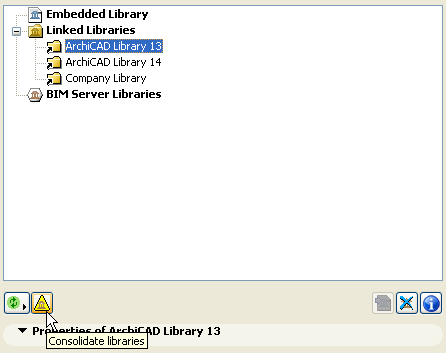
Any time you add an additional ArchiCAD library to a project that already has one, ArchiCAD will recognize the presence of older-version ArchiCAD libraries (versions 10 and later). In this case, the yellow Consolidate button appears in Library Manager.
Note: The Consolidate button appears in Library Manager any time that at least one outdated ArchiCAD Library - that is, a Library which is not the latest one - has been added to the project.
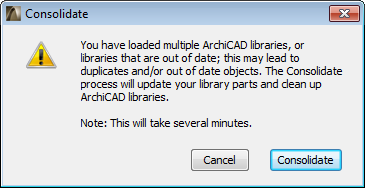
Consolidating ArchiCAD libraries is recommended, because it replaces the old ArchiCAD libraries with the latest library, but also loads the requisite Migration Libraries so that you still have access any now-obsolete library parts you may be using. Migration Libraries are much smaller than the full ArchiCAD libraries, so this consolidation process will save your project from a great many superfluous objects.
The automatic consolidation process will
•load the new ArchiCAD library
•load all the relevant migration libraries you need. (These migration libraries will have already been installed on your computer, as part of ArchiCAD installation.)
•remove ArchiCAD libraries with lower version numbers
•automatically replace placed objects from the older libraries (versions 13-16) with their latest compatible version in the ArchiCAD 17 library
For example, if you are migrating an ArchiCAD 10 project to ArchiCAD 17, issuing the “Consolidate” command will automatically locate and load the Migration Libraries 10, 11, 12, 13, 14, 15and 16.
Note: If you want to use your ArchiCAD Libraries from the BIM Server (rather than as linked libraries), ArchiCAD will not be able to locate the migration libraries automatically. In this case, you must upload the migration libraries from your hard drive to the BIM Server.
The ArchiCAD Library migration is now complete.
Migrating Libraries in a Teamwork Project
To migrate a Teamwork project, use the Migrate Project process described here: Migrating a Teamwork Project (v. 13, 14, 15 or 16) to ArchiCAD 17.
During this process, make sure that the Migrate ArchiCAD Libraries checkbox is checked. This will ensure smooth migration of your ArchiCAD Libraries together with the Teamwork project.
Note, however, that some objects in your migrated Teamwork project may be listed as “Temporarily Missing” in the Library Manager or in the Library Loading Report. As soon as other users do a Send and Receive, this problem will be solved automatically.
What is a Migration Library?
Each new version of the ArchiCAD Library contains many objects that have been updated since the previous version. For the most part, these updated objects are compatible with placed older versions of the same object, and will automatically replace the older versions.
Some objects from older ArchiCAD libraries, however, have no counterpart in the new ArchiCAD 17 library (typically, these are “discontinued” objects deemed obsolete). But if your project uses such objects, you want them available even if after migrating to ArchiCAD 17.
ArchiCAD Migration Libraries (generally available for versions 10 and up) serve this purpose: they contain only those objects from an earlier-version ArchiCAD Library that do not have counterparts in the latest-version ArchiCAD Library. A Migration Library is much smaller than full-version ArchiCAD Library.
If you do not use the Migration Library, then some of your placed objects from older-version projects may not have a compatible corresponding object in ArchiCAD 17. In this case:
•those incompatible older objects will be “Missing Objects” in ArchiCAD 17 if you have removed your old libraries. In this case, you must replace these missing objects with new ones from the ArchiCAD 17 library, and reset their parameters as needed.
•Keeping your old libraries alongside your new libraries is not recommended, because a great many of the loaded objects will be duplicates and/or superfluous, and increase library loading time.
The recommended solution, if you have placed objects from multiple ArchiCAD libraries and have loaded all the libraries, is to Consolidate your libraries.
See Migrate to ArchiCAD 17 Library Automatically: Consolidate Libraries.
Where to Find Migration Libraries
Migration libraries (generally available for ArchiCAD versions 10 and up) are installed on your machine when you install ArchiCAD 17. If you want to use your ArchiCAD libraries as Linked Libraries, then the automatic migration process and the Consolidate Libraries functions described above will locate and load the necessary migration libraries automatically; you do not need to find them.
If your ArchiCAD Libraries are BIM Server Libraries (for example, for a Teamwork project) and you want to consolidate them, ArchiCAD will not be able to locate the migration libraries automatically. In this case, you must upload the migration libraries from your hard drive to the BIM Server.
In this case, you should use the migration library corresponding to the version of the migrated project, plus every other available migration library “upwards”. For example, if you are migrating an ArchiCAD 10 project to ArchiCAD 17, you should use Migration Libraries 10, 11, 12, 13, 14, 15 and 16.
You can also download Migration Libraries from the GRAPHISOFT website.
Note: Available migration libraries may vary, depending on your localized version.
Migrating Libraries and Objects from ArchiCAD 12 and Earlier
Note the additional Library-related changes when migrating projects from ArchiCAD 12 and earlier:
•Active Libraries - Linked Libraries
The active libraries of older-version projects will be loaded in ArchiCAD 17 as linked libraries. (They will be listed in the Linked Libraries folder of the Library Manager.)
•Other Objects - Embedded Objects
“Other Objects” items in the older ArchiCAD projects will appear in the “Embedded Objects” folder of ArchiCAD 17.
•Other Objects in Hotlinked Modules
If you place a hotlinked module from ArchiCAD 12, any objects placed from the source file’s “Other Objects” folder will be missing in ArchiCAD 17. The solution is to embed these objects in your host ArchiCAD 17 project, using Library Manager, or to place those objects in a library on the BIM Server, and add that library to the project.
•Missing Libraries - Unavailable Libraries
Any library “missing” in the Library Manager of the older version will be listed as “unavailable” in the Library Manager of ArchiCAD 17. Locate these libraries and add them as linked libraries, using the Library Manager’s “Add” command.
•Missing Objects
Missing objects in the older-version project are also listed as “missing” in ArchiCAD 17, both in the Library Manager as well as the Library Loading Report. To solve the problem, locate the source files of these missing objects and add them to the project, using Library Manager.