
Migrating a Teamwork Project (v. 13, 14, 15 or 16) to ArchiCAD 17
To migrate a Teamwork Project from ArchiCAD 13, 14, 15 or 16 (henceforth 13-16 in this document) to ArchiCAD 17, you will need:
1.Both ArchiCAD 13-16 and ArchiCAD 17 installed on your client machine.
2.Access to BIM Server version 13-16 and BIM Server version 17. This can take one of two forms:
Either
•You have a BIM Server version 17 that also includes BIM Server version 13-16 as module(s).
This setup - migrating the project from one server module to another - is the simplest way to migrate.
Or
•You have BIM Server 13-16 on one machine and BIM Server 17 on another machine. This setup - migrating the project from one server machine to another - is the more labor-intensive method.
Important
Keep in mind that if you link a hotlinked module or a drawing from a Teamwork project, that source Teamwork project must have the same version number as the host project. This means that if you migrate a project (either solo or Teamwork) from ArchiCAD 13-16 to ArchiCAD 17, any Teamwork files that are linked to it (via hotlinked modules or drawings) must also be migrated.
Topics in this section:
Migrate Project from one Server Module to Another
Migrate Project from one Server Machine to Another
Migrate Project from one Server Module to Another
In this scenario, you have a single BIM Server that has modules 13-16 and 17 installed. This migration process entails two phases:
•Prepare Project for Migration (you do this in ArchiCAD 13-16); and
•Migrate Prepared Project (you do this in ArchiCAD 17).
Prepare Project for Migration
1.Start ArchiCAD 13-16.
2.Open your ArchiCAD 13-16 Teamwork project.
3.Make sure that all other users send in their changes and leave the project. (If they do not, they will lose any unsent changes.)
4.Issue the Prepare for Migration command at Teamwork > Project > Migrate Project > Prepare for Migration.
5.The Migrate Project dialog appears. Click Prepare.
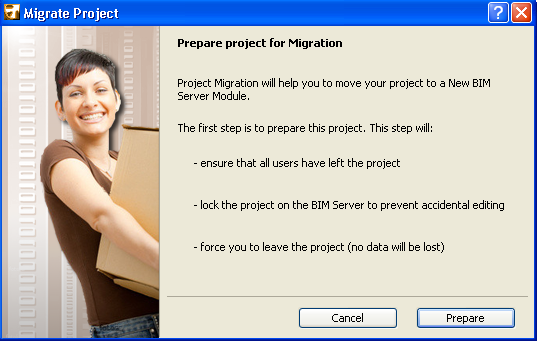
6.The project is prepared for migration.
7.You now have two choices:
•If you do not want to prepare any more projects now, choose Finish Preparation from the next dialog box, then Close.

•To migrate another project, choose Open and Prepare another Project.
This is the recommended choice if you have several Teamwork projects to migrate. This way, you prepare all of them in ArchiCAD 13-16 before changing to ArchiCAD 17 and completing their migration there, instead of switching back and forth between ArchiCADs for each project.
8.Once you have prepared all the projects you need, move on to the next phase:
Migrate Prepared Project
1.Start ArchiCAD 17.
2.Choose Teamwork > Project > Migrate Project > Migrate Prepared Projects.

3.The dialog box lists all the prepared projects: select one to migrate it.
•If the listed project is shown in grey, it means you cannot complete that project’s migration now - for example, because the server is offline.
•If you have not prepared any projects, you are prompted to do so.

Optionally, check the Migrate ArchiCAD Libraries box: this will replace the project’s currently used ArchiCAD libraries with ArchiCAD Library 17, plus the necessary migration libraries. (These libraries will be uploaded to the BIM Server if they are not there already.) If you do not check this box, you will continue using the migrated project with its current ArchiCAD libraries.
4.Click Migrate.
5.The project content will be uploaded to the BIM Server. Users and their roles on this project will be unchanged.
Note: The Project Log, Comments, messages and any reservations will be deleted during project migration.
6.Now that the original project is migrated, you can manually delete it from the old BIM Server module.
7.At this point, you can continue in one of three ways:
•Migrate another project
•Join the migrated project
•Leave the migration process
8.If the migrated project contains any hotlinked modules or drawings linked from AC 13-16 Teamwork projects, you must also migrate each of those Teamwork projects from ArchiCAD 13-16 to ArchiCAD 17, following the steps above.
•If those hotlink/drawing source projects were on the same BIM Server as the migrated host project, then the host project will automatically locate and link the source projects, once they are all migrated.
•If those hotlink/drawing source projects were on a different BIM Server than the migrated host project, you must re-link the hotlinked modules and drawings manually, once the source projects are all migrated.
Migrate Project from one Server Machine to Another
In this scenario, you have BIM Server 13-16 running on one server, and BIM Server 17 on another server.
1.Open your ArchiCAD 13-16 Teamwork project.
2.Make sure that all other users send in their changes and leave the project. (If they do not, they will lose any unsent changes.) Just in case, it is advisable to lock the project on the server to prevent other users from modifying it.
3.Save the project as a solo (.pln) ArchiCAD 13-16 project.
4.Start ArchiCAD 17.
5.Open the.pln file and share it as an ArchiCAD 17 Teamwork project to BIM Server 17.
6.You must also migrate any ArchiCAD 13-16 Teamwork projects that are the source projects for hotlinked modules or drawings in the migrated project. Each of these source projects must be saved as.pln in ArchiCAD 13-16, then opened in ArchiCAD 17 and shared to the BIM Server 17.
7.All hotlinks and drawings linked to Teamwork source projects must be re-linked manually, once those source projects are all migrated.
8.Once the original projects are all migrated, they can be manually deleted from the old BIM Server.