
These commands are accessible from the list of Reference commands; or from the Trace & Reference palette.
See also Trace & Reference Palette.
•Use this icon to drag the Reference to another location.
•Use this icon to rotate the Reference.

•Use this icon if you want to reset the Reference to its original default position after you have moved it.

Note: The same commands are available from the context menu by right-clicking into any window showing a Reference; and from the Standard Toolbar’s pop-up list of Reference commands.
In the image below, a Section viewpoint is displayed as a Reference and rotated alongside the Floor Plan that contains the Section marker:
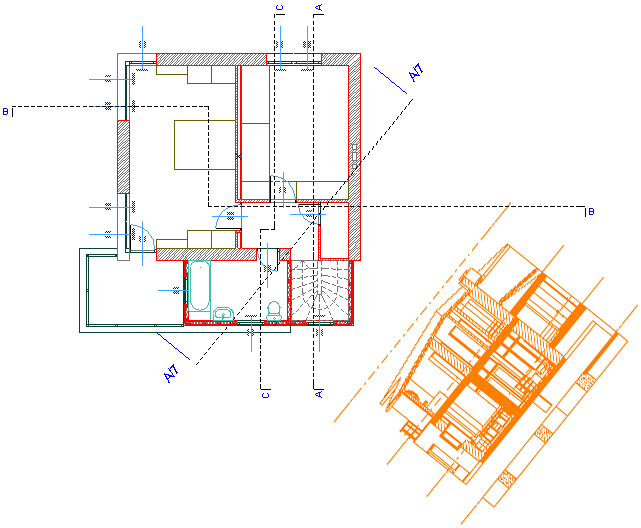
Drag/Rotate commands applied to the Reference will be reflected in the Tracker’s coordinate data (coordinate data are calculated according to the Active’s coordinate system, not the Reference’s.)