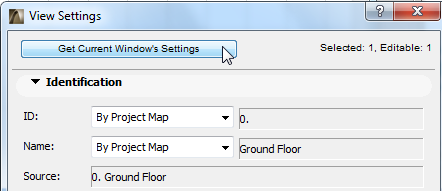
To change the settings of an already saved view, do one of the following:
•Open the View Settings Dialog Box and make any changes needed
•Click Get Current Window’s Settings to overwrite the original view settings with the current viewpoint settings (i.e. those of the active window).
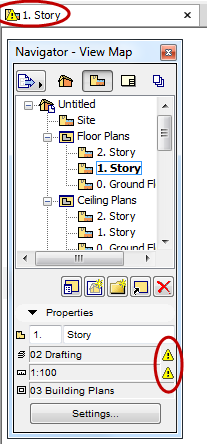
If you have opened a saved view from the View Map, and if, while working in the active window, you have changed any of its View Settings, a triangular yellow “warning” icon will appear at the bottom of the Navigator, next to the changed settings, alerting you that “The settings in the frontmost window no longer correspond to the original view settings.”
For example, the image below indicates that the current window’s zoom and layer settings are different than in the saved view.
Restore Saved View
To restore the view’s saved status, double-click the view item in the Navigator.
Similarly, in the Tab Bar, if the view does not match the current settings, the tab is marked with a warning. Double-click the tab (or use tab’s context menu) to restore the view’s saved status.
See also View/Viewpoint Feedback in the Tab Bar.
Save Current Window’s Settings as View
To save the current window settings as a view: open the View Settings dialog box, then click Get Current Window’s Settings.