Post Component Settings (Posts/Inner Posts/Balusters)
This panel is available in the Settings dialogs of all Post-type Railing components: Posts, Inner Posts and Balusters.
Available controls depend on the selected Post component (e.g. Built-in, Profiled, Revolved). Some of the key controls are described here.
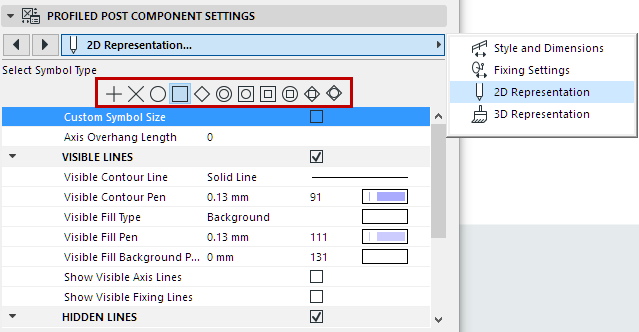
Post 2D Symbol Type
Select a Symbol Type on the 2D Representation tab page of Post Component Settings.
Post 2D Symbol Display
Set 2D display preferences for the Post component, using the controls below (for Visible and Hidden parts of the Railing).
See Component Visibility and Detail Level at Railing Settings: Geometry and Symbol Display
Show/Hide Post’s 2D Symbol
By default, the visibility of Railing components in 2D views is defined at Document > Set Model View > Model View Options.
To override these settings, click the Custom option on the Railing Settings page. (See Component Visibility and Detail Level.)
Then, in Component Settings, use the Visible Lines and Hidden Lines checkboxes to show/hide this Component’s 2D Symbol.
Note: Component-level visibility settings do not take effect unless the Custom option is enabled in Railing Settings.
Note: Not available for Balusters.
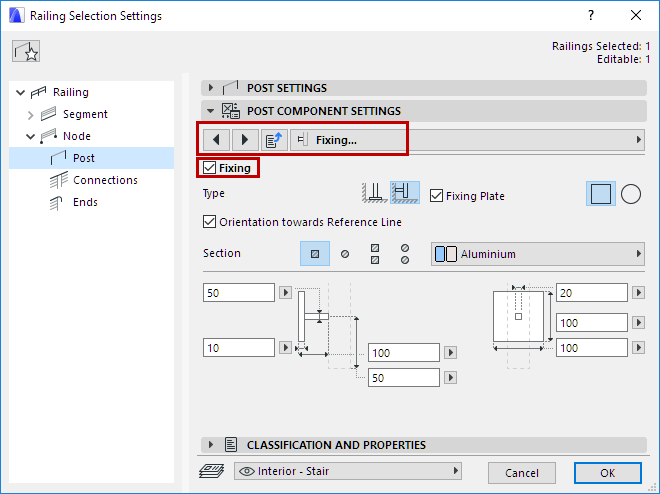
Use a fixing to attach the Post with a simple console. Click Fixing on the Fixing Settings tab page of Post Component Settings to access the settings, including size, profile and Building Material. (You can also open Fixing Settings from the Style and Dimensions tab page.)
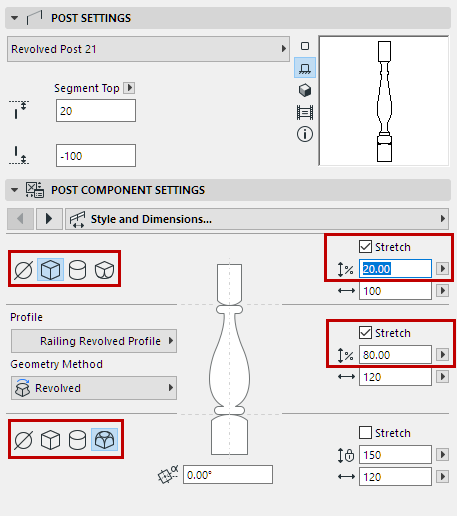
Revolved Post Options
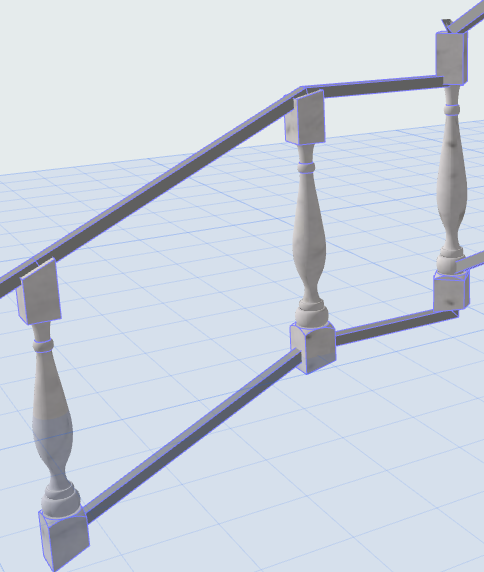
For a Revolved Post, you have many customization options. View the Preview to get the idea.
•Choose a Profile (Middle Profile) for the center part of the Revolved Post
•Choose a Geometry method
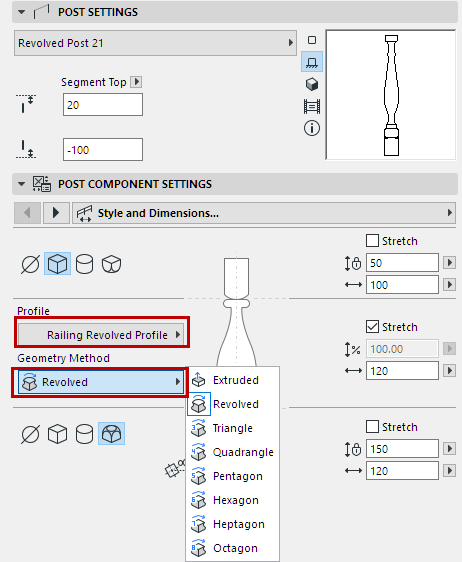
•Add top and bottom parts to the post in a chosen Style
•For each part of the post (Top, Middle, Base):
◦Set an absolute height for each post part, or
◦Check Stretch for one or more of the post parts (Top, Middle, and/or Base) to stretch it by a certain percentage of the whole. (The total stretching for all three parts equals 100 percent.)