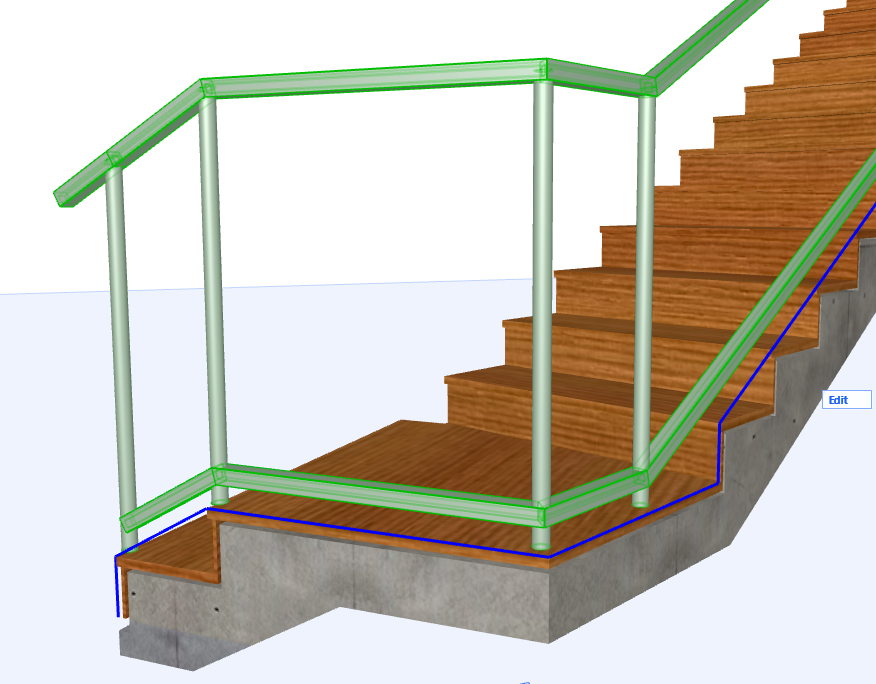
Nodes are the points that divide the Railing Segments (like points on a polyline).
One or more Posts are located at each Node.
Use the Node page of Railing Settings to define the number and position of Posts at the Nodes, and how to handle the connection of two Segments when they meet at a Post.
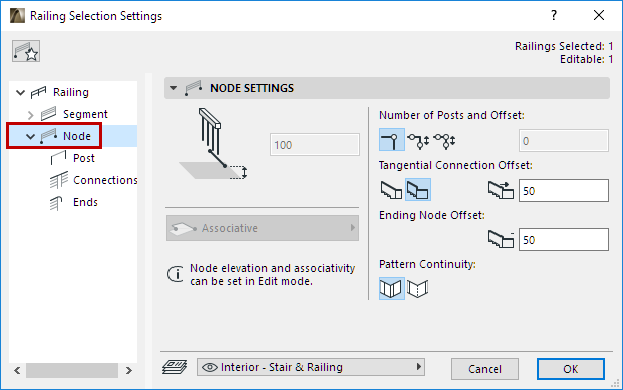
Vertical Offset
Available in Edit Mode only.
Set an optional elevation (vertical offset) for the Nodes (this is relevant for static Nodes).
Number of Posts per Node; Offset from Node
Set the number of posts per Node (one post at the Node, or two posts on either side of the Node, or all three posts).
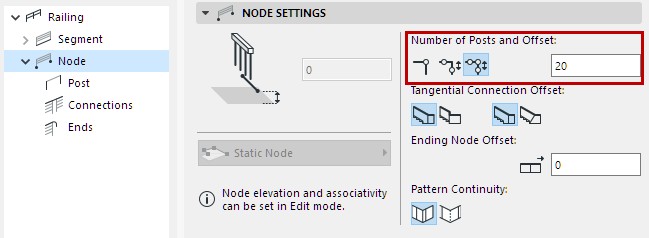
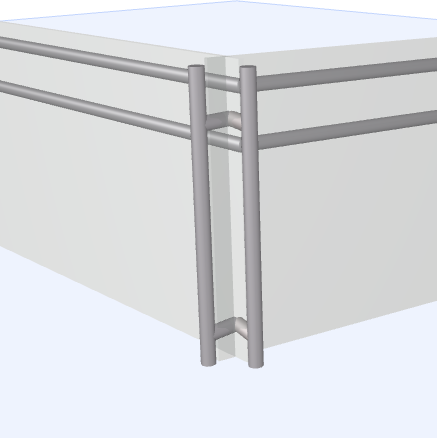
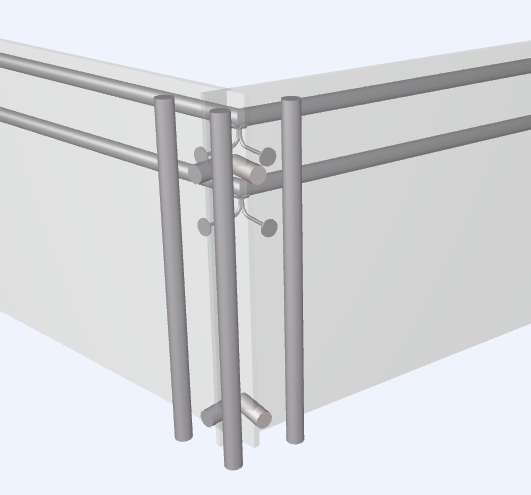
Node with Two Posts and Three Posts
If the Node has more than one post, set the offset distance of the posts on either side of the Node.
Node Offset on Reference Line
Offset the Node to adjust Post position.
Post Position at Tangential Connections
This is relevant for Posts located where two Railing Segments connect tangentially.
•Choose either Automatic or Manual
◦In case of Automatic: Define the connecting Post as Vertical or Tilted.
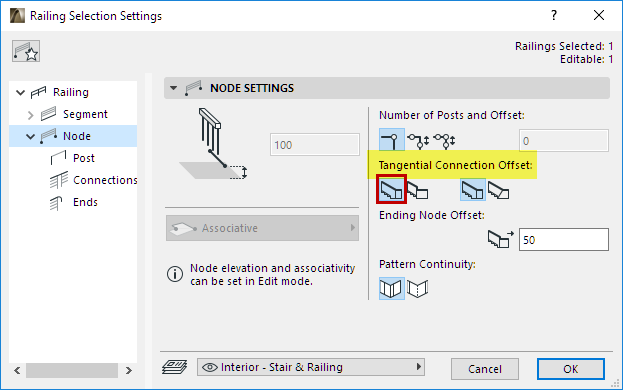
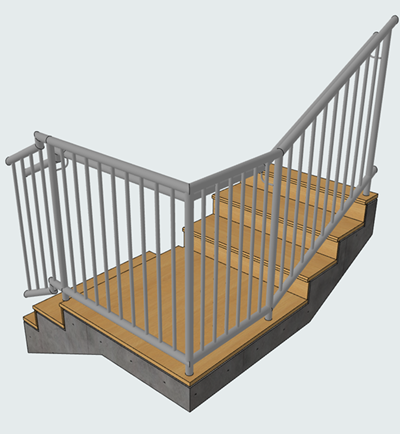
At Segment Connection: Post Moves Automatically
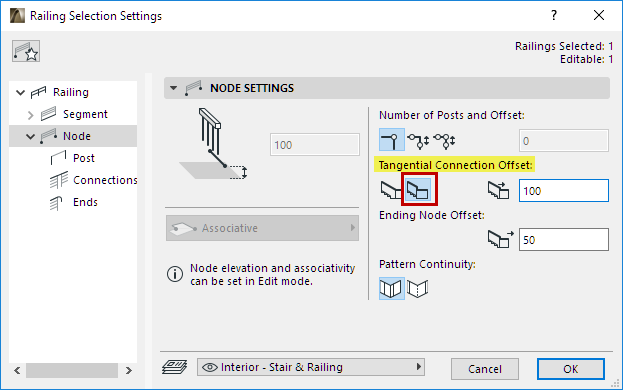
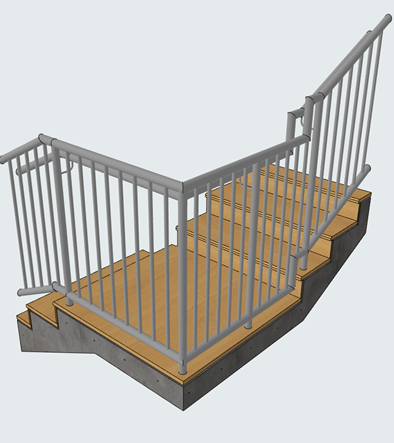
At Segment Connection: Offset Post Manually
Note that these options will only affect Railing Segments that connect tangentially. Other connections will use the settings defined on the Toprail/Handrail/Rail Connections pages.
See Connection Settings (Toprail, Handrail, Rail).
Enable this option to continue the pattern from one Segment to the other, without interruption at the Node. This option takes effect only if the two neighboring Segments use the same pattern.
For information on setting the Railing Pattern, see The Pattern Editor (Railing Tool Settings).
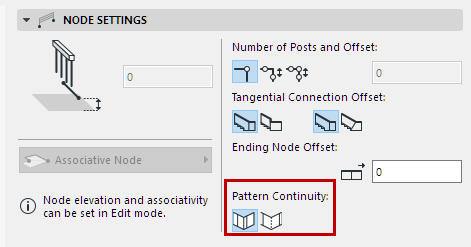
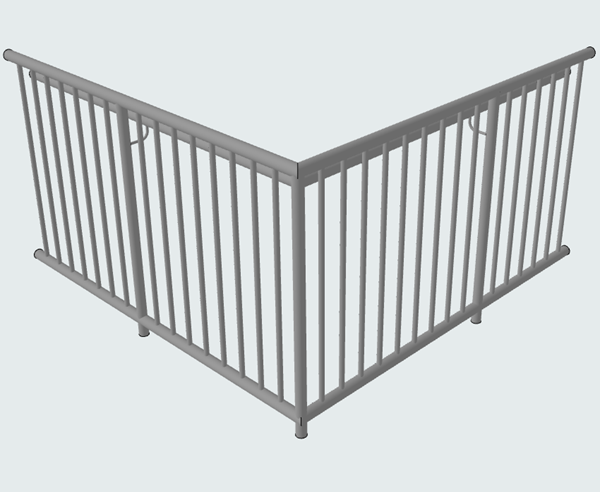
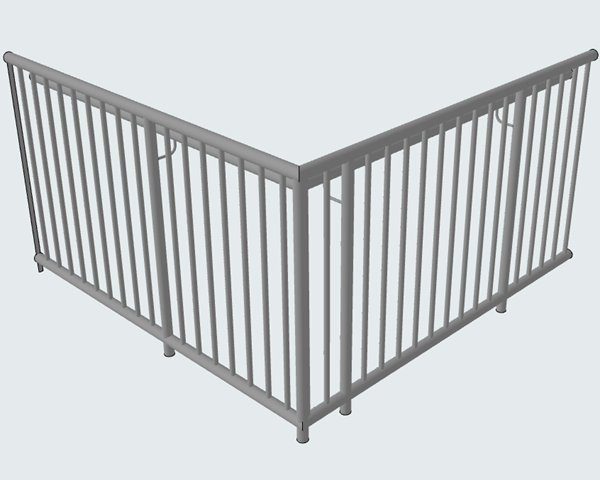
Crop Segment, or Continue Pattern at Nodes