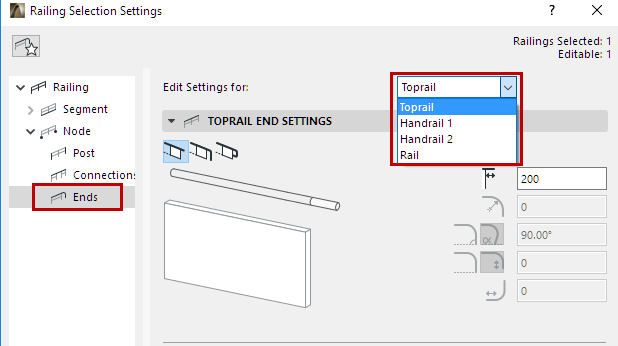
End Settings (Toprail, Handrail, Rail)
For each type of Rail (Toprail, Handrails, regular Rails), use this page to define how to display the ending.
The ending is added to the rail’s Extension segment. You can display the end component using a different surface (use the Override Surfaces control).
Note: If you do not want to display an ending, set the Extension Length to 0, or use the Invisible ending component.
Set end parameters separately for each Rail type by choosing one from the pop-up list:
The settings are applied to both ends of the Rail.
To customize each end separately, use Edit mode (see below).
Define Rail End Geometry
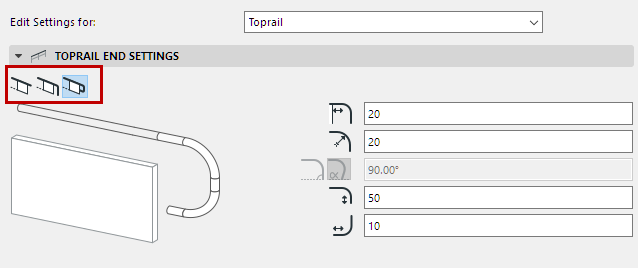
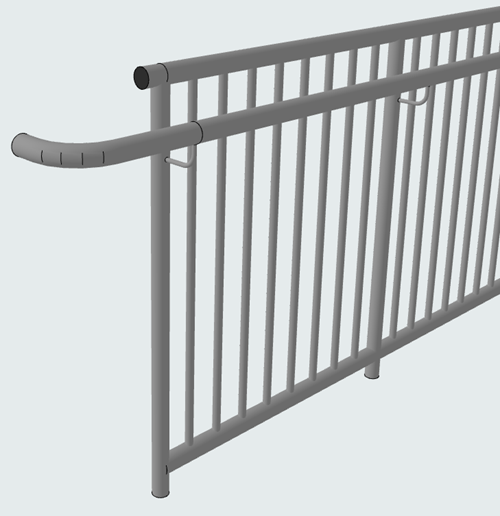
Add a straight extension, a curve, or a full return.
Note: Only the extension is available for plain Rails.
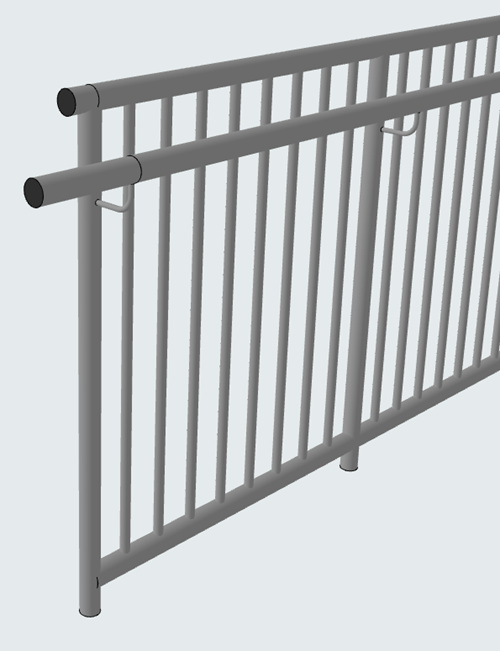
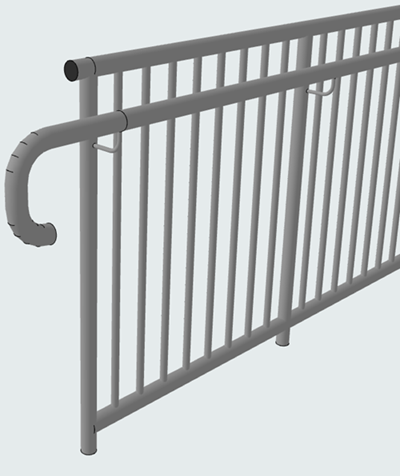
For doubled handrails: Use the fourth option to connect the handrail with its twin on the opposite side.
See Connect Ends of Double Handrails.
•For the curved parts of ending geometry: enter values to define their direction and geometry.
See also Sloped Railing (Connection and End).
Add Ending Component to Rail End
1.From the End Component Panel, choose the desired Rail End object if needed.
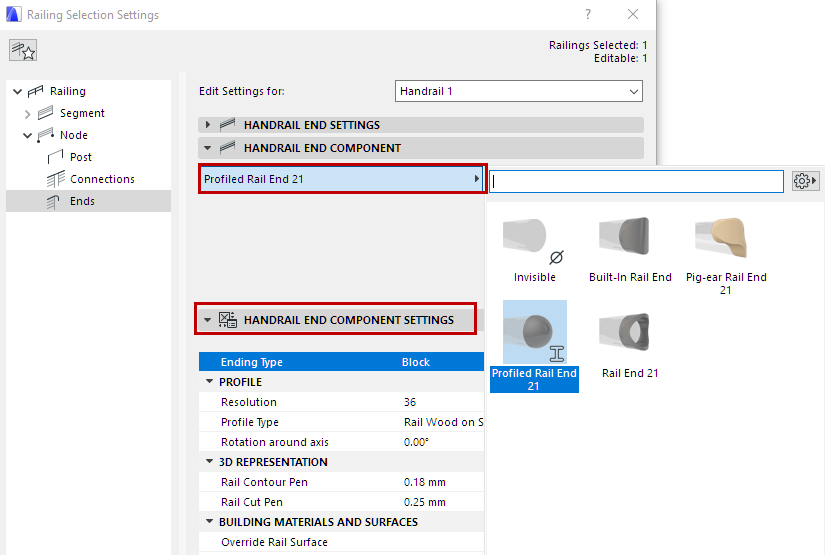
2.Use Rail End Component Settings panel to set its parameters.