Assign Classifications/Properties Values in Element Settings
To assign values to an ARCHICAD element, open the Classification and Properties panel of Element Settings.
Select Classification(s)
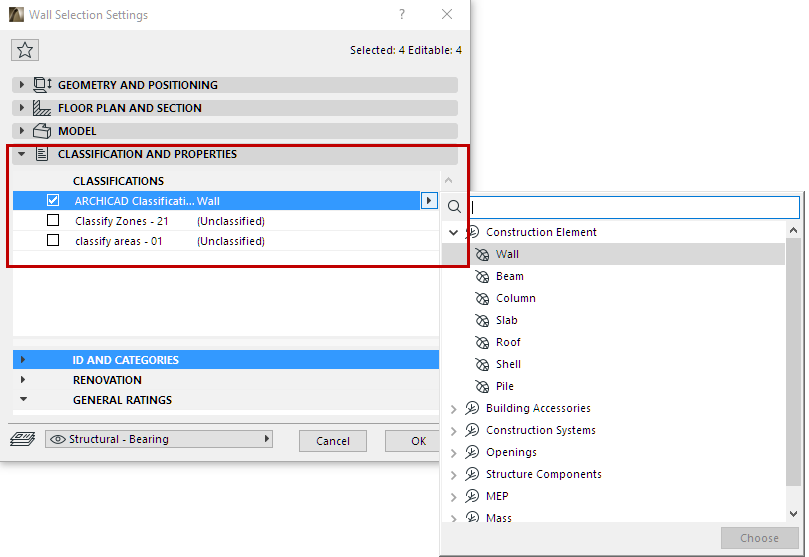
Select Classifications from Classification System(s) at the top of the list:
•If your project contains multiple Classification Systems, they are all listed. Check the name of the System(s) you will use. An element can be classified in several classification systems simultaneously.
•To change or assign an element’s classification within any of the Systems, click the pop-up arrow at the right:
Use the search field if needed to locate the desired classification(s).
Note: A “branch” classification and a “leaf” classification are each a single classification (the “branch” is a more general grouping than the “leaves” it contains.)
•The element’s available properties depend on its classification(s) (listed below in the Classification and Properties panel:
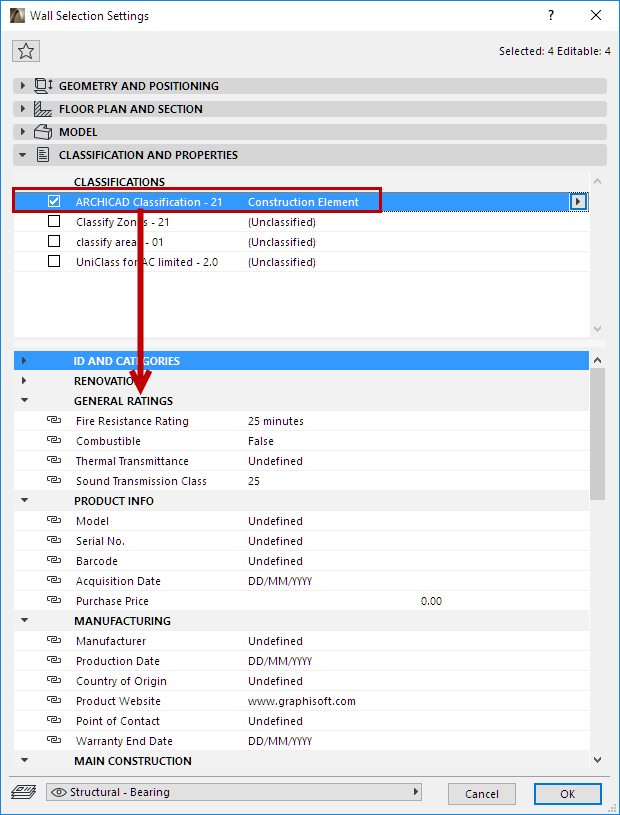
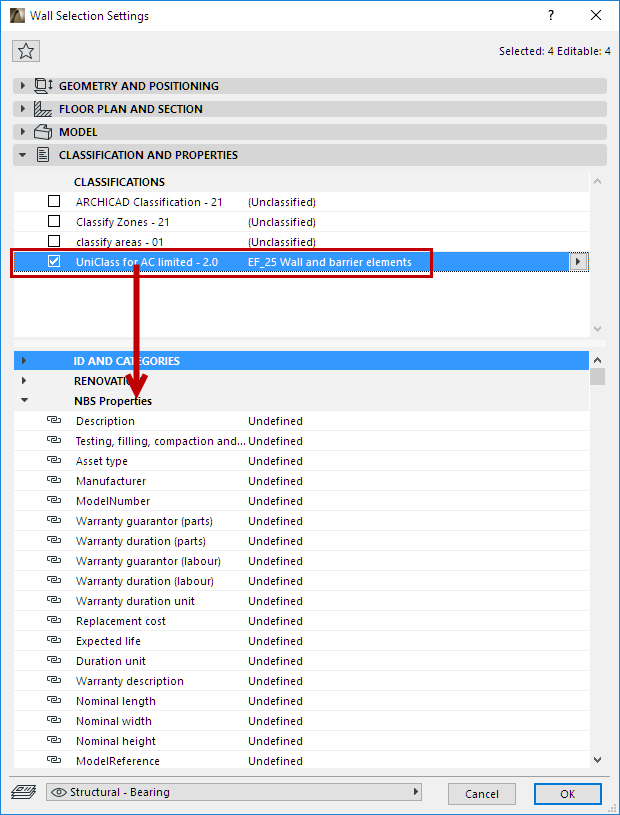
Available Properties Depend on Element’s Classification
Edit Property Value
Click on any property in the list to edit or assign a property value for this element.
•To create and edit Properties and organize them into groups, use Property Manager. See Property Manager.
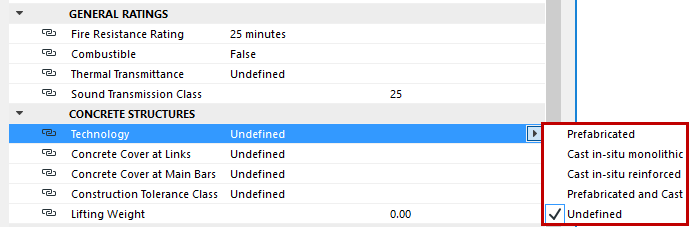
Depending on the property’s data format, you can choose from a list, enter text, or simply type in a value.
For information about data formats, see Data Type.
To help you use the right data format, some properties have a description (e.g. thermal unit), visible by hovering over the item.
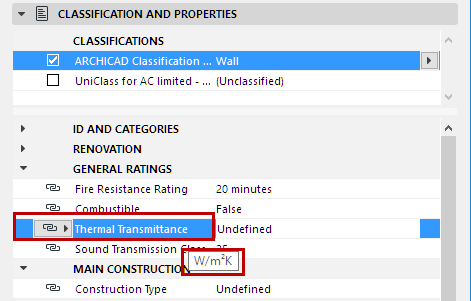
Note: The Description is defined in Property Manager. See Property Description.
Link Property to Default Value
For each property, the chain icon indicates that its value is linked to the default for this property.
If you overwrite a value in Element Settings, its link to the default is broken.
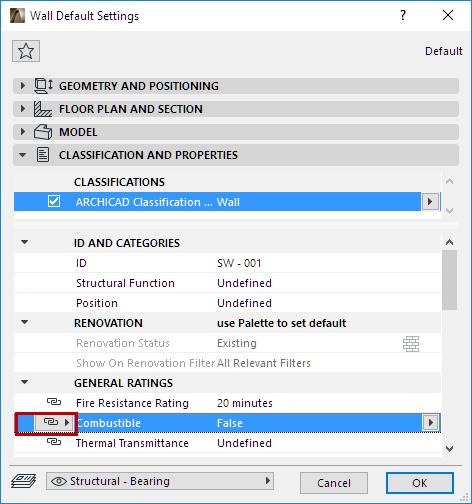
Property Linked to Default
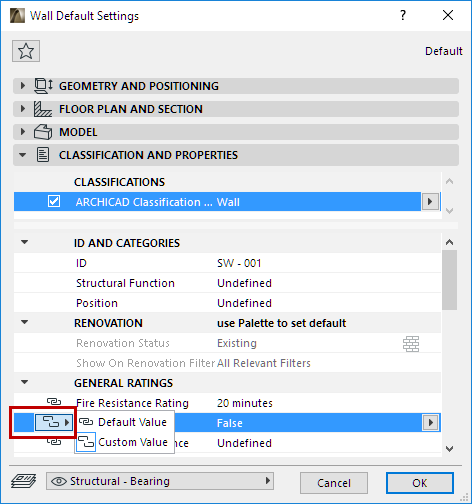
Property Unlinked from Default
To re-link and restore the default value, click the chain icon and choose Default value.
Note: Defaults are defined in Property Manager. If you edit a property’s default value in Property Manager, all linked property values are updated accordingly at the element level. See Preview/Default Value.
For any particular property, you can use Find and Select to find all elements to which the property’s default value has been assigned (or, alternatively, a custom value assigned).