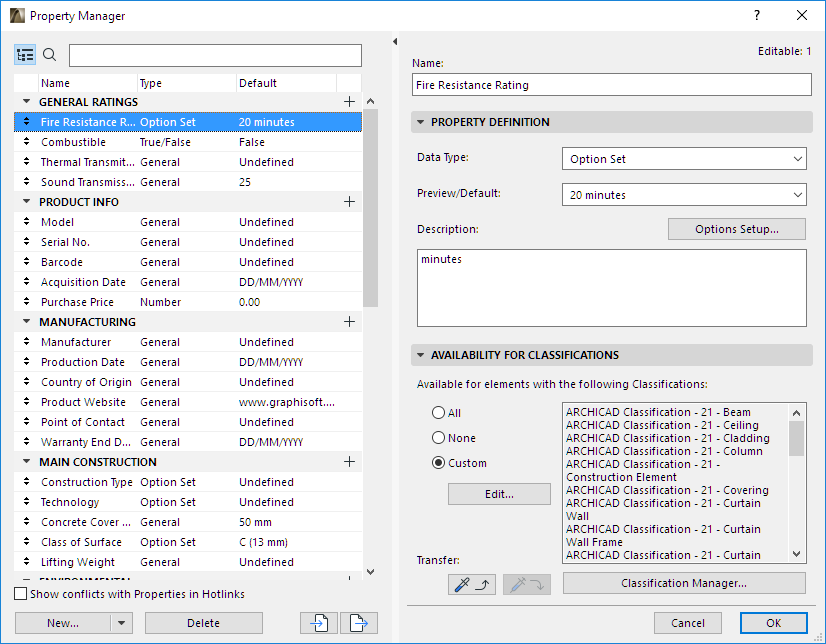
Use the Property Manager (Options > Property Manager) to create and manage the set of properties for this project and customize their availability for the various element classifications.
Note: For information on assigning property values to individual elements, see Assign Classifications/Properties Values in Element Settings.
Property Manager is also available from the Classification Manager dialog box.
Search Property List
The left side of the Property Manager lists all the properties available in the project.
Click the Search icon, then start typing text into the search field. All property and group names containing the search term are shown.

To view the full list of properties again, delete the text from the Search field, or click the tree hierarchy icon.
1.Open the Property Manager dialog box at Options > Property Manager, or from Classification Manager.
2.Do one of the following:
•Click anywhere in the Property list and use the context menu
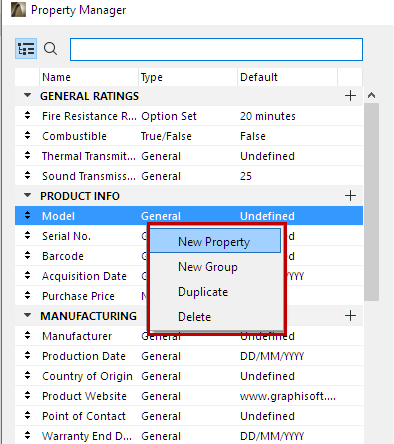
•Click the New button at the bottom of the dialog box
•Click the Plus sign to the right of any Group name
3.In the New Property/Group dialog box: Choose a radio button for either a new Property or Group, then enter its name.
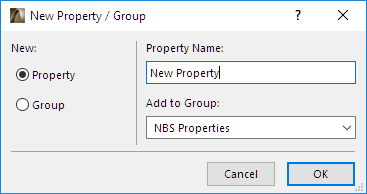
4.Add to Group: For a new property, choose the group into which it should be placed.
5.Click OK to create the new item.
Duplicate Property
Select a Property.
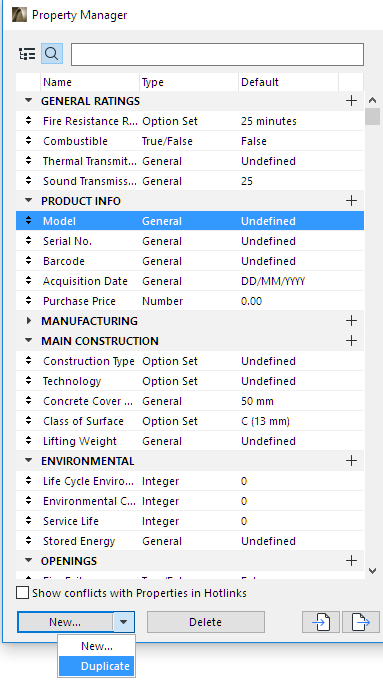
From the context menu or drop-down list under the New button, click Duplicate to add a duplicate of that Property to the list.
The property’s data type determines the format of the value(s) that can be assigned to it.
To set a data type:
1.Select a property from the left side of the Property Manager.
2.Choose a Data Type from the right side of Property Manager:

•General: Can be any text or number (e.g. for the “Manufacturer” property)
•Integer: A whole number (e.g. for the “Sound Transmission Class” property)
•Number: Any number expressed in decimals (e.g. for the “Purchase Price” property). The number of decimals displayed is set at Options > Preferences > Working Units.
•Tags List: Can be a tag or series of tags (e.g. Building A, Floor 2, Common Use, Kitchenette)
•Option Set: Provides a fixed set of options (e.g. for the “Fire Resistance Rating” property)
For details, see Options Setup below.
•True/False (e.g. for the “Combustible” property)
If desired, enter a default value or edit it for this property.
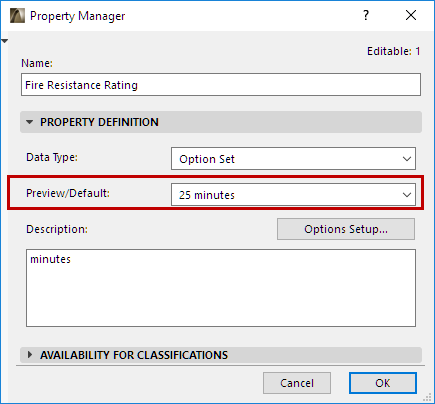
If you edit a property’s default value in Property Manager, all linked property values are updated accordingly at the element level.
See Link Property to Default Value.
This button is active only if the Data Type is “Option Set”. Click to open the Options Setup dialog box.
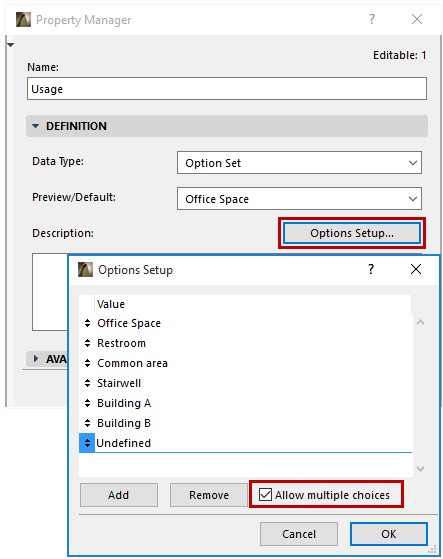
Use Options Setup to list a set of specific values that the user can choose from when defining this property for a particular element.
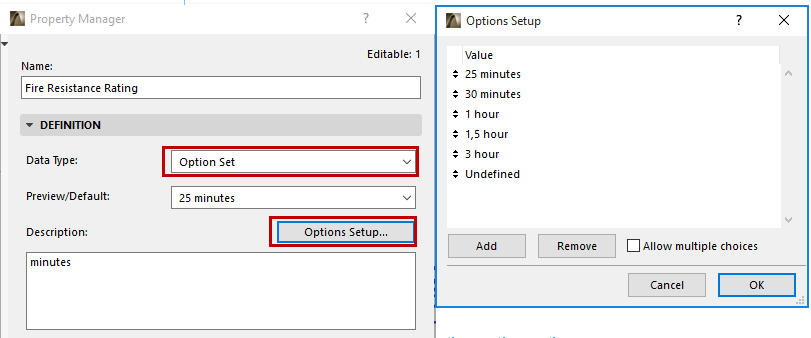
•Click Add to add a new option (type a value into the New Option line).
•To delete an option, select it and click Remove.
•Check Allow multiple choices to enable the user to choose more than one value for this property in Element Settings (or the Info Box).
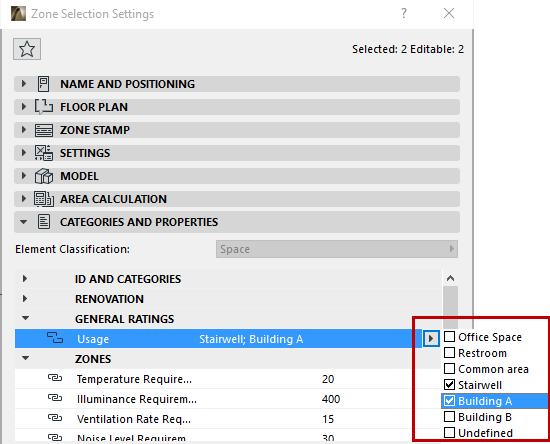
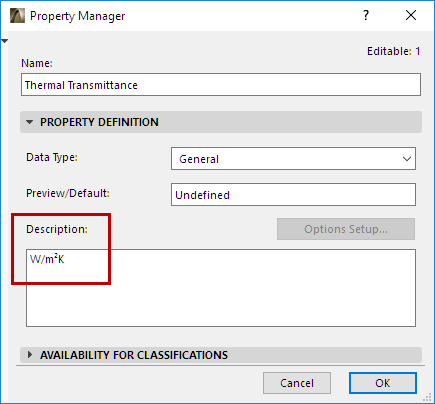
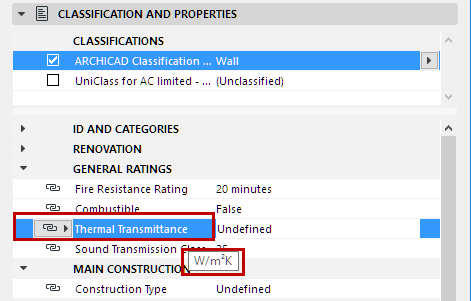
Optionally, enter any further information here to guide the user in assigning a value (in Element Settings) to this element property. For example, its format or measurement unit: “minutes” for the Fire Resistance Rating Property, or “W/m2K” for Thermal Transmittance.
In Element Settings, this description is visible when hovering over the property name:
Property Availability for Classifications
Use these controls in Property Manager to define which properties go with which Classification.
•Select one or more Properties or Groups from the list on the left.
•If you select a group, the Availability definition is applied to all properties in that group.
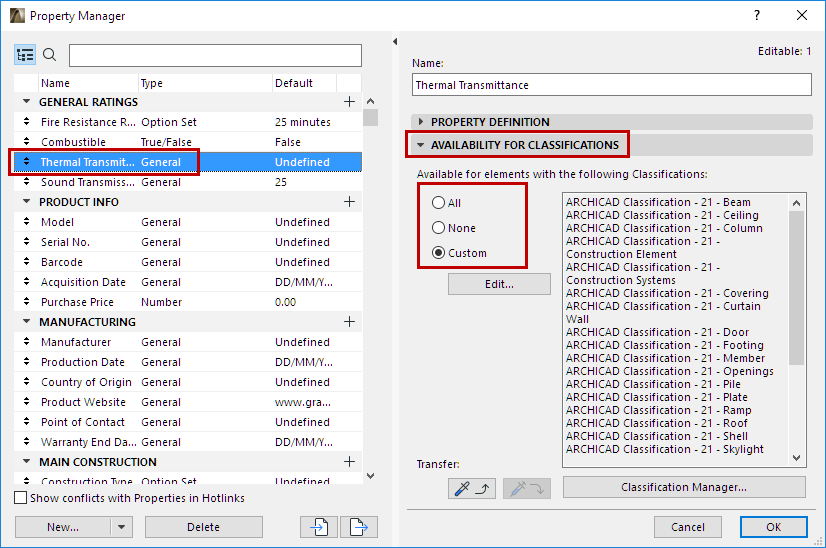
•All: The groups or properties selected on the left will be available for all classified elements in the project.
•None: The groups or properties selected on the left will not be available for any elements in the project. (You might set certain properties to None if the current project does not use them, yet you still want to use them in other phases of the same project, or other projects, e.g. in a template).
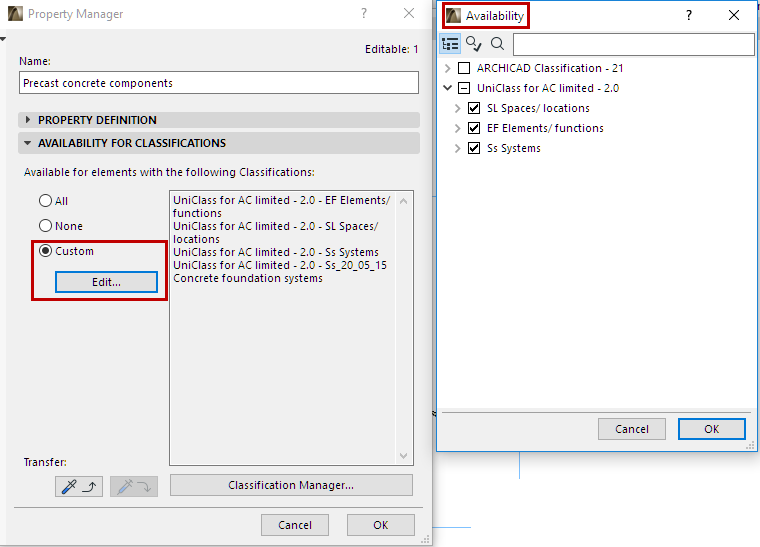
•Custom: Click this option, then click Edit to select the Classifications that should use this property or group.
For example, the Precast concrete components property (selected at left) is available to elements that have one of the Classification groups selected at right.
Apply Availability to All Sub-Elements
1.In the Availability dialog box, click on a parent item.
2.Right-click to bring up the context menu: click Select Branch.
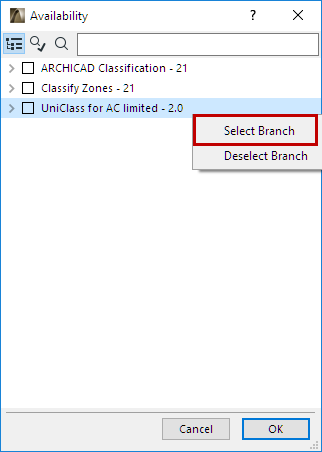
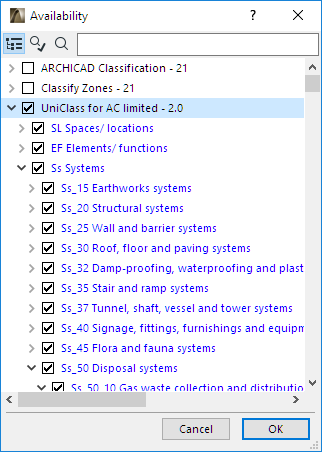
3.All sub-elements of the parent item are now enabled.
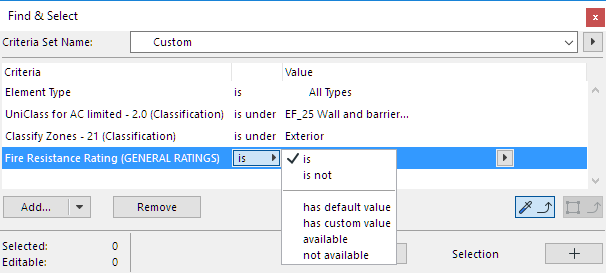
Find and Select Elements: By Property and Classification
•By Property value or Property availability:
•By Classification:
◦Elements classified within (“IS UNDER”) or directly underneath (“IS DIRECTLY UNDER) a particular Classification branch
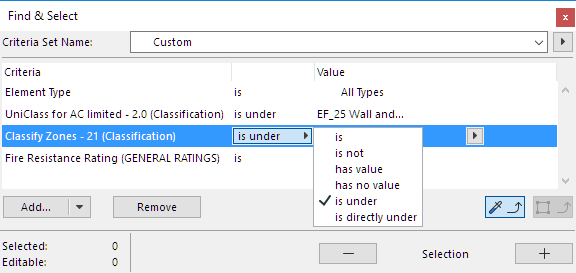
◦Elements having (“IS/IS NOT”) a particular Classification within the given Classification System
To transfer a property’s Availability definition to another property or group, use the Transfer buttons in Property Manager:
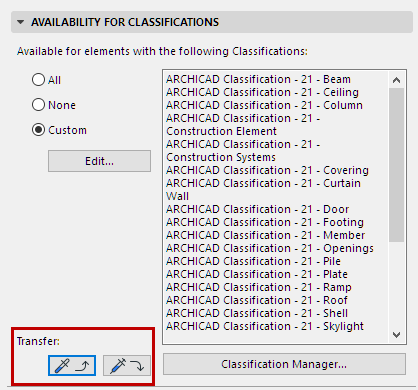
1.From the Property list at left, select the property whose Availability definition you want to transfer.
2.Click the “Pick up” icon.
3.Select a property or group to which to transfer the availability data.
4.Click the “Apply Availability” icon.
The availability data of the selected group (or property) is customized accordingly.
Changes in Property Manager
•After making edits in Property Manager, click OK to accept the changes and close the dialog box. At this point, you can use Undo/Redo to undo/redo the Property Manager edits.
•If you edit a property’s Data Type in Property Manager, all the project elements that use this property will retain their assigned values as far as possible. For example, if you change the Combustible property’s True/False data type to the General data type, an element’s Combustible property value that was set to False will stay that way, except it now becomes editable, as a General data type.
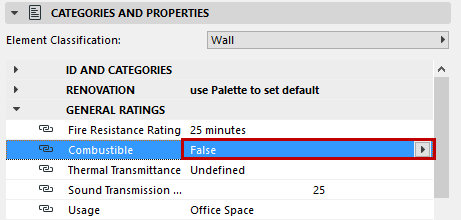
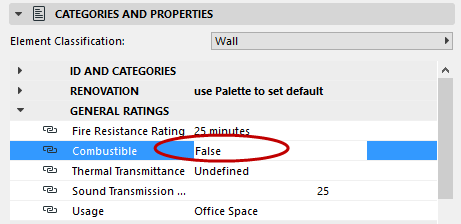
Data Type Changed from True/False to “General”
•From Property Manager, you can open the Classification Manager directly, without losing your modifications in Property Manager: click the Classification Manager button.
Make the changes you need in Classification Manager, then click OK to return to Property Manager. Property Manager is updated with the latest Classification changes.