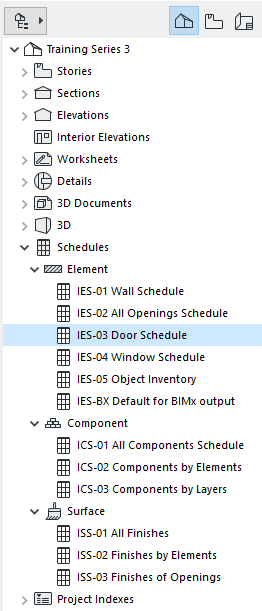
ARCHICAD comes with predefined Schedules, such as Door List; Wall List; Window List. To open any of these schedules to list the elements in the current project, double-click the Schedule name in the Navigator.
.
You can also access Schedules through
•the Mini-Navigator Toolbar
•Document > Schedules
•Window > Navigate > Schedules
The Schedule window opens. Formatting options are in the left column. To display the schedule only, without the formatting panel, click the black arrow on the dividing line.
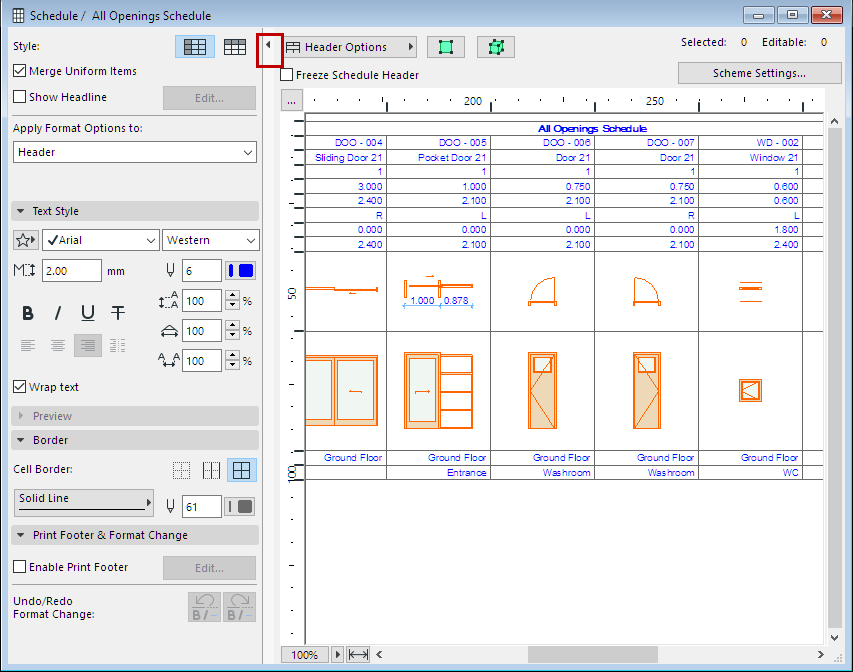
For more information, see Format Options (Interactive Schedule).
Adjust Cell Size and Display Size
•To adjust individual row or column heights, manually drag the tabs on the top and left side of the schedule.
•To fit the a row or column to its contents, double-click any tab.
•To adjust Schedule Cell Size numerically, click the three buttons at the top of the schedule and use the dialog box.
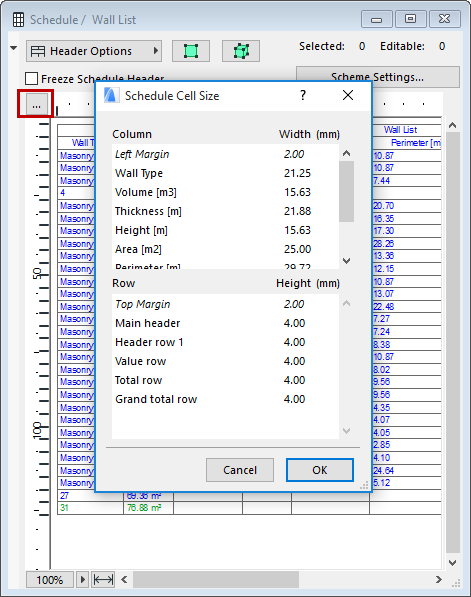
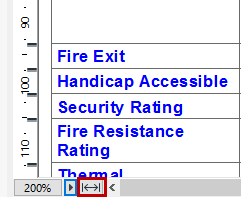
•Adjust the Zoom using the pop-up from the bottom scrollbar
•To fit the schedule to the current window size, click the Fit to Width icon
Navigating in the Interactive Schedule Window
To navigate among fields in the Interactive Schedule window, use familiar keyboard shortcuts:
Move right or left: Enter, Shift+Enter
Move down or up: Tab, Shift+Tab