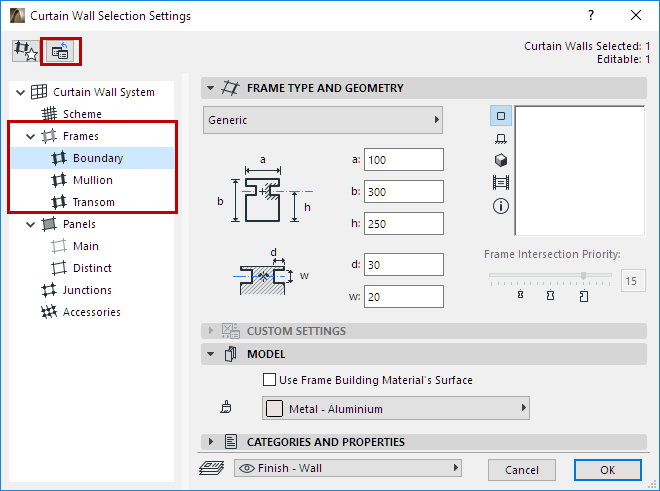
Curtain Wall Settings: Frame Pages (Boundary, Mullion, Transom)
Each Frame Class (Boundary, Mullion, Transom) has separate settings.
In Curtain Wall System Settings, the Frame pages set the System-level default settings for each Frame class. Click Match All Frame Classes to Current Settings (icon at top left) to apply the settings of the current Frame Page to the other two classes of Frames.
Frame Tool Settings (in Edit mode) contains nearly identical controls. Use the Class pop-up to apply System-level Frame settings to the selected Curtain Wall, or to adjust the parameters of Boundary, Mullion or Transom Frames in this Curtain Wall. If you customize any parameters in Frame Tool Settings, the Class pop-up will show “Custom.”
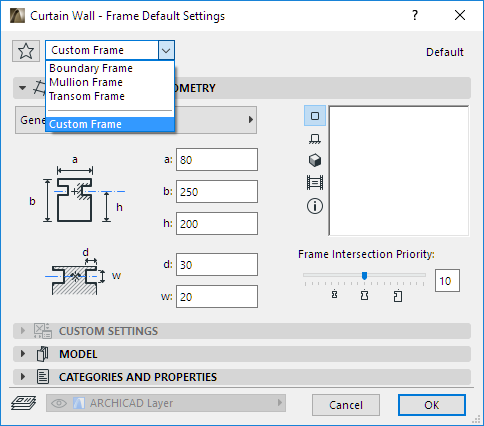
Curtain Wall Settings: Frame Pages: Frame Type and Geometry Panel
Choose a Frame Type from the pop-up list.
Depending on the required level of detail, choose an industry-standard parametric GDL Frame, or a simplified built-in Frame prototype with rectangular cross-section.
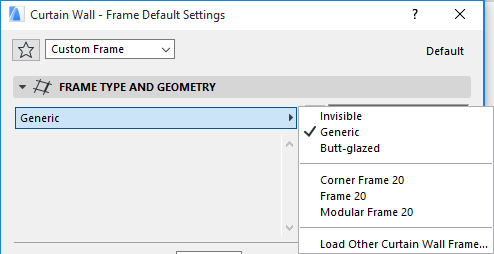
•Invisible Frame: This Frame exists as an object, but it is not visible.
◦Use this Frame if you want two neighboring panels to remain separate, but without displaying a Frame between them.
◦Invisible Frames are also appropriate when you don’t want to burden the model with the Frame details, or when other structures (e.g. junctions) are used to support the panel connections. A seamless panel surface can be achieved if Frames are deleted from grid lines.
•Generic Frame: This is the most common type of Frame. A built-in rectangular Frame type, with a rectangular profile. From the outside of the wall, a “cap” is visible.
•Butt-Glazed: A built-in rectangular profile, used for inner support of a butt-glazed Curtain Wall surface. The panels will connect to each other in the front of a butt-glazed Frame, so the Frame will not be visible on that side (unless the panels are transparent or a gap is specified.)
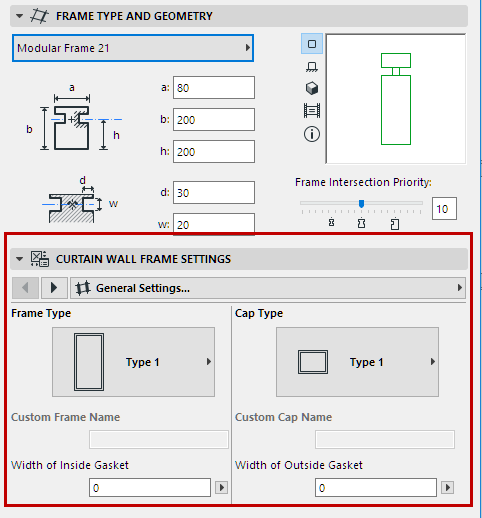
•Modular Frame: This is a frame to which you can add an additional module: that is, a custom-created frame or cap profile object that you draw and save as a specialized component.
See Example: Create Custom Frame or Cap Profile for Curtain Walls.
The geometric parameters below vary depending on the Frame type you have chosen.
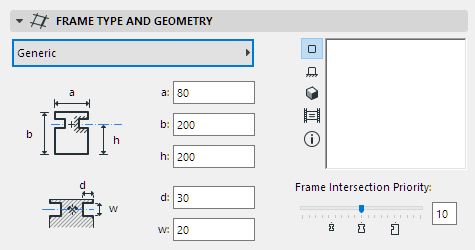
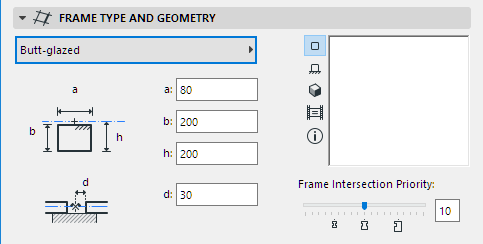
b: Depth of Frame Profile
h: Distance between inner edge of Frame Profile and the Base Surface. (Panels are placed on the Base Surface along the Panel’s centerline.)
d: the length of the panel’s extrusion into the Frame Profile.
w: width of the slot where the Panels connect to the Frame Profile.
For information on Frame Intersection Priority, see Curtain Wall Frame Intersections.
Curtain Wall Settings: Frame Pages: Custom Settings Panel
This panel is used if the Frame is a GDL object that uses a custom interface script.
Curtain Wall Settings: Frame Pages: Model Panel
This panel affects the 3D display of the Curtain Wall.
•If the frame type is a GDL object, the surface assigned to the GDL object will be used.
•If the frame type is a standard built-in frame or does not have a user interface script, the surface is derived from the Building Material.
Override Surface: Use this pop-up you wish to override the surface assigned to this frame class.
•To override Surfaces, you must first uncheck the Use Frame Building Material's Surface box.
Curtain Wall Settings: Frame Pages: Classification and Properties Panel