Set default language and localized object settings (New project workflow)
How to change language and folder structure (Existing project workflow)
Get Favorite Converter, templates, Mapping Table, and related content
Read more on Graphisoft Community
Starting with version 28, Archicad is shipped with a “Global library” - a collection of library packages.
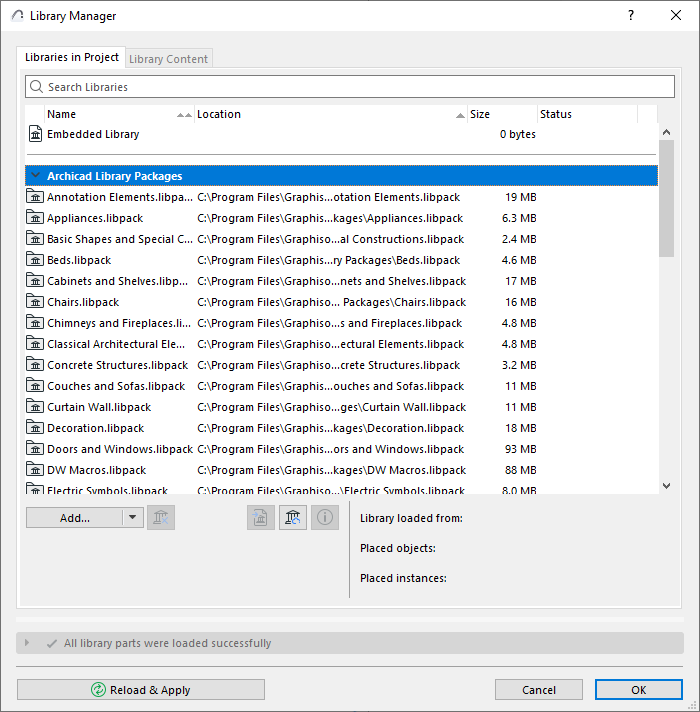
If you start a new project in Archicad 28, using the template provided, you will find a set of relevant library packages loaded in Library Manager (instead of a version-specific library).
•In the Global Library, the library parts are not version-specific
•The Global Library is compatible with all upcoming Archicad versions (Archicad 28 and later)
•All library content is available in all Archicad language versions in your installation folder
Migrate Libraries for older-version projects
We recommend you that you start using the Global Library only when starting a completely new project in Archicad 28.
To migrate your older version projects and keep working as usual: see Migrating Libraries to Archicad 28.
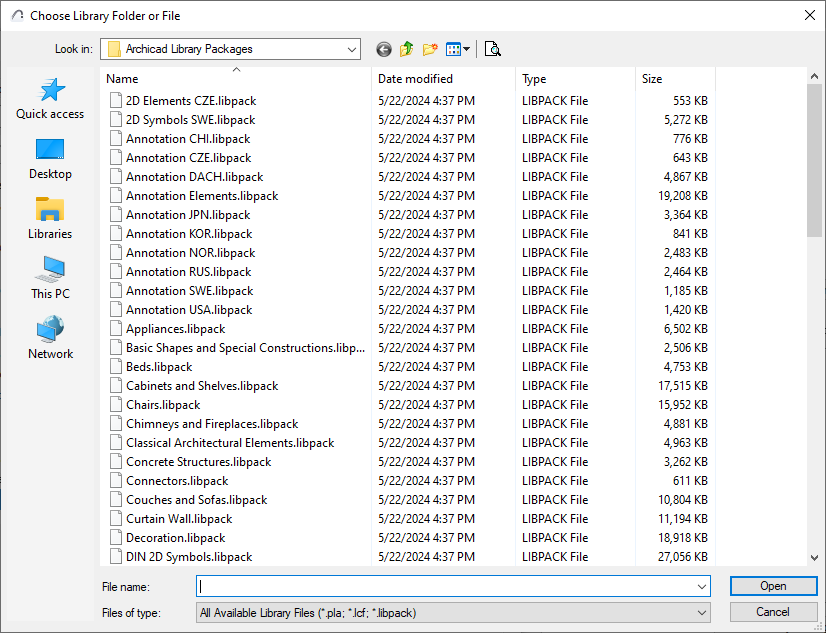
Your default template for Archicad 28 comes with preloaded library packages. If you need additional content, just load more library packages from the Library Packages folder where you installed Archicad.
(For example, you may wish to access objects typical in other countries, such as certain doors and windows, annotations, symbols, etc.)
Set default language and localized object settings (New project workflow)
The language and standards (default sizes, attributes, surfaces, pens) of the library parts depends on the language of your Archicad template.
Each different Archicad language version comes with its own local template by default. (Archicad 28 GER comes with GER template, Archicad 28 USA comes with USA template, etc.). By default, the GDL objects in your project are displayed with those language preferences.
To use the GDL objects and interface with a different localization: load the desired local template (get a template file from a teammate, or download a different Archicad language version and use its template file).
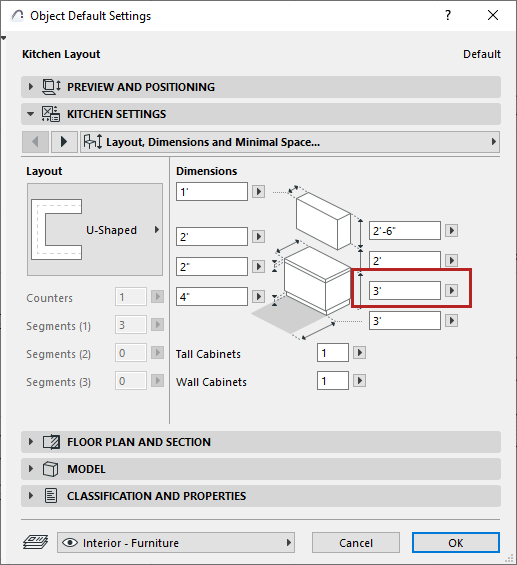
In the image below, the USA template is loaded in the project. Therefore, the kitchen countertop has a default height of 3 feet instead of 90 cm.
How to change language and folder structure (Existing project workflow)
To change the display language of your objects and their folder structure: use Library Localization Preferences.
Changing these preferences changes the string appearing on the user interface of each object and how they are organized in the folder structure (because different regions might have different preferred folder structures).
To change Library Localization Preferences:
1.Open the Edit GDL Library Parts toolbar (Window > Toolbars > Edit GDL Library Parts)
2.Open the dropdown menu at the left end of the toolbar

3.Select the Library Localization Preferences command to open the dialog
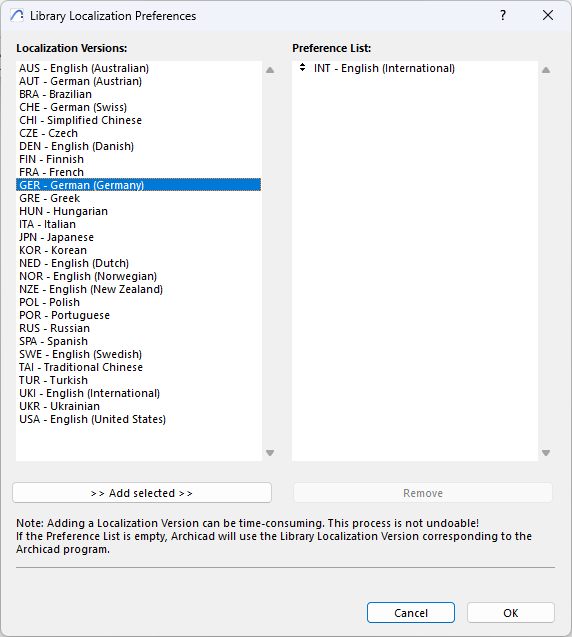
The left panel contains all available language versions (which are not moved to the Preference List), and the right includes the ranked list of language versions that affect your plan file. To add a language version to the Preference List, select it and click the Add Selected button at the bottom. Once the language versions are added to the box on the right, you can rank them with drag-and-drop.
Note: Applying these changes takes time and cannot be undone!
Get Favorite Converter, templates, Mapping Table, and related content
See the BIMcontent page of graphisoft.com for related tools and documentation.
Read more on Graphisoft Community
Introduction to Global Library
Migrating Custom Components for Compatibility with Library Packages