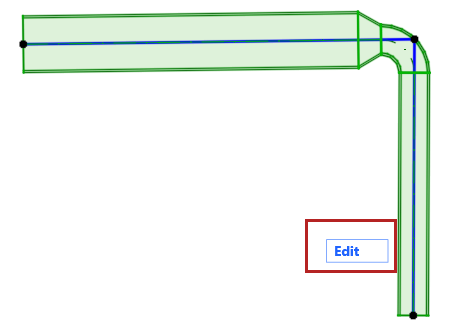
Edit individual segments and nodes - using Edit mode
Use Edit mode to select any single segment or node of a Route element, and edit its parameters.
Note: You can also do some edits from the pet palette: see Edit segment diameter - with pet palette
Enter Edit Mode
Select a Route element, then do one of the following:
•Click the Edit button which appears
•Use Design > Enter System Edit Mode
Using Edit Mode
Select any sub-element (node or segment).
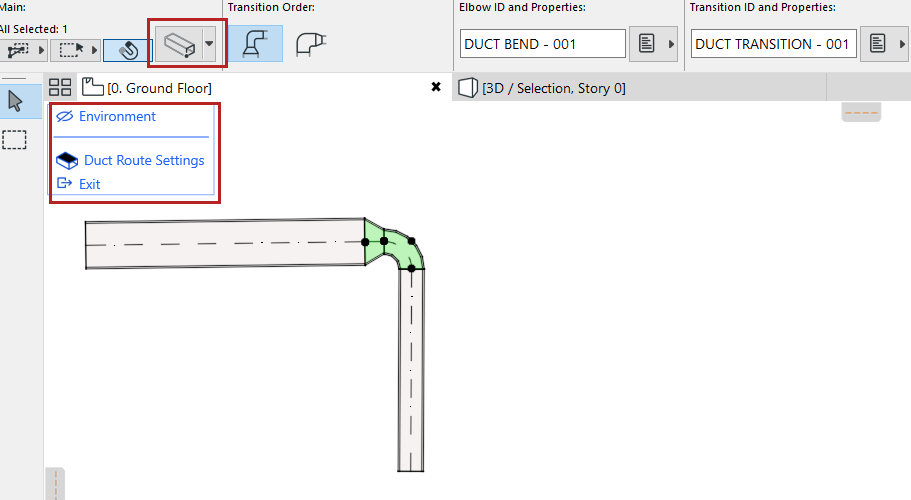
•The regular Archicad toolbox is replaced by just selection tools and a display palette.
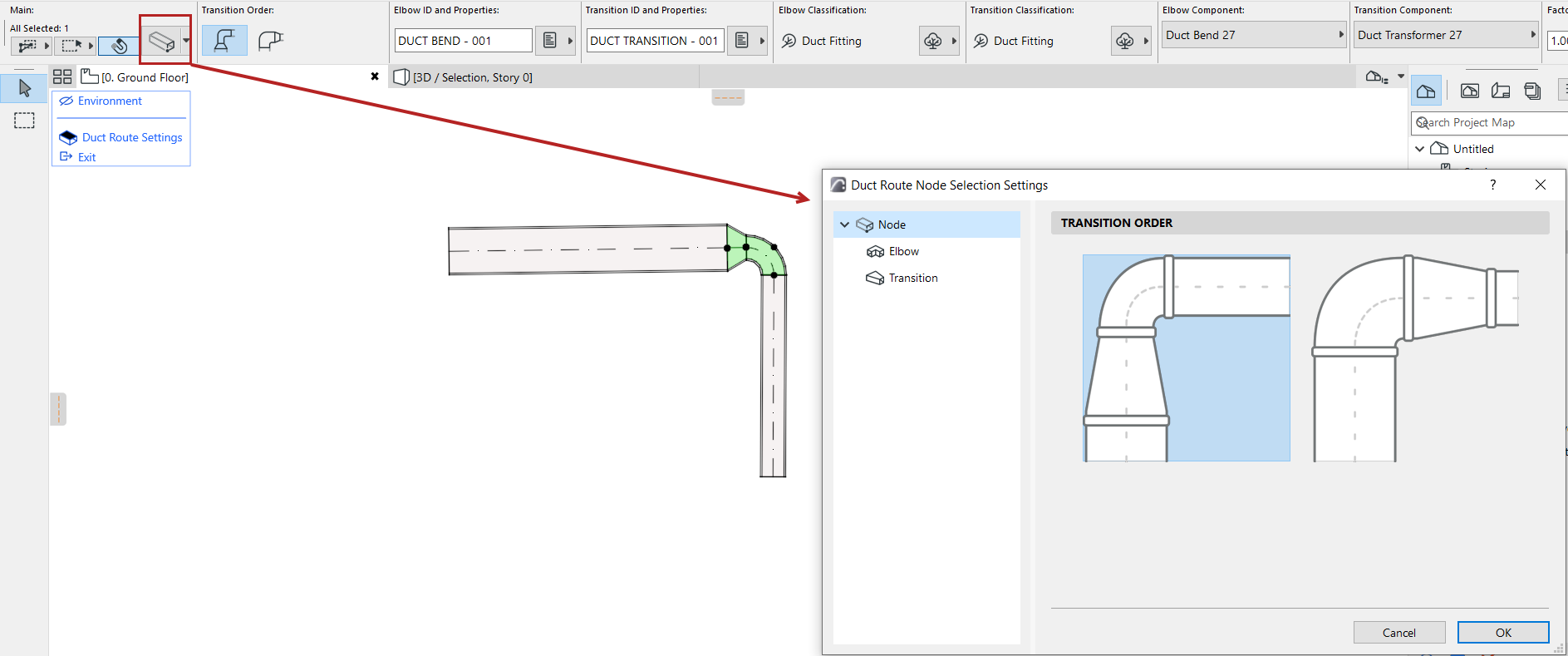
•From the Info Box, you can open a limited Settings dialog that applies just to the selected segment or node.
•Use the Environment toggle in the display palette to show/hide the rest of the model (i.e. everything apart from the selected Route). In Edit mode, you cannot edit the rest of the model - only the sub-elements of the selected Route.
•The full Route Settings dialog is available from the display palette.
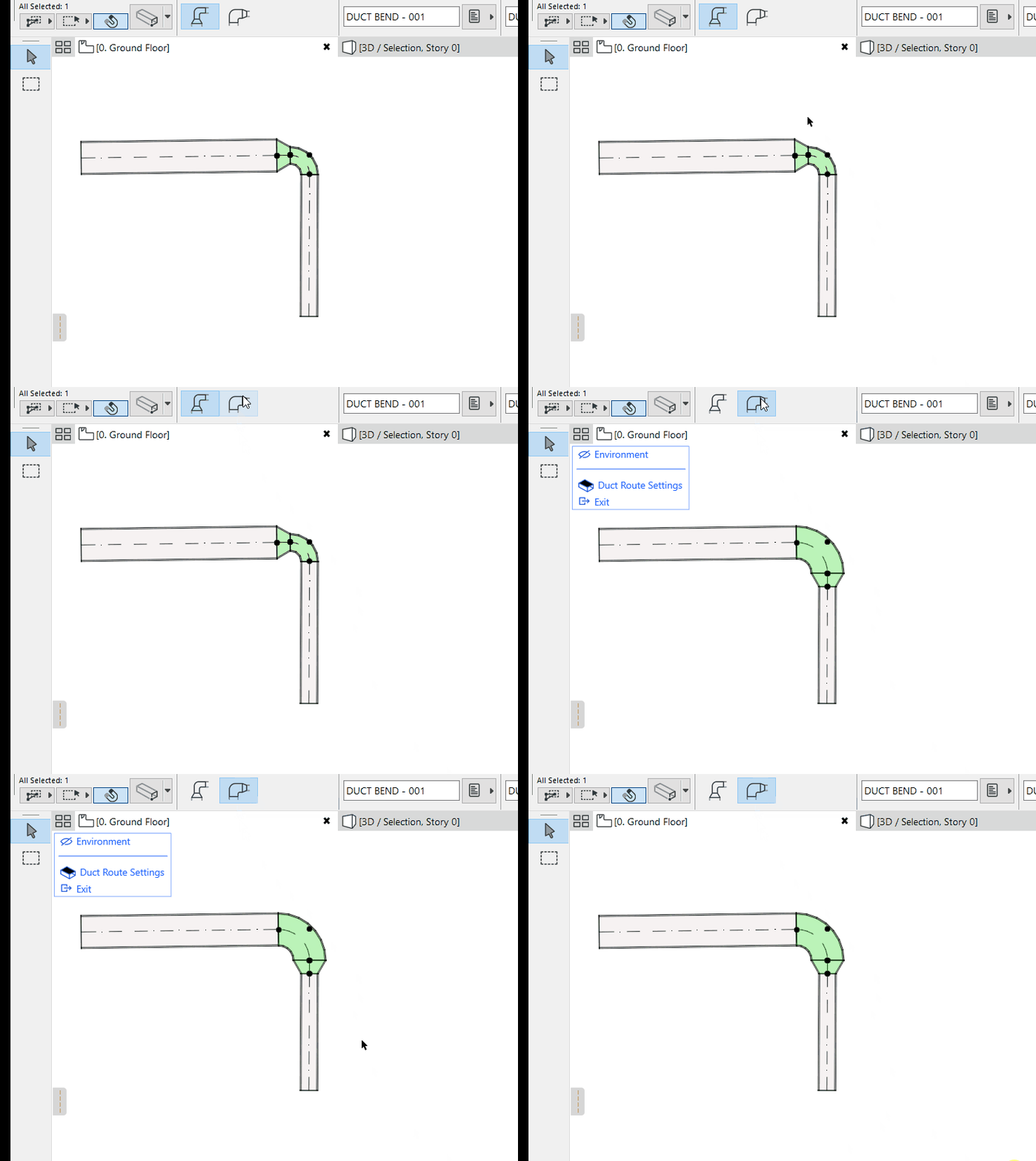
For example, edit the Transition order of a selected node:
Exit Edit Mode
Do one of the following:
•Click Esc
•Click Exit Edit Mode from the display palette.
•Use Design > Exit Edit Mode