Welcome to AI Visualizer!
Transform your Archicad models into inspiring concepts!
With Stable Diffusion technology integrated into Archicad, AI Visualizer can generate photorealistic images or artistic drawings from simple mass models or more complex models. You can also customize your concepts with prompts, adjust the creativity of the AI, or let AI imagination run wild.
AI Visualizer is a source of inspiration. Start with a basic model, then see where AI takes it.
Read more on Graphisoft Community: Enhancing Conceptual Design
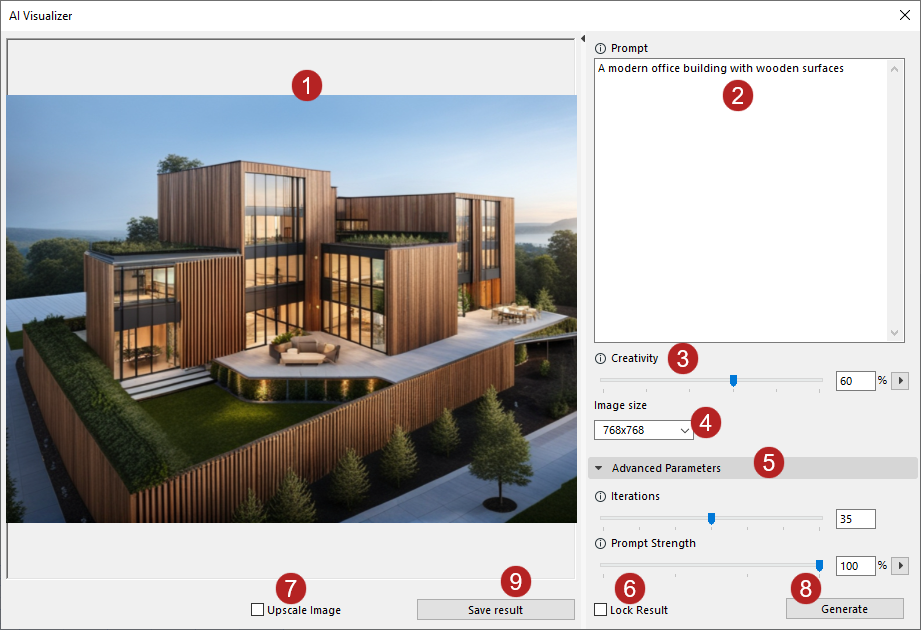
The AI Visualizer window
Open with Windows > Palettes > AI Visualizer
1. Result window
This is where your concepts appear after you click Generate. While generating, you will see a preview of the model.
This describes what you would like to see in your result. The AI understands simple definitive prompts, so long, complex sentences are unnecessary, although feel free to experiment.
•What type of building would you like to generate as a concept? (example: a modern office building). Experiment with several types and styles.
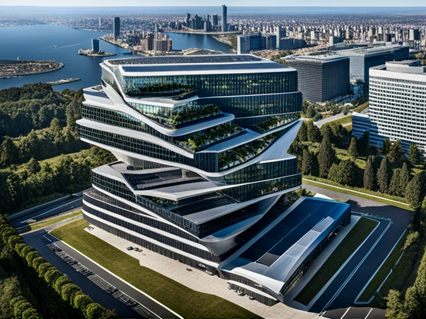
“A modern office building”
•What features does your concept have? (example: a modern house with concrete surfaces). Experiment with different textures, model features, and prompts to describe specific details.
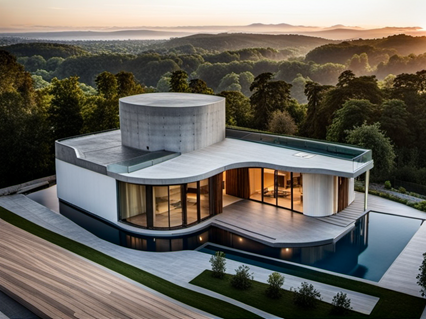
“A modern house with concrete surfaces”
•What style do you want the AI to generate? By default, the AI will generate photorealistic visualizations, but you can create artistic results too! (example: a realistic architectural color pencil drawing of a modern house). Experiment with several styles.
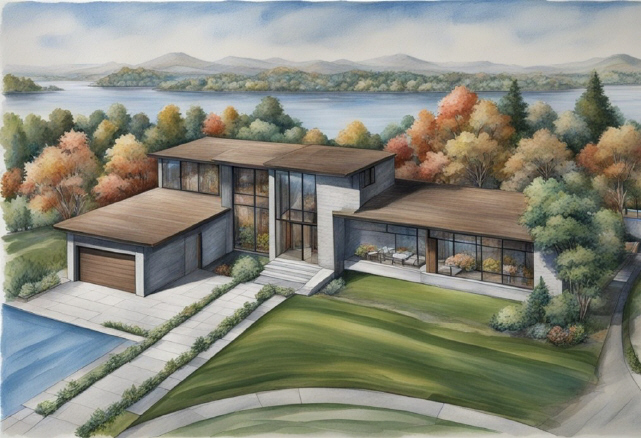
“A realistic architectural color pencil drawing of a modern house”
•Environment, weather, season, and more! By default, the AI will generate results with sunset lighting, mostly in summer, but you can change that. (example: a modern house in winter).
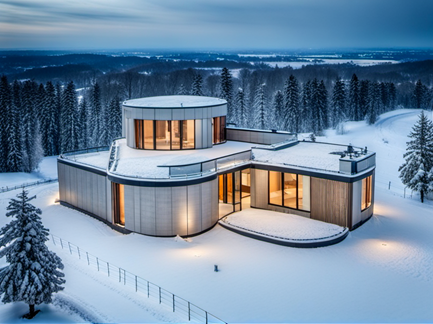
“A modern house in winter”
You can also define the environment or background. (example: a modern house with a city in the background)
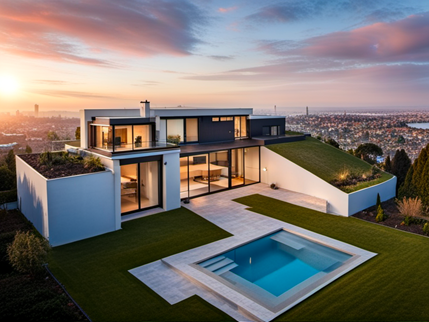
“A modern house with a city in the background”
See also Tips and tricks with AI Visualizer.
3. Creativity slider
Adjust how much creative freedom the AI has. Higher values result in more creative outputs, but may deviate more from the input shape. Lower values maintain the shape more strictly, but produce less creative results.
Experiment with creativity levels from different observation points on your model.
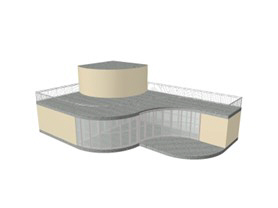
Tip: At first, keep the creativity slider at the default value to get creative results while preserving your model geometry. As a first step, combine these values with a slightly elevated perspective view of your model:
4. Image size
This parameter is the resolution of the resulting image. Higher resolutions give higher-quality images, but take longer to generate. While you are still experimenting, you should stick to a lower size.
Tip: When you are ready to generate a final quality image, enable Lock Result, then activate Upscale Image. This fixes your favorite result, plus increases the size.
These parameters - “Iterations” and “Prompt strength” - are used for fine-tuning. Combine these parameters with the “Lock Result” feature.
Iterations
This refers to the number of iterations in the generation process. Higher iterations give more precise results but take longer to generate.
Fewer iterations provide less precise results but generate faster.
35 is the default value and serves as a good baseline, though feel free to experiment with the given range.
Prompt Strength
This determines to what degree the AI follows the prompt. The higher the prompt strength, the more the AI sticks to the prompt. This could lead to less creative results. Lowering the prompt strength gives the AI more creative freedom.
Experiment with different values to find your perfect setup.
6. Lock Result
The AI Engine uses a different “seed” (a long string of numbers) each time it generates a result. Thus, each generated image is different.
With the Lock Result function, you can lock this “seed.” This enables you to preserve a result that you like, but also explore it from different angles. With Lock Result on, the AI will give you new and different results that mimic the style of the locked one.
7. Upscale Image
Click Upscale Image to display your image at a larger scale: the long side will be increased to 4096 pixels, and the shorter size will be proportional to the original image size.
Important: Activate this function before generating the images. If you wish to first generate a lower resolution image as a test and then upscale it, be sure to turn on Lock Result to preserve your original result.
8. Generate button
Click to start generating images. Please note that AI Visualizer will always generate one image at a time.
9. Save Result
Save your current result. Please note that AI Visualizer will not save your results automatically.
Read more