Tips and tricks with AI Visualizer
Try this tips to get you started, and enjoy quality results from the get-go.
Please note that generating images with AI is a complex topic, but don’t about failed results. Keep on experimenting, and you will master AI Visualizer in no time.
Hints for better prompts
Prompting is the task of describing the result you would like to see. It seems easy, but can be tricky, since the AI has its own language. Sometimes, it understands certain words and sentences better than others, and sometimes it does not understand sentences at all.
Here are some tips for a start:
•AI Visualizer has a built-in prompt that ensures the results will be buildings with a render-like style, meaning you do not have to prompt “building” or “render.” Instead, your prompt can focus on the type of building you want.
•Long prompts are unnecessary for decent results. Keep it simple. Focus on more general features first, then specifics.
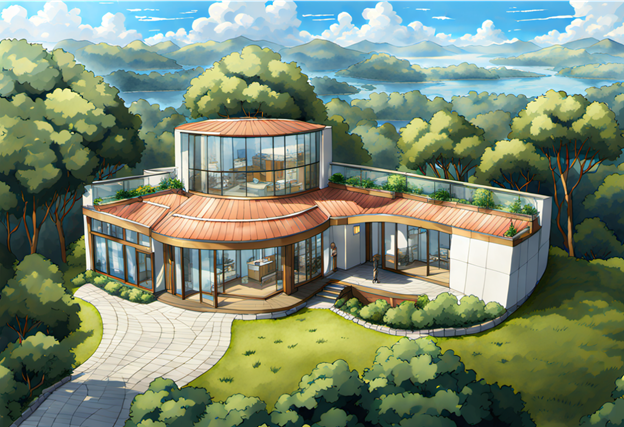
•When it comes to prompting, you can experiment with any style, such as pencil drawings, oil paintings, digital art, or even anime:
For more examples, see 2. Prompt.
Hints for the reference Archicad model
When it comes to the reference mass model, here are some good practices that can produce vastly improved results:
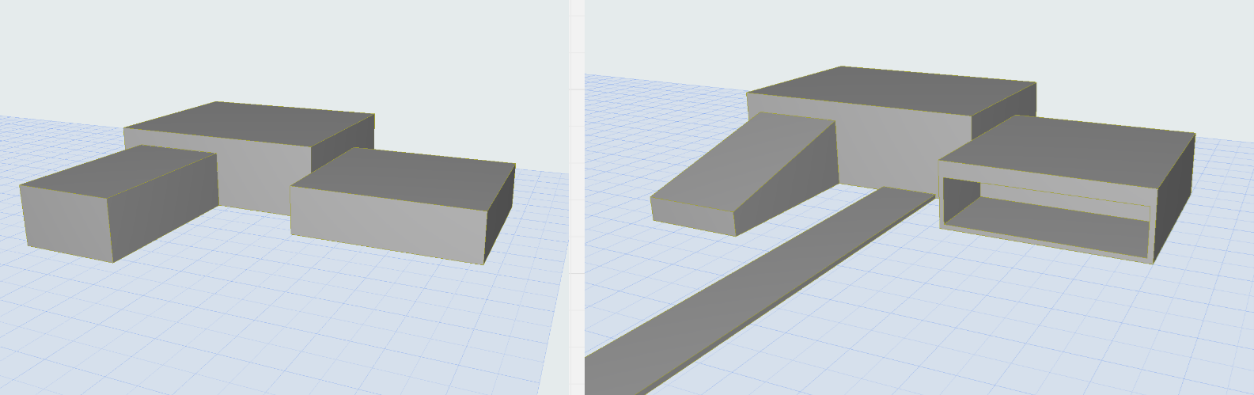
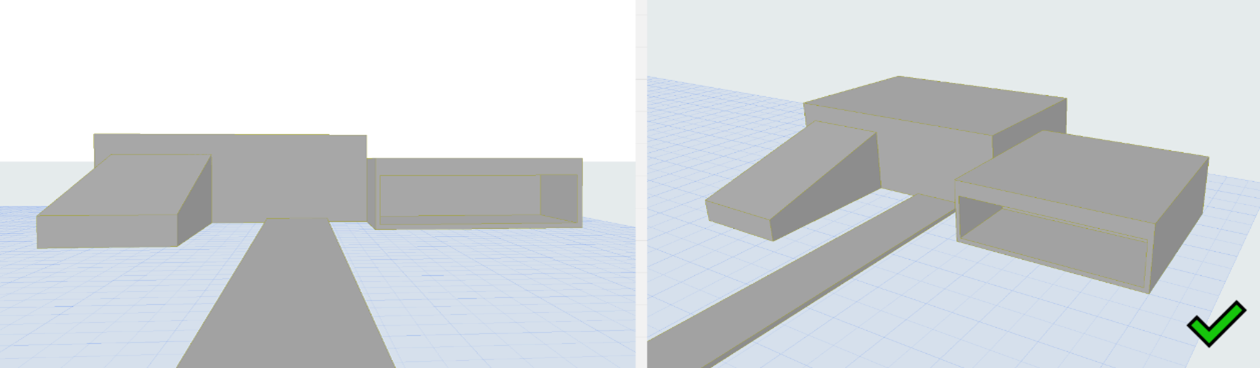
•A simple, slightly elevated perspective view is optimal. Direct elevation, axonometric, or low perspective views are not optimal. If your model has lots of curves, try using a view that shows them clearly:
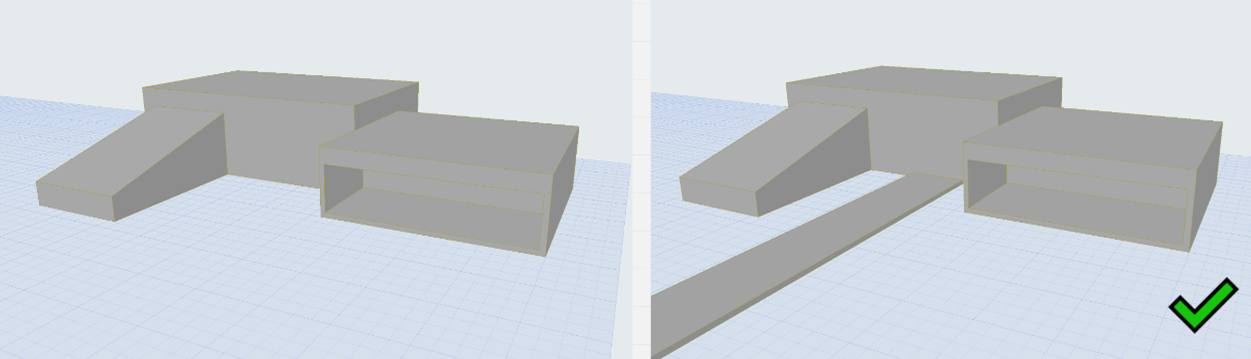
•Creating a few ground elements, like a bit of pavement, can lead to more solid results by helping the AI find the perspective and the ground level:
•Adding more details can lead to better results, but complexity isn't always necessary. Small changes can also produce interesting outcomes, such as adding a few more elements rather than just primitive shapes: