Migrating Libraries to Archicad 29
Migrate projects using version-specific libraries from Archicad 28 and earlier
Use the Migrate Libraries workflow to migrate your older-version project if it uses monolith libraries (e.g. Archicad Library 26). This way, you will avoid missing library parts.
1.Open your older-version project in Archicad 29.
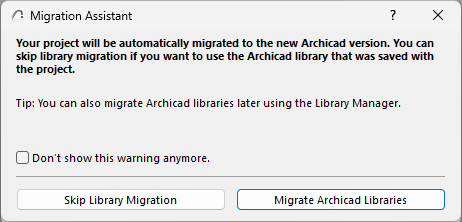
2.If your project includes an older-version Archicad Library, you see this:
3.Click Migrate Archicad Libraries. This process will do the following:
•Loads the Monolith Migration Library folder
•Automatically updates placed objects from the older Archicad libraries with their latest compatible version
•Removes Archicad libraries with lower version numbers
Having loaded the Monolith Migration Library, you can keep working with your migrated project, and you can place all objects as usual.
However, the Monolith Migration Library is not updated. Its contents are identical to the Archicad 27 library. New library developments are ongoing and available via the new Global Library libpack technology.
See also New Global Library (Archicad 28 and later).
Migrate Archicad Libraries for a Running Project
You can use the Migrate Archicad Libraries process at any time: Click Migrate Archicad Libraries button in Library Manager.
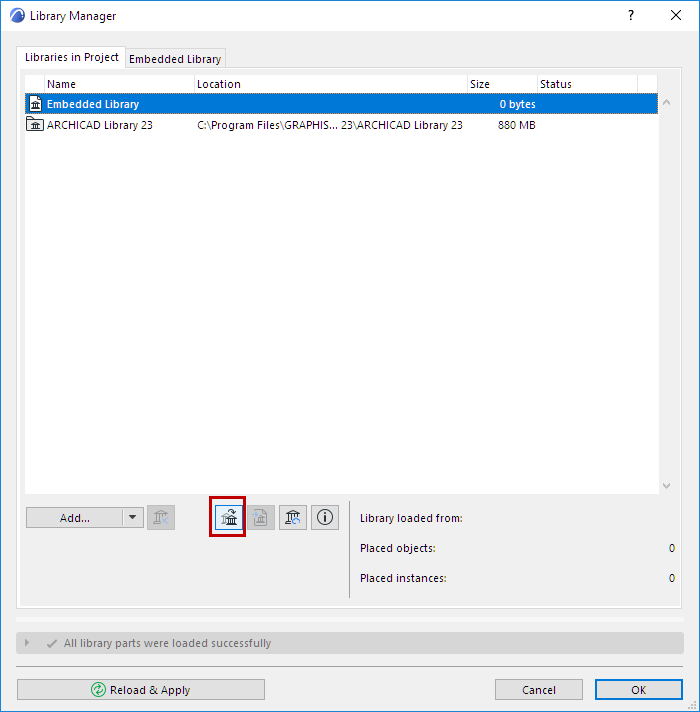
Note: If the button is not shown in Library Manager, this is because all needed libraries have already been loaded; and the project has no missing library parts.
Where to Find the Monolith Migration Library
Download from the Graphisoft website:
Download Monolith Migration Library