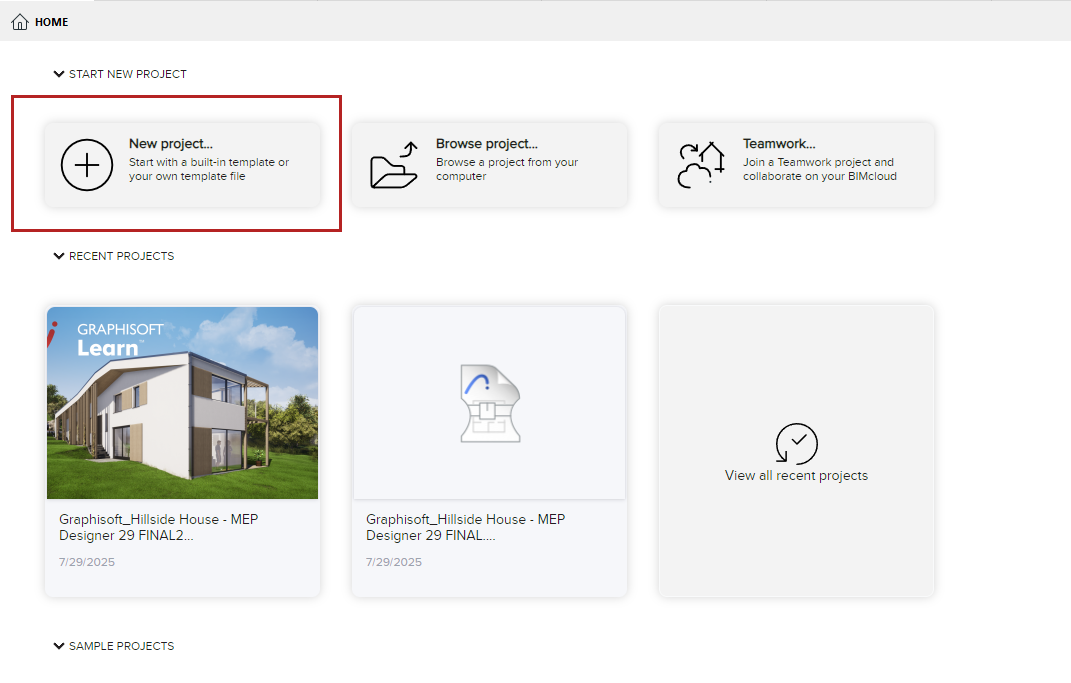
1.From the Start dialog or Home screen, click New project.
2.From the appearing dialog, choose a template from the list, or browse for a different template file.
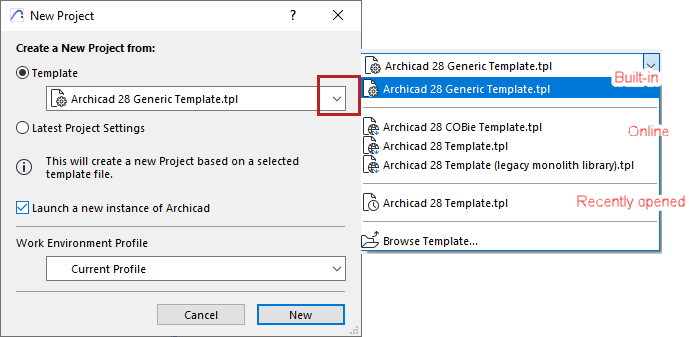
See also Template Files.
3.Choose a Work Environment Profile for the new project.
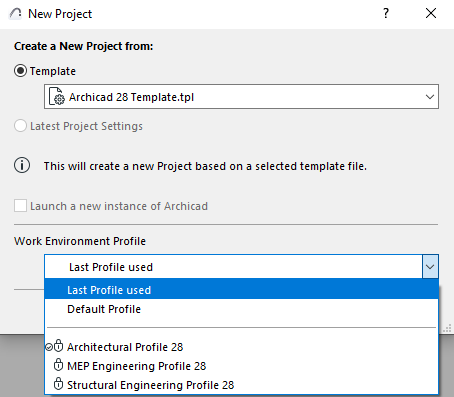
See also Default Work Environment and MEP Work Environment.
•Default Profile: The default one is listed with a checkbox. You can change this default at Options > Work Environment > Profile Options.
See Profile Options.
4.Click New to create the new project.
Create new project from a running project
1.Use File > New > New
2.If you already have Archicadrunning: You can choose Latest Project Settings, rather than a template, for the new project.
Note: To automatically use the default project settings: Press Alt (Opt) key with the New command. The command changes to New and Reset All.
Launch a new instance of the program
1.Do one of the following:
–File > New > New
–File > Open > Open
2.From the New Project or Open Project dialog, check Launch a new instance
Looking for dark mode? (macOS only)
Set it in your Work Environment: See Appearance (Dark mode for macOS).