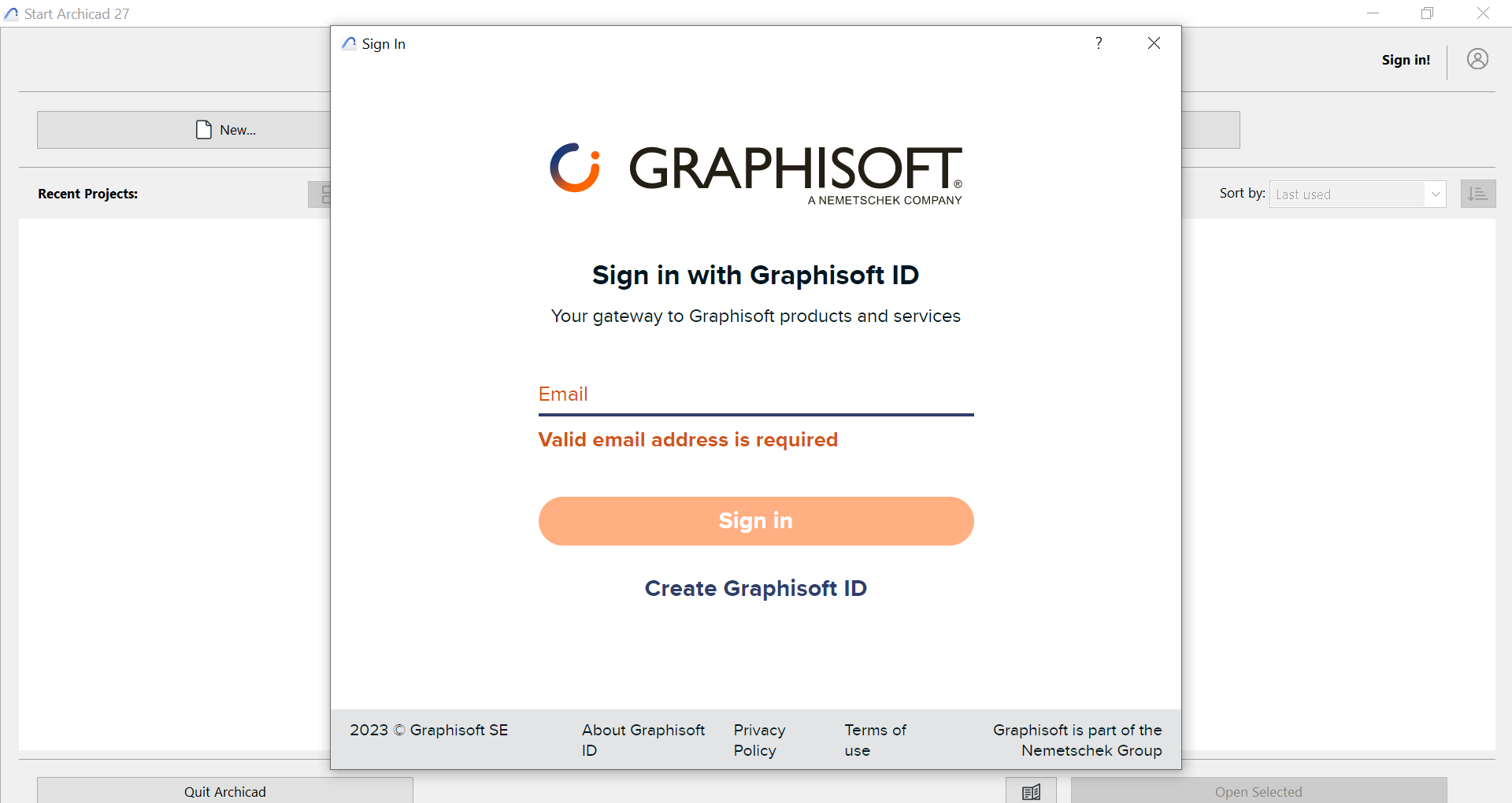
The Start dialog prompts you to sign in with your Graphisoft ID.
If you don’t have a Graphisoft ID, click Create Graphisoft ID.
By signing in, you help Graphisoft provide support and content that are better tailored to your specific needs.
For more details, follow the link on the left side of the startup screen.
You can skip Graphisoft ID sign-in, but after the grace period expires, signing in is required in order to use the full version.
Other Ways to Sign In or Out with Graphisoft ID
In a running program, do one of the following:
•Use the Help menu
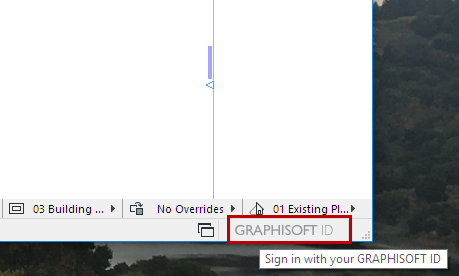
•Right-click Graphisoft ID in the Status Bar (bottom right of your screen)
•Use the command in the Select License Types dialog. (This dialog appears at startup if the required license is missing.)
Other Functions Requiring GSID
•when publishing a BIMx Hyper-model to the BIMx Model Transfer site
•when managing your Graphisoft licenses using License Manager
•when activating BIMcloud Basic
•when signing in as administrator on BIMcloud as a Service