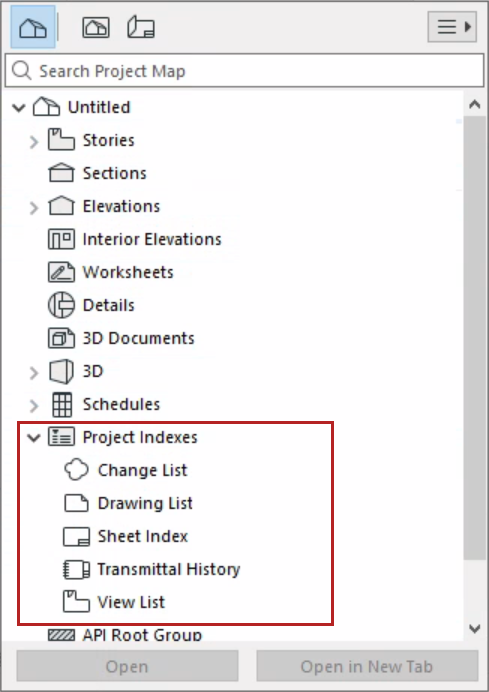
Project Indexes are table of contents-type items listed in the Project Map of the Navigator.
Use Project Indexes to make lists of revisions, issues, views, layout sheets and drawings, based on customized criteria.
To open an index, go to the Navigator palette and double-click its name.
Project index content is based on Project Index Schemes. To open a Project Index Scheme, do one of the following:
•Click Index Settings from the opened Schedule window
•Use the Project Index’s context menu in the Navigator
•In the Navigator Palette, select an Index, then click the “Settings” button at the bottom of the Navigator.
•Use Document > Schedules > Scheme Settings

The left panel lists the project’s Indexes, grouped by type. Click the panel header items (ID/Name) to sort them in ascending or descending order.
•Select the Index you want to edit, or use the buttons at the bottom to create, duplicate, delete.
•You can rename the Index and edit its ID directly in this list.
•You can also import and export Indexes among projects as XML format files.
The right side shows the Criteria and Fields of the selected Index.
The controls are identical to those of the Interactive Schedule Scheme Settings. See: Schedule contents: Criteria and fields
Like Interactive Schedules, Project Indexes can be saved as views, and you can edit project data directly from the Project Index window.
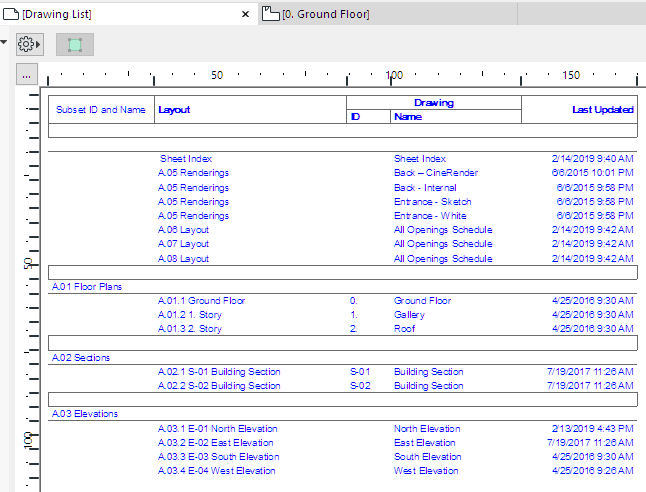
Suppose you are publishing a number of Layouts in a Publisher Set, and you want to include a Sheet Index which indicates which items have been published. (The same is available for published views.)
One way to do this is to add the field “Published” to the Index.
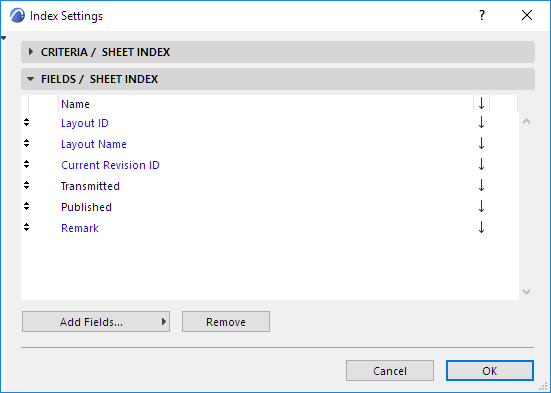
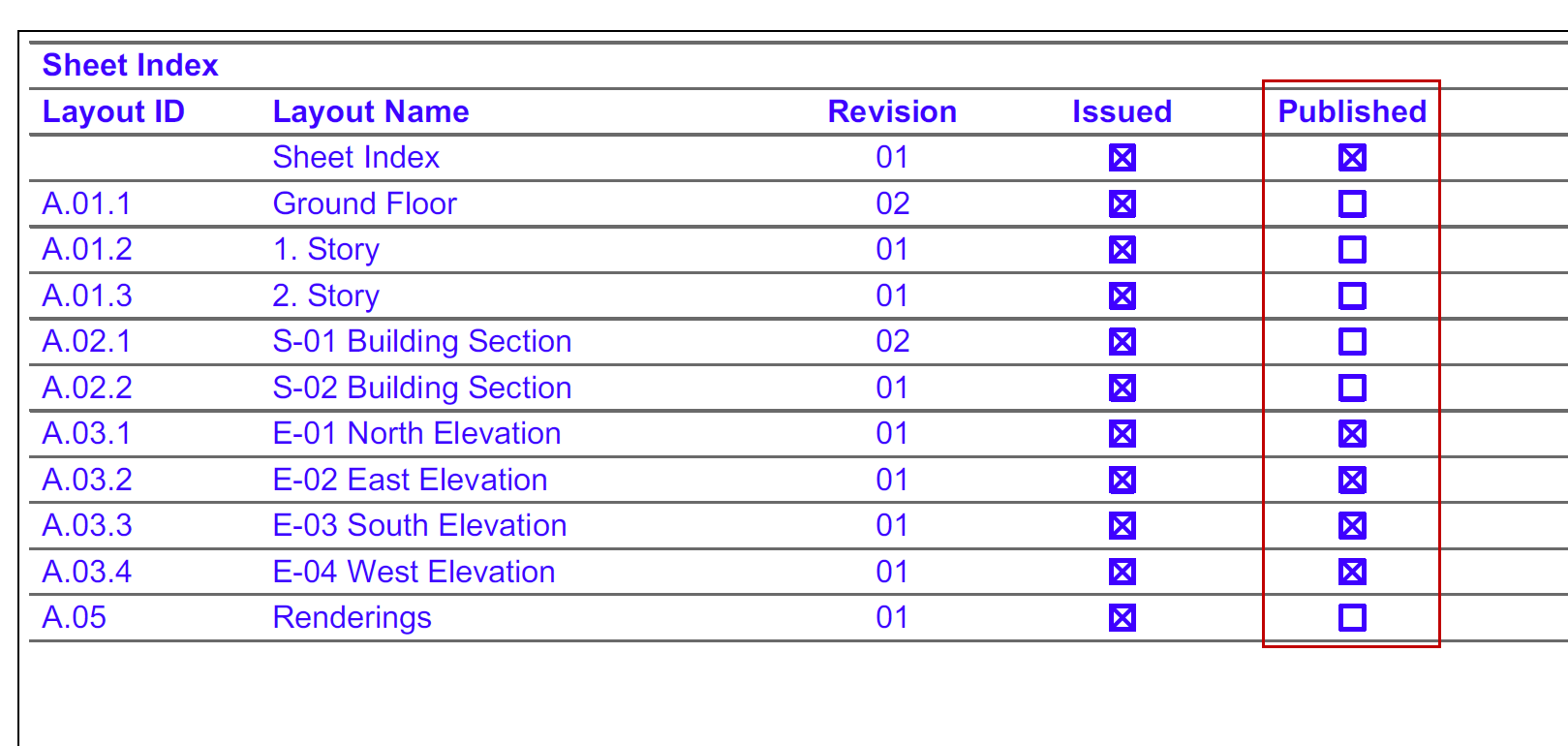
This places a field called “Published” on the Sheet Index. Its checkbox will be activated for those items which you have published, but only in the published copy of the Index (not while you work in the project).
For example, if you publish Elevation layouts, as well as this Sheet Index, then the published Sheet Index Layout will look like this:
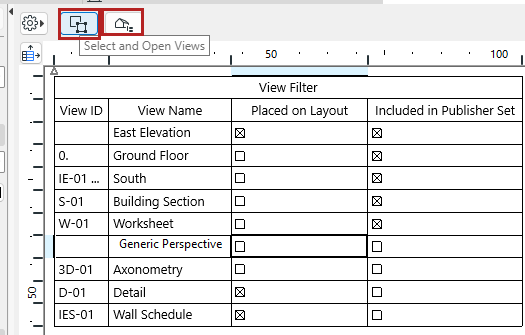
In the View List index: Special criteria are available so you can filter out views that aren’t being used for documentation.
In View List Index Settings:
•Placed on Layout: Set this criterium to False to list views that have not been placed on any layout
•Included in Publisher Set: Set this criterium to False to list views that have not been added to any Publisher Set
Also in Index Settings, you can use the corresponding fields to display the status of these views, with a checkbox.


Built-in buttons take you straight to the problematic view (open view or select in Navigator).
Related Topics: