Display Grand Totals and Totals
You can create additional schedule cells to display total sums or total quantities for any fields.
Topics in this section:
Display Grand Total (as a sum)
Display Grand Total (number of items)
Custom text for empty “Total” fields
Display Grand Total (as a sum)
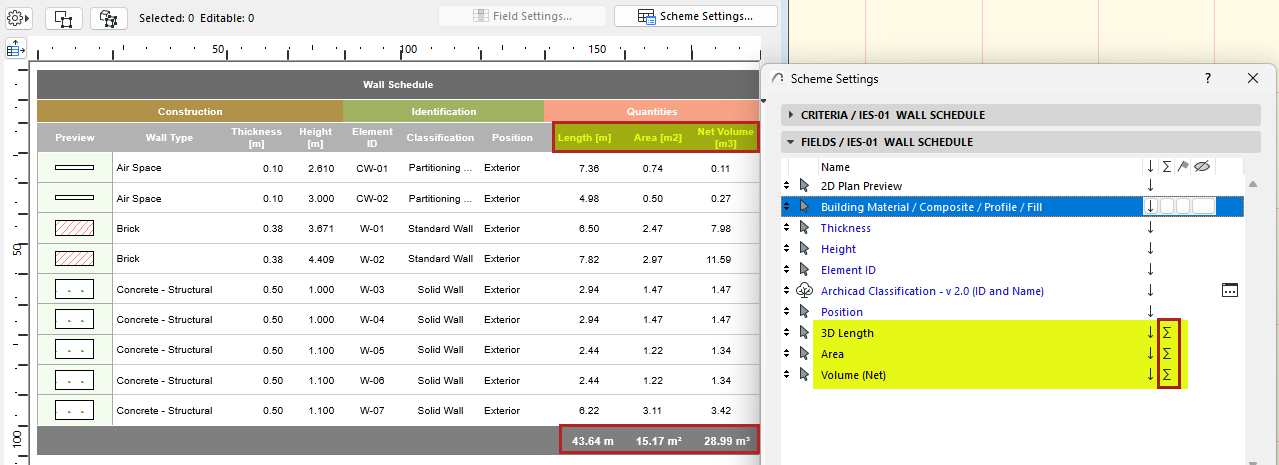
1.In the Fields panel of Scheme Settings: Choose the fields whose values you want to add up.
2.For each field, click the “sum” icon.
This creates a new schedule cell that calculates the sum of all values for this field. (Cell category is “Grand Total”).
Here, the “sum” icon is added to the 3D Length, Area, and Volume fields. As a result, the values of those fields are added up and displayed in the schedule.
Display Grand Total (number of items)
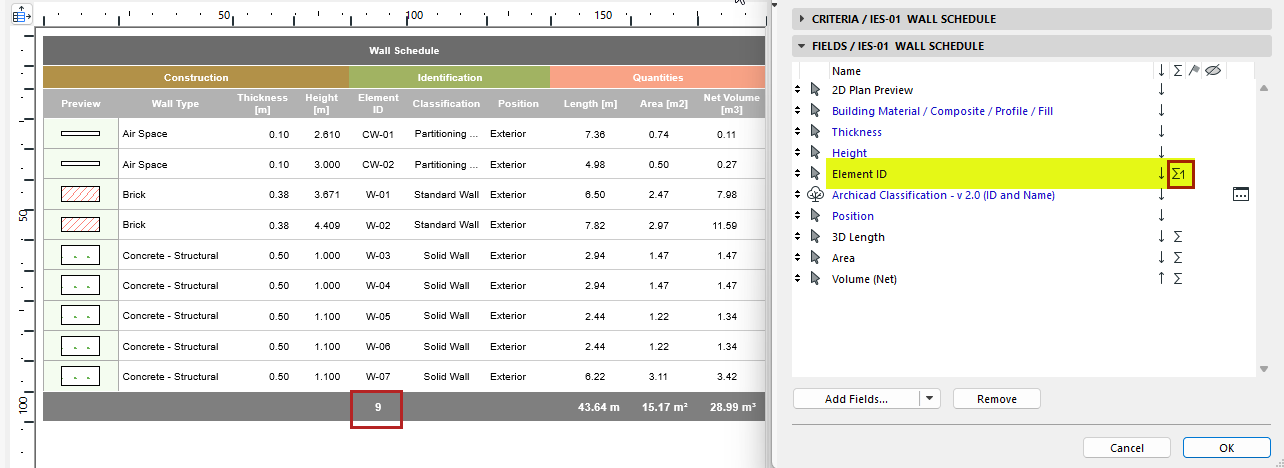
1.In the Fields panel of Scheme Settings, choose a field to display the number of listed items.
2.Click the “sum 1” icon.
Here, the “sum 1” icon is added to the Element ID field. As a result, the number of listed IDs is displayed in a new schedule cell. (Cell category is “Grand Total”)
:
If you have chosen fields to display their Grand Totals, you can also subdivide these into “Totals”, based on one field.
1.In the Fields panel of Scheme Settings, choose one field by which to subdivide the schedule, and display the flag icon next to this field.
Here, the “Building Material/Composite/Profile” field gets the flag. (This field is named Wall Type in the schedule).
2.As a result:
•Listed elements are now subdivided based on Wall Type (the field that is flagged)
•New Totals cells are created for each subdivision (Cell category is “Total”)

Use Options > Project Preferences > Calculation Rules to set how you want to calculate Grand Totals: Either add up the displayed (rounded) Total values, or add up Totals using their exact values.
See Calculation Rules Preferences
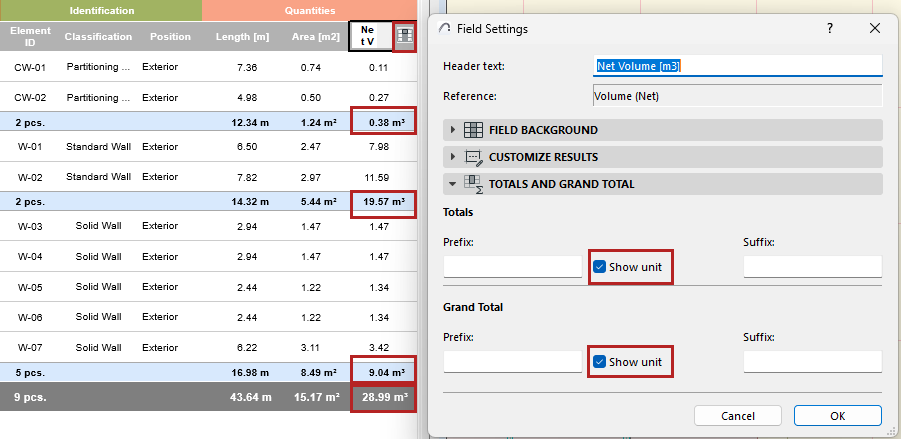
For fields that include a Total/Grand Total value, you can display its units (if relevant) and/or custom text.
1.For each schedule field: Open Field Settings:
• Click the Field icon from inside the cell, or the Field Settings button at the top of the schedule
2.In the Totals and Grand Total panel:
•Check Show unit (available for fields that display unit-based data)
•Add custom prefix and/or suffix
Custom text for empty “Total” fields
If the schedule is set up to display totals/Grand totals in certain fields, yet totals are not relevant for some of the other fields, those cells are left empty.
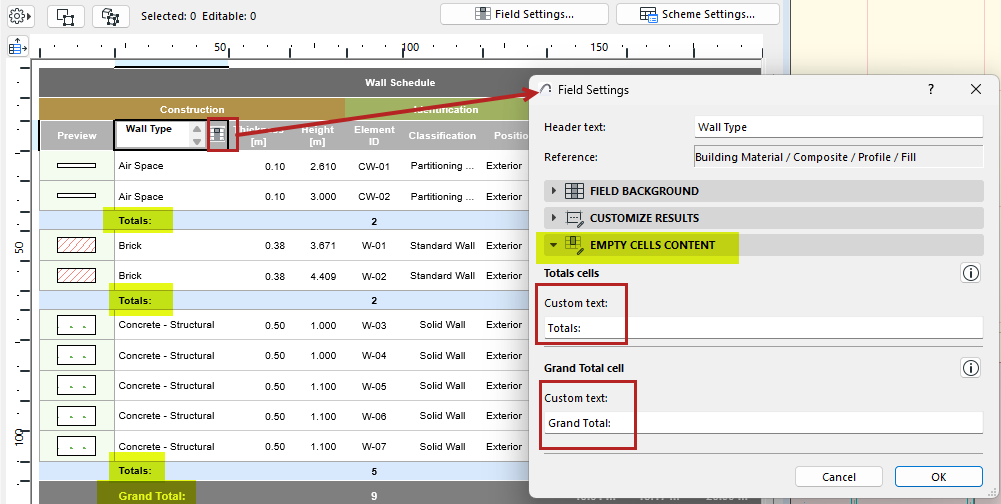
In these empty cells, you can add any custom text.
1.For the blank schedule field: Open Field Settings:
•Click the Field icon from inside the cell, or the Field Settings button at the top of the schedule
2.Use the Empty Cells Content panel to enter custom text for the empty Total and/or Grand Total fields. (This panel is available only if the Total or Grand Total is not enabled for this field.)
Note: Your custom text - even if you enter numerals - is interpreted as a string, and will not be considered as values for schedule calculations.