
Main Headers and Field Headers
The Main Header field is generated automatically at the top of the schedule: Its content is the name given to the schedule in Scheme Settings.
Field Headers are also generated automatically, at the top (or the left) of the columns (or rows) of data. Their content comes from the respective field names.
To change a header text, just click into the field and type, or use Field Settings.

Main Headers and Field Headers are a single cell category: You can customize the text format and color for all Headers together: see Apply formatting to cells by category.
It’s also possible to set separate cell backgrounds for the Main Header and for Field headers: see Set custom color for schedule field.
From the Settings pop-up, click Show/Hide Main Header or Show/Hide Field Headers.
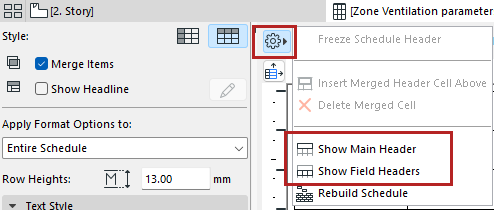
You can create an additional custom header above a group of selected field headers.
For example, select three field headers that show dimension data, and create a new header above these three columns, entitled “Dimensions”.
1.Select two or more column headers (use Shift-click to select multiple cells).
2.Choose Insert Merged Header Cell Above from Header Options.
Note: Not available unless you have selected at least two adjoining header cells!
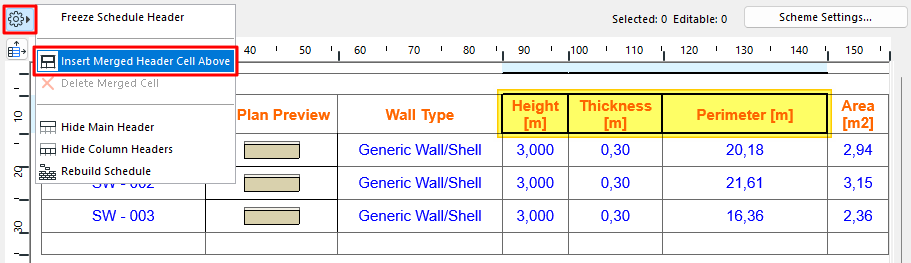
3.A new cell (named “merged” by default) appears above the selected headers.
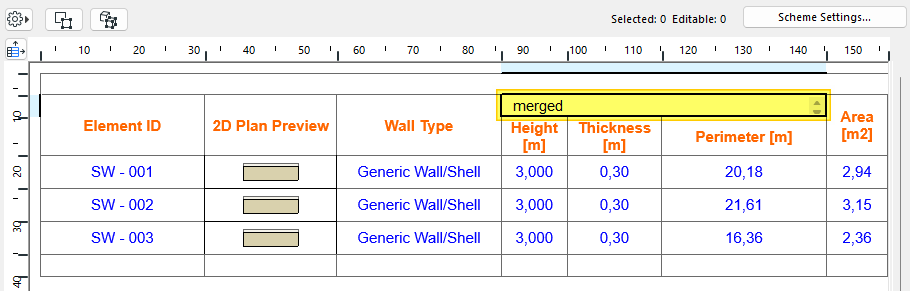
4.Type in any header text and format as usual.
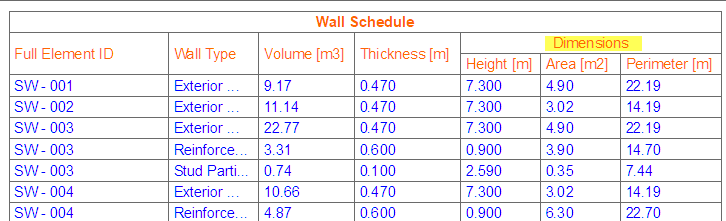
Note: Merged headers use the “Header” formatting by default: see Apply formatting to cells by category. You can also set a different cell background color for a merged header: see Set custom color for schedule field.
•Delete Merged Cell: Select an existing merged header to delete it.
This command ensures that the main header and field headers remain fixed and visible on screen even if you scroll away.