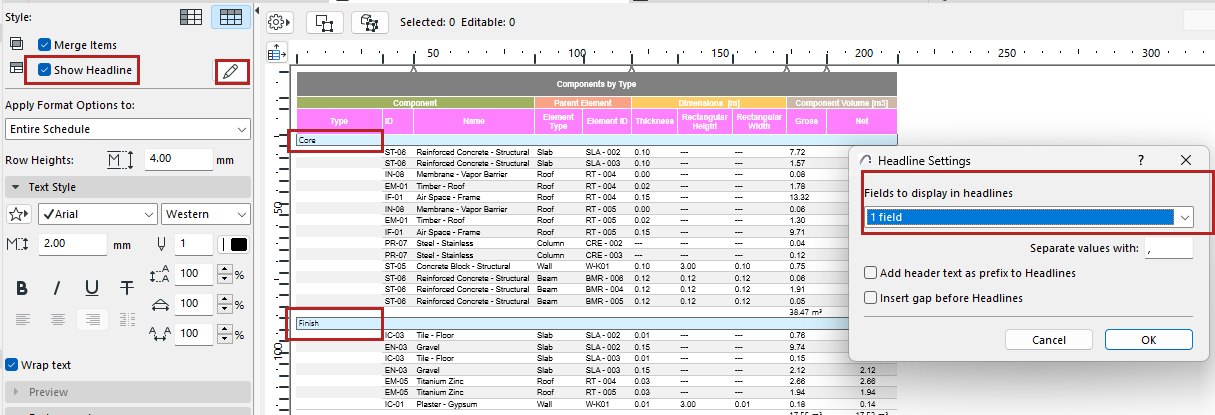
The Show Headline option lets you display data from one or more schedule fields in a separate row, above (or to the left) of the rest of the element data.
1.Click Show Headline.
2.Click the pencil icon to open Headline Settings, to define the content of the headline data:
•Fields to display: Choose how many of the schedule fields to display in the headline. (This includes any fields listed in Scheme Settings that are set to “hidden”.)
In this example, the Headline is set to display the value of the first field in Scheme Settings: the Component Type.
•Separator: Enter any character to separate the headline fields, if you are using multiple fields
•Add header text as prefix to headlines: Adds the Column/Row header name as a prefix to its value in the headline row
•Insert gap before headlines: Inserts an empty row before each headline row
•You can customize the format and color of Headline cells (see Apply formatting to cells by category)