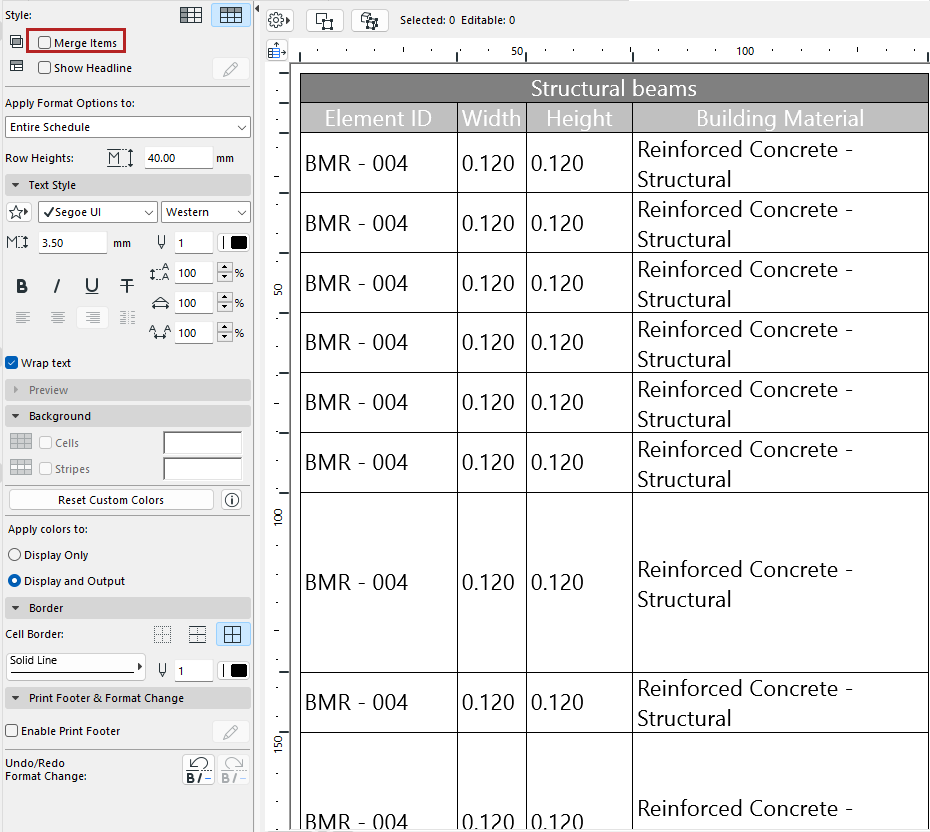
You can merge schedule items which you consider to be identical: Use the Merge items box in the left-hand formatting panel.
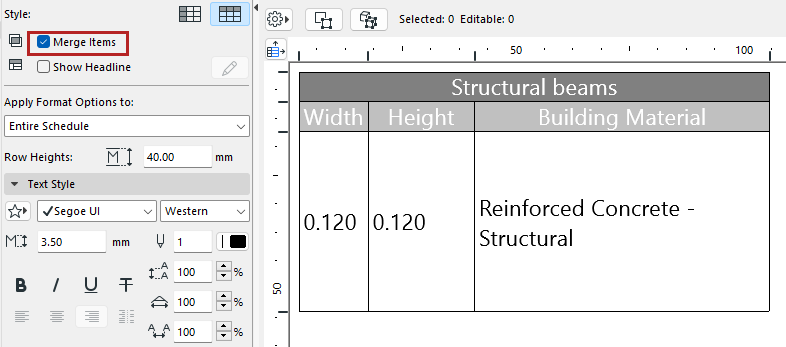
Merge uniform values - Example 1
Each schedule field contains identical values. Click Merge items to merge them all into a single record:
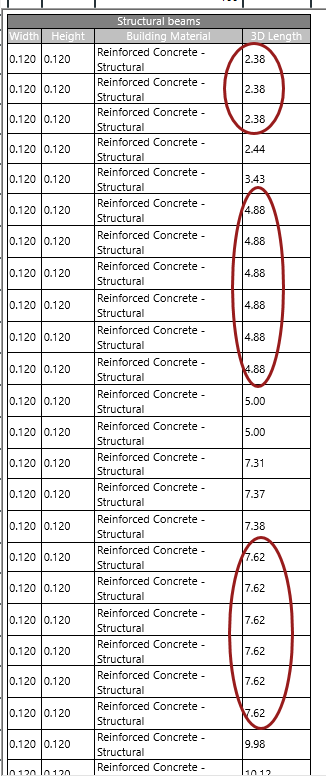
Merge uniform values - Example 2:
In this schedule, not all fields have identical values. The records which do have all uniform values (including uniform lengths) are merged, while the records with unique values remain unmerged.
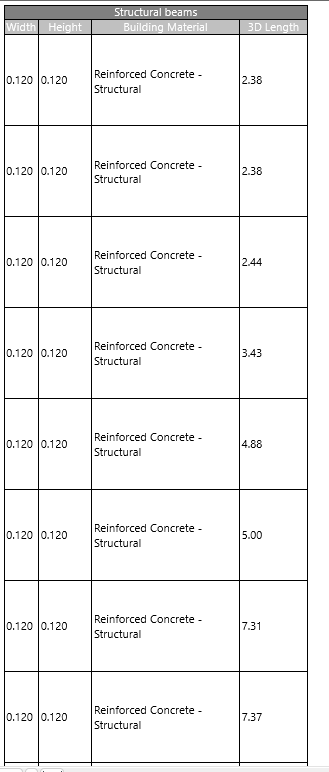
Merge records even if fields have different values
Suppose you want to merge the records - even if a particular field (e.g. length) includes several different values.
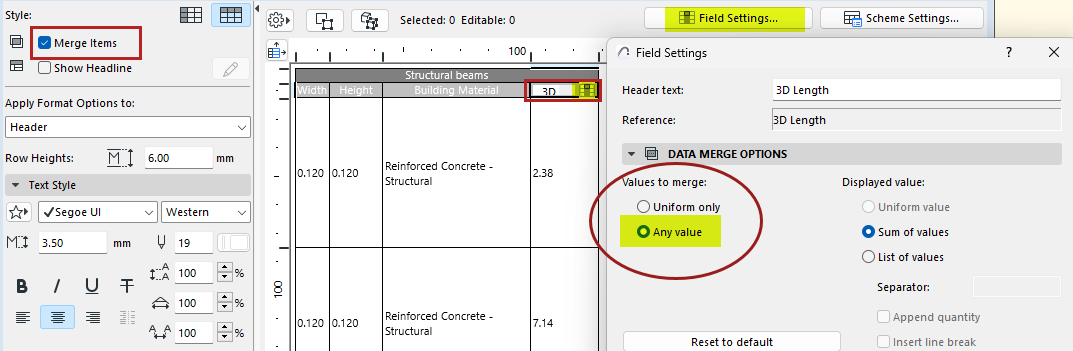
1.Check Merge items.
2.Open Field Settings for the 3D Length field:
• Click the Field icon from inside the cell, or the Field Settings button at the top of the schedule
3.Choose Any value. The 3D Length field will now be included in merged records even if the length values vary.
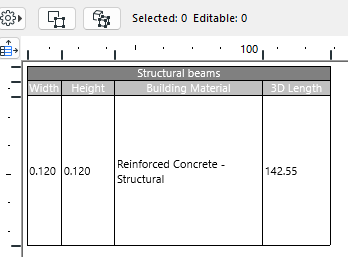
As a result, all fields in this schedule are merged (even though it includes multiple different length values).
In this example, the length values in the merged 3D Length field are displayed as a total sum.
But you have several options for how to display values in merged fields. See Displaying values in merged fields.